The AnkerMake Slicer
8.The AnkerMake Slicer
For the best printing experience, download and install the AnkerMake Slicer to your computer from www.ankermake.com/software
The AI recognition will be unavailable when the printer works with other 3D slicer software, such as Cura.
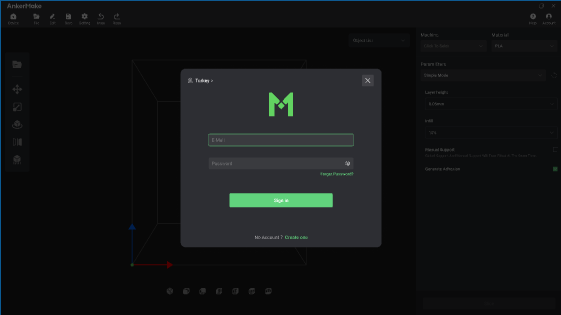
- When you sign up for an account, you are requested to choose your country or region.

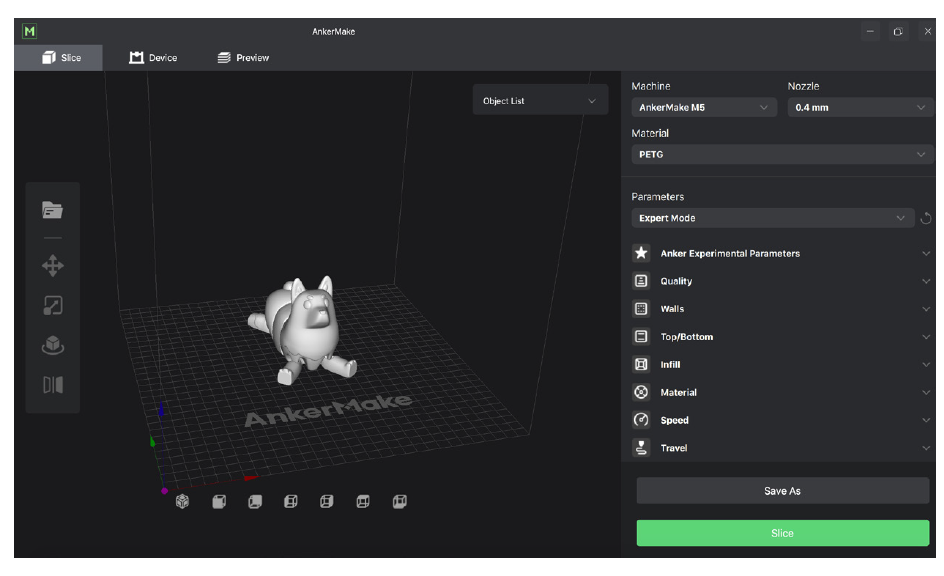
- Import a file to be sliced.

- Operating Interface
- Move: Choose the direction of movement, then input a specific value or choose a preset value for the distance of movement.

- Scale: Choose a specific axis for scaling, then input a specific scaling factor or choose a preset value.

- Rotate: Input a specific value or choose a preset value for rotation axes.

- Mirror: Choose a specific axis for mirroring.

- Select your device, materials and preset parameters to slice.
|
|
| |
|
|
|
|
|
|
| |
|
|
|
|

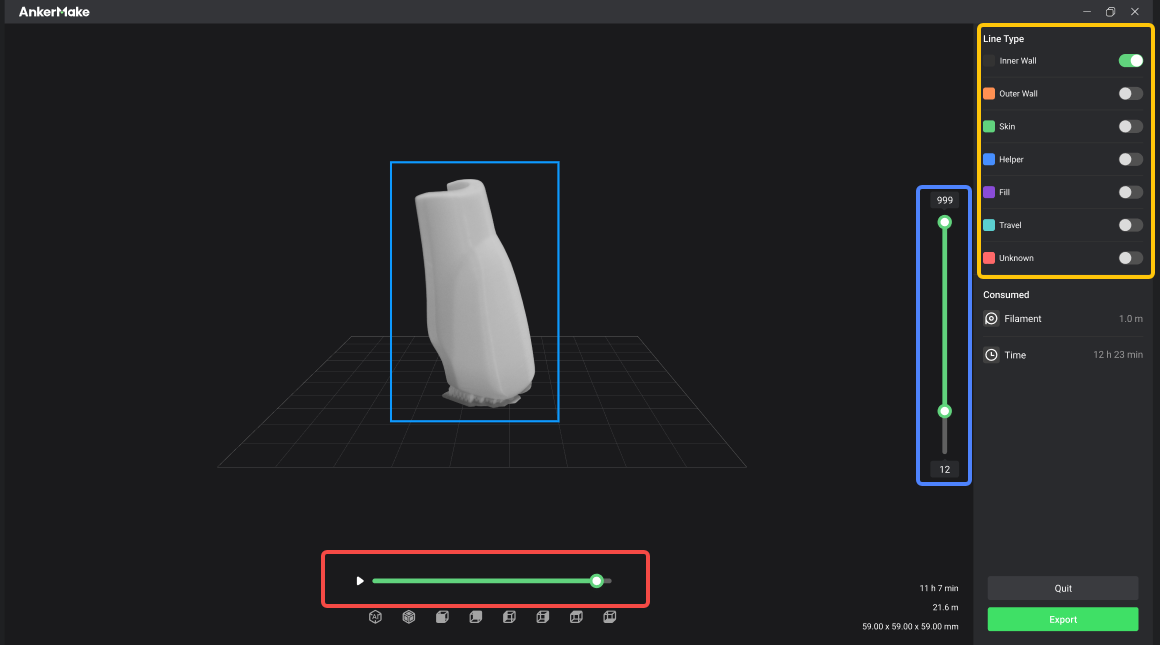
Slice, preview and export a file with Gcode format.
- Yellow Frame: Shows different structures.
- Red Frame: Scans planning path of current layer.
- Blue Frame: Previews different heights.
- Importing Files
You have three options for importing files to be printed.
- Plug your USB flash drive that stores files into the USB-C port, then tap Print > USB and select a file to print.
- Transfer the Gcode file to this device through the AnkerMake app, then tap Print > Local and select a file to print.
- Transfer the Gcode file to this device through the AnkerMake Slice software, then tap Print > Local and select a file to print.


119 undefined
How to Fix WiFi Connection Issues?


How to Fix the Extruder Filament Feeding Issue
How to Fix Auto-Level Errors for M5
How to Fix Homing Fail Issue
How to Fix a Clogged Extrusion Gear
How to Remove Filament and Clean Up Residual Filament of M5
Abnormal Heating of the Nozzle or Hot Bed
Filament Cannot Pass the Filament Detection Sensor of M5
Analyzing Bottom Layer Error
How to Fix the Data Transmission Error

M5C X Axis Belt Adjuster.gcode
Ankermake Studio Guide(V1.5.21)
M5C Y axis belt adjuster.gcode
V8110 AnkerMake M5C EU Declaration of Conformity
V8110_UK Declaration of Conformity
M5C Y Axis Belt Adjuster.gcode
View More


How to Replace the Air Guide of the Print Model Fan

How to Replace the Print Model Fan

Auto Leveling

V Wheel Adjustment

How to Transfer Files and Start Printing

Loading Filament
View More


