X-Axis Homing Fail
Please refer to the troubleshooting steps in this article if your M5 printer’s X-axis does not move when homing, or if you receive the error message shown in the following image.

a. Check whether the X-axis belt is loose or if there is any abnormal noise when sliding the nozzle module left and right. Please refer to the following link to adjust the belt of the X-axis.
How to Adjust the Belts on the X and Y Axis

a1. If the belt is loose, check whether the belt can be tightened by tightening the screw shown in the image on the right side.

b. If the above troubleshooting step did not resolve the issue, please disassemble the left shoulder and the nozzle housing. You can refer to the following link for detailed instructions:
How to Replace the X-axis Belt of M5
b1. Loosen the screws shown in the following images.


b2. Loosen the screw shown in the following image.

b3. Insert the belt into the hole shown in the image, and then lock the top wire.

b4. Install the nozzle and the left shoulder, and then tighten the belt via the left shoulder screw.
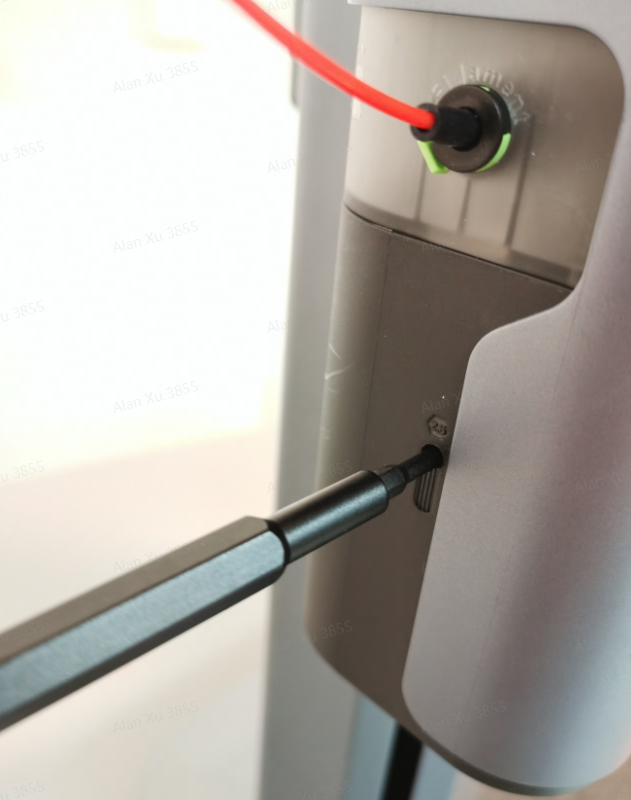
c. If the above troubleshooting steps still did not resolve the issue, please remove the back cover of the right shoulder, check whether the motor cable is plugged in, and then unplug the type-C cable and plug it in again.

Please try homing again after completing the above steps.
Y-Axis Homing Fail
Please refer to the troubleshooting steps in this article if your M5 printer’s Y-axis does not move when homing, or if you receive the error message shown in the following image.

a. First, confirm whether the printing platform is affected by external interference during the homing process, which would generally affect the return of the printing platform.
b. Check whether the Y-axis belt is elastic and whether there is a significant difference in the tightness of the belts on both sides. Please refer to the following link to adjust the belt of the Y-axis.
How to Adjust the Belts on the X and Y Axis

b1. If the belt is loose or there is a significant difference in the tightness of the belts on both sides, first loosen the two top screws of the wheel of the front motor, and then adjust the tightness of the synchronous belt through the two screws on the back. After the adjustment is completed, please tighten the screw of the motor wheel.

b2. Turn off the power or unlock the motor on the screen, and then manually move the printing platform back and forth for more than 10 times before you start printing again.

If the printing platform does not move when returning to home or printing.
a. Turn off the power or unlock the motor on the screen, and then manually move the printing platform to check if it is able to move smoothly.

b. If the printing platform cannot move smoothly, please check whether there is any foreign matter inside the chute and the tension block of the belt.

c. If the printing platform is able to move smoothly, please disassemble the bottom case of the printer and check whether the Y-axis motor wire is loose. Remove the screws at the various positions shown in the following image, unplug the two type-C wires and the Z motor wire, and then remove the bottom case.

c1. Check whether the wire terminal at the position shown in the following image is loose.

Please reassemble the bottom case and wires, and then try homing again.
Z-Axis Homing Fail
Please refer to the troubleshooting steps in this article if your M5 printer’s Z-axis does not move when homing, or if you receive the error message shown in the following image.

a. Turn the printer off, confirm whether the Z-axis can be raised to the highest point manually and if it can slide up and down smoothly.

b. If the Z-axis cannot be raised to the highest point, check whether the screw rods on both sides of the Z-axis are skewed.

b1. If it is skewed, open the top plastic cover, remove the inner sheet metal cover, reassemble, correct the skewed screw rod, reassemble after correction, and then test whether it can be moved to the highest point to slide up and down smoothly.

If the Z-axis cannot move up and down on one or both sides.
a. Check whether the parallelism between the X-axis and the top beam has a significant difference. If the difference is significant, turn off the power and manually correct the X-axis to be nearly parallel to the top beam.

b. Check whether the Z-axis motor cable is plugged in properly, whether the motor pins are skewed that may have caused poor contact, and whether the motor cable is damaged.

c. Remove the screws at the various positions shown in the following image, unplug the two type-C wires and the Z motor wire, remove the bottom case, and then check whether the Z motor wire on the motherboard is plugged in properly.

Please reassemble the bottom case and wires, and then try homing again.
If you have any further questions, please contact us for assistance.










