Cause of Failure:
There is abnormal data communication on the M5 screen, preventing normal printing and other operations. When the pop-up window shown in the figure below appears, there may be several possible reasons:
- Poor USB-C connection at the M5 base.
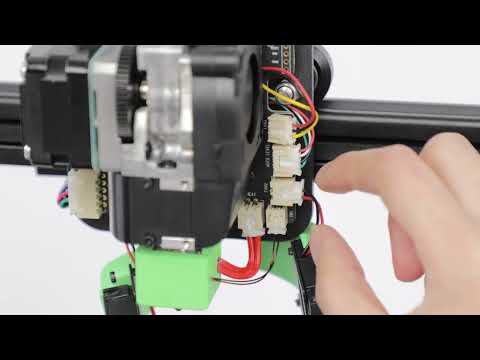
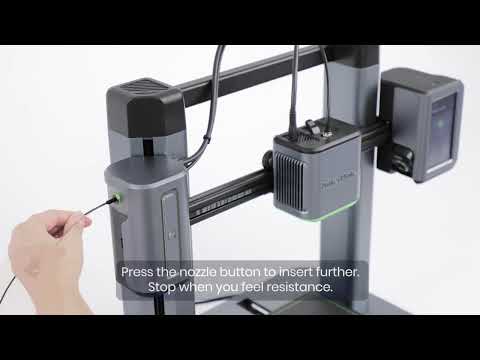
- Poor USB-C connection at the nozzle assembly.

Solution:
1. Poor USB-C Connection at the M5 Base
A. Open the cover at the mark on the back of the M5 base.

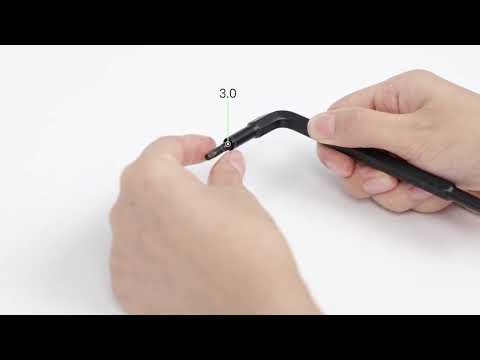
B. Check if the bottom USB-C interface fixing bolt is loose. If it is loose, tighten it with an H2.0 hexagonal wrench.

C. Use the H2.0 hex wrench to remove the 2 USB-C cables and reinstall them.
2. Poor USB-C Connection at the Nozzle Assembly
A. Check if the USB-C interface fixing bolt on the nozzle assembly is loose. If it is loose, tighten it with an H2.0 hexagonal wrench.
B. Use the H2.0 hex wrench to remove the USB-C cable and reinstall it.

If the problem still cannot be solved, please contact us for further assistance.