If your M5 printer is experiencing issues with its Z-axis not being able to correctly complete the homing process, please try the following troubleshooting steps to resolve the issue.
Power off the M5 printer and manually move the Z-axis to the bottom. Then, power on the M5 printer to verify if the Z-axis is still jamming when it moves. If the Z-axis is still jamming, please proceed with the following troubleshooting steps.
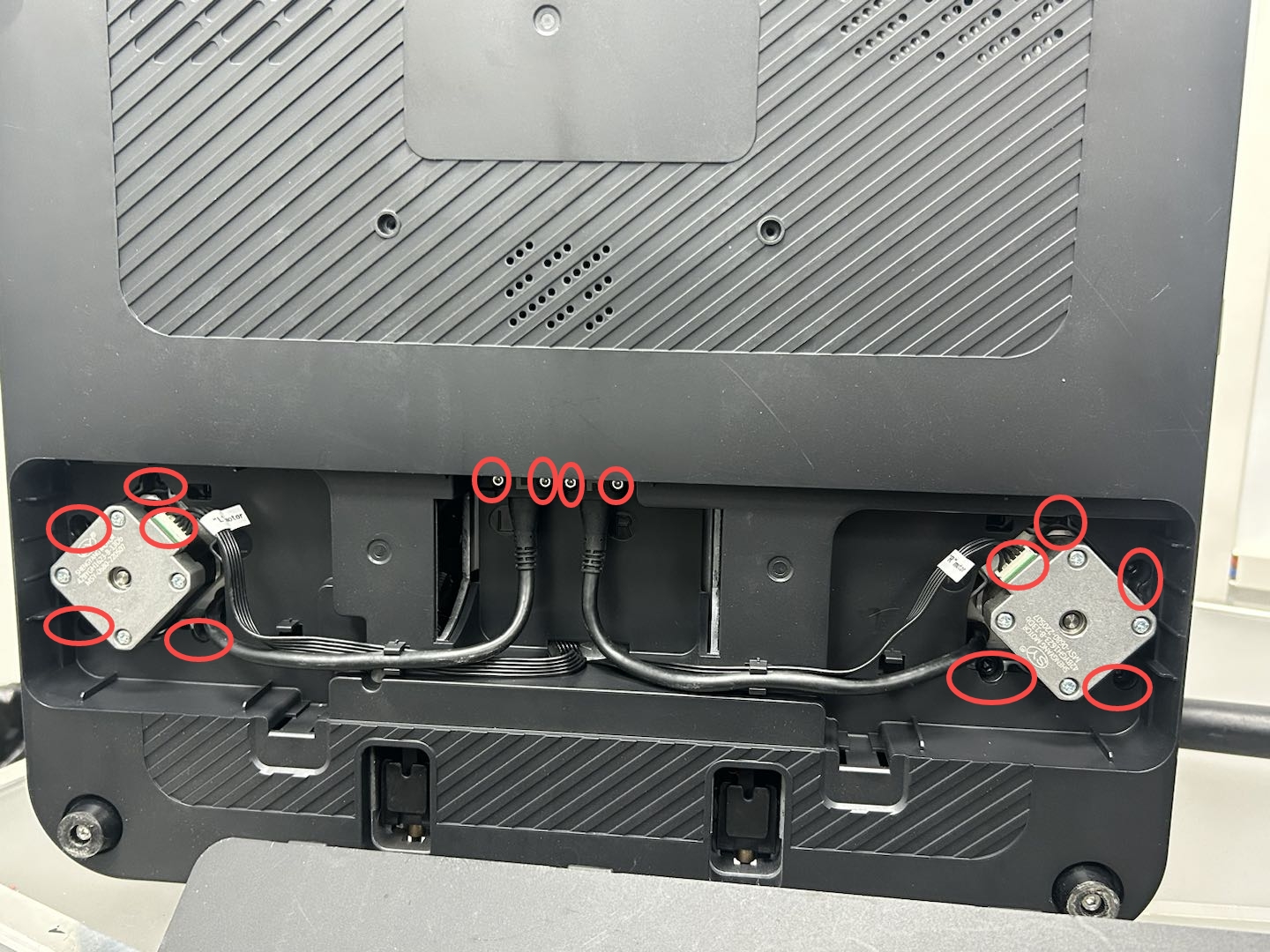
Power off the M5 printer and lay the printer on its side. Remove the bottom cover plate, check whether the Z-axis motor wire is loose, and check whether the motor cable is damaged. If the components are not damaged, please unplug and plug in the motor wire, and then run the Z-axis again to confirm whether it is able to function normally.
Remove the bottom shell screws, remove the bottom shell, and then check whether the cable and the main board end motor wires are securely connected. Additionally, please check whether the wires are damaged.
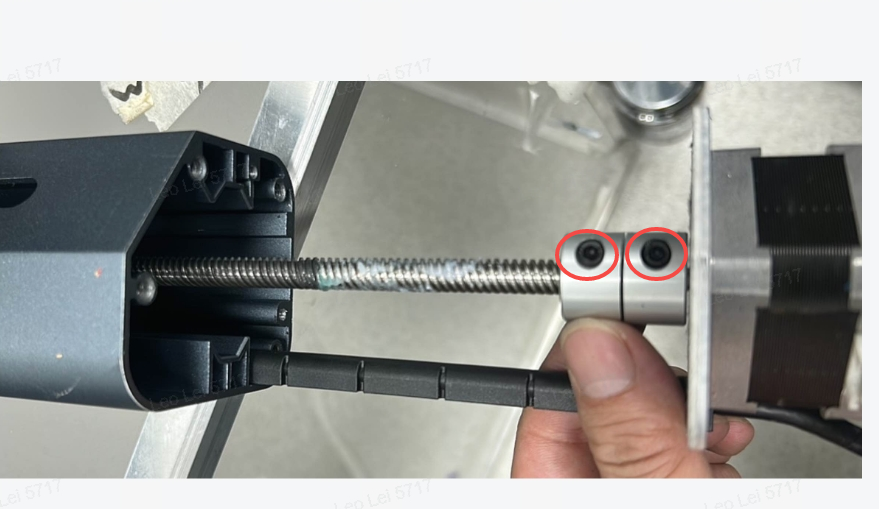
Check whether the Z-axis wire rod and coupling may have detached from the slot where the Z-axis is stationary, or manually move the Z-axis to check whether it is loose. If it is loose, please try the following steps:
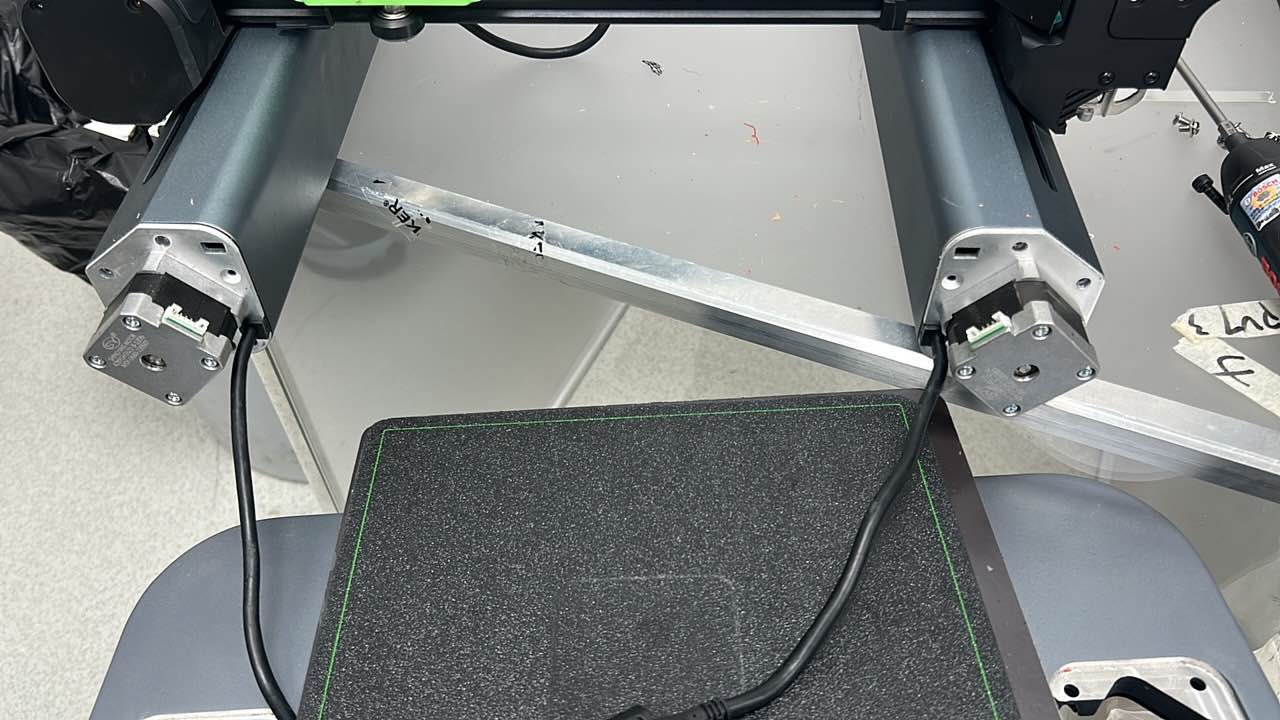
Carefully pull out the Z-axis motor wire, remove the Type-C cable screws and pull out the Type-C cable, remove the eight Z-axis screws, and then remove the gantry assembly from the base.
Carefully remove the loose Z-axis motor screwdriver, pull out the Z-axis motor and wire rod, and then check whether the screwdriver at the coupling is loose. if necessary, simply tighten the motor and wire rod before reinstalling these components.
After tightening the screws, please reassmeble the components.
If your M5 printer is still unable to properly complete the homing process after completing the above troubleshooting steps, it is possible that the motor may be damaged and it may need to be replaced.
If you have any further questions, please contact us for assistance.