How to Stop the Broken Filament Alert of M5

Cause of Failure:

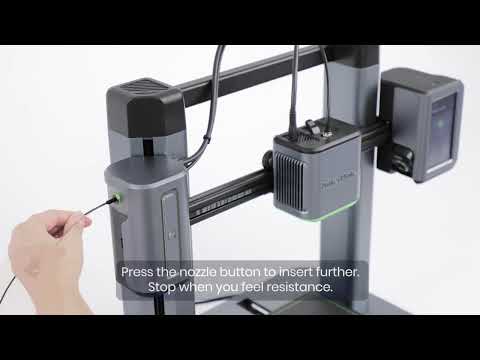
The left shoulder of the printer has a photoelectric switch to detect filament breakage. When there is an abnormal filament breakage on the left shoulder, a prompt will appear on the screen, and the print job will be paused.

When the pop-up window shown in the figure below appears, there may be several possible reasons:

  1. Exhausted filament.
  2. Filament has run out.
  3. Detection of material failure.

Solution:

(1) If the Filament is Used Up or Cut Off:

It is necessary to remove the filament remaining in the guide tube and add new filament before printing. The steps for removing the remaining filament are as follows:

  1. Remove Guide Tube:
    1. Remove the snap on the pneumatic connector on the extruder assembly.
    2. Press the washer, pull out the guide tube, and remove the filament from the guide tube.

Preheat the Nozzle:

  • Turn on the M5 power and preheat the nozzle to 180°C.

Remove Remaining Filament:

  • Press and hold the extrusion clip on the extruder assembly to remove the remaining filament.

(2) If It Is Not the Above Two Cases:

It is judged that the breakage detection module is faulty. The breakage detection module can be removed first and then printed. For specific operations, please refer to the breakage detection replacement method in the Knowledge Base.

If the problem still cannot be solved, please seek technical support.

By following these steps, you can stop the broken filament alert and resume printing on your AnkerMake M5 printer. If you have any questions, please contact us for assistance.


Unresolved icon
119 undefined
TroubleShooting
Daily Maintenance
FAQ
Part Replacements
Manual
Get Started
How to Fix WiFi Connection Issues?
29454 views2 likes/2025-04-07 18:26:11
How to Fix the Extruder Filament Feeding Issue
22084 views2 likes/2023-03-14 09:55:35
How to Fix Auto-Level Errors for M5
106 views1 likes/2026-08-14 16:11:08
How to Fix Homing Fail Issue
3957 views1 likes/2025-04-07 18:05:40
How to Fix a Clogged Extrusion Gear
3696 views3 likes/2025-04-08 13:37:22
Abnormal Heating of the Nozzle or Hot Bed
107 views1 likes/2026-08-14 16:11:09
Filament Cannot Pass the Filament Detection Sensor of M5
3359 views9 likes/2025-04-07 18:25:03
Analyzing Bottom Layer Error
3691 views3 likes/2024-05-30 17:46:41
How to Fix the Data Transmission Error
1950 views2 likes/2025-04-07 18:24:26
Download icon
M5C X Axis Belt Adjuster.gcode
Download icon
Ankermake Studio Guide(V1.5.21)
Download icon
M5C Y axis belt adjuster.gcode
Download icon
V8110 AnkerMake M5C EU Declaration of Conformity
Download icon
V8110_UK Declaration of Conformity
Download icon
M5C Y Axis Belt Adjuster.gcode
View More
Play videoHow to Replace the Air Guide of the Print Model Fan
How to Replace the Air Guide of the Print Model Fan
Play videoHow to Replace the Print Model Fan
How to Replace the Print Model Fan
Play videoAuto Leveling
Auto Leveling
Play videoV Wheel Adjustment
V Wheel Adjustment
Play videoHow to Transfer Files and Start Printing
How to Transfer Files and Start Printing
Play videoLoading Filament
Loading Filament
View More