AnkerMake App
6. AnkerMake App
The AnkerMake app enables you to try the best of this 3D printer and enhances your experience.
- The app will update from time to time.
|
|
|
|
|
|
|
|
|
|
|
|
|
|
|
|
|
|
|
|
|
|
|
|
|
|
|
|
|
|
- Download and install the AnkerMake app from App Store (iOS devices) or Google Play (Android devices).

- When you sign up for an account, you are requested to choose your country or region.

- Add device. Make sure your phone's Bluetooth is enabled and close to your AnkerMake M5.

- Add AnkerMake M5 from the device list and enter the PIN code that is displayed on the printer's touch screen.
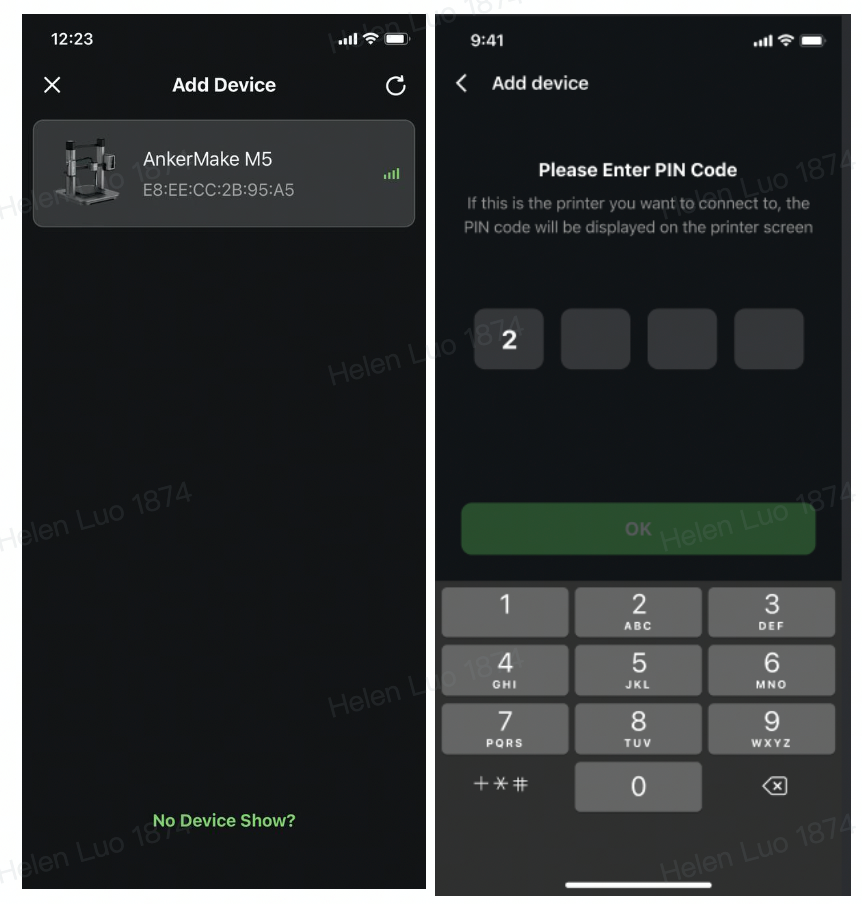
- Connect your AnkerMake M5 to Wi-Fi and rename it.
- Any Wi-Fi that needs authentication is not supported like the public Wi-Fi in airports, subways, hotels, etc. It only supports 2.4GHz network.


- Now access the home page of AnkerMake M5.


119 undefined
How to Fix WiFi Connection Issues?


How to Fix the Extruder Filament Feeding Issue
How to Fix Auto-Level Errors for M5
How to Fix Homing Fail Issue
How to Fix a Clogged Extrusion Gear
How to Remove Filament and Clean Up Residual Filament of M5
Abnormal Heating of the Nozzle or Hot Bed
Filament Cannot Pass the Filament Detection Sensor of M5
Analyzing Bottom Layer Error
How to Fix the Data Transmission Error

M5C X Axis Belt Adjuster.gcode
Ankermake Studio Guide(V1.5.21)
M5C Y axis belt adjuster.gcode
V8110 AnkerMake M5C EU Declaration of Conformity
V8110_UK Declaration of Conformity
M5C Y Axis Belt Adjuster.gcode
View More


How to Replace the Air Guide of the Print Model Fan

How to Replace the Print Model Fan

Auto Leveling

V Wheel Adjustment

How to Transfer Files and Start Printing

Loading Filament
View More


