The nozzle is blocked, and the filament cannot be extruded.
The nozzle tip is worn, leading to poor print quality.
Replacement Steps:
Disassembly:
Open the M5C printer, open the AnkerMake APP, and enter the Device > Move menu. First, set the Z-axis to zero, and then use +50 to move the Z-axis forward to 150mm.
Open the mobile APP, enter the Control menu, preheat the nozzle according to the printing temperature on the filament spool, select 60mm for the retraction length, and then click the "Retract" function.
After the filament is retracted, press the extruder handle with your left hand and pull out the filament from the extruder with your right hand by grasping the filament.
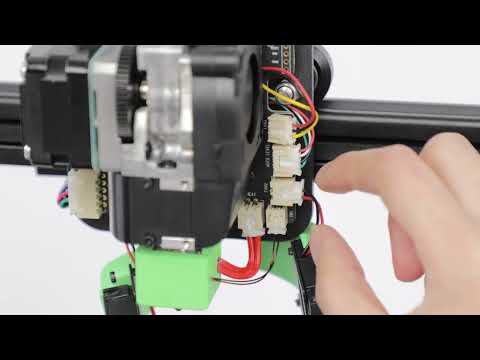
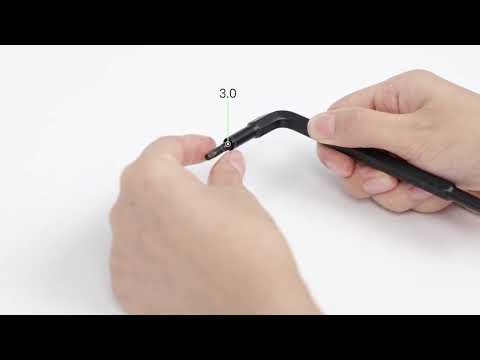
Keep the nozzle at the preheating temperature and use a 6mm socket wrench to rotate it clockwise until it is twisted out.
Note: Do not touch the nozzle, heating block, and other heated parts with your hands. Use needle-nose pliers if necessary.
Installation:
Use a new nozzle embedded in the 6mm socket wrench, keep the nozzle temperature at the preheating temperature, and use the 6mm socket wrench to turn counterclockwise until the nozzle is tightened.
Note: Operate in a high-temperature environment. Do not touch the nozzle, heating block, and other heated parts with your hands. Use needle-nose pliers if necessary.
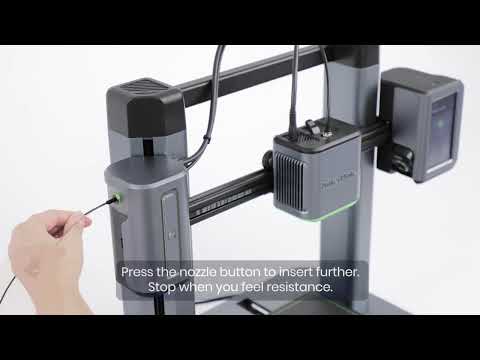
Insert the filament through the Teflon tube, press the extruder handle, and continue to push the filament into the extruder until it engages with the extruder gear.
Open the mobile APP, enter the Control > Extrusion menu, preheat the nozzle, and then click the "Extrude" function.
Observe that the nozzle extrudes filament and confirm the successful nozzle replacement.
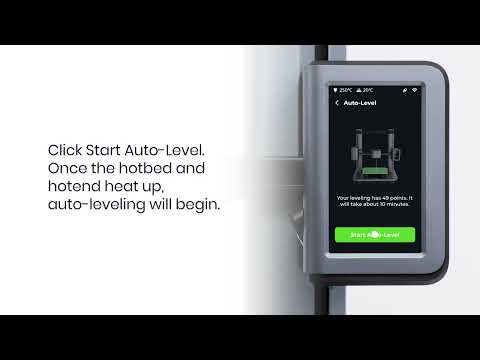
Perform automatic leveling and start a new print job.