Features and description There are drooping filaments on the lower surface of the model.
Reasons, Diagnoses, and Solutions
1. Lack of Support for Suspended Surface Structures Causes the Lower Surface to Sag
Diagnosis: Check whether the suspended surface structure of the model (≤ 30°) is designed with support.
Solution: In Expert mode, enable Generate Support Material under Expert > Support to automatically generate support, and set the support parameters.
Dynamic Overhang Speeds Parameter to Optimize Overhang Print Quality
Diagnosis: Check whether the dynamic overhang speeds parameter is enabled in the Slicer by going to Expert > Speed > Overlap Enable.
Solution: Enable the automatic overhang speed reduction function through Expert > Speed > Overlap Enable > Enable dynamic overhang speeds, and reduce the overhang printing speed at different angles through Overhang Speed.
Movement is Too Fast When Printing the Lower Surface, Causing the Extruded Filament to Not Cool Enough and Resulting in Hanging Filaments
Solution: Appropriately reduce the overall printing speed through Expert > Speed.
Fan Cooling Anomaly
A. The Model Cooling Fan is Not Turned On
Diagnosis: Check whether there is a sound of the fan turning on during the printing process (generally PLA+ starts at the second layer to 100% enable the fan); check whether the printing fan is turned on through Filament > Cooling.
Solution: Turn on the fan function.
B. Model Cooling Fan is Damaged
Diagnosis: Feel whether there is wind blowing out of the nozzle during the printing process.
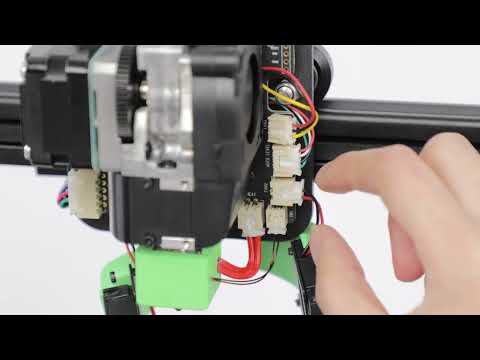
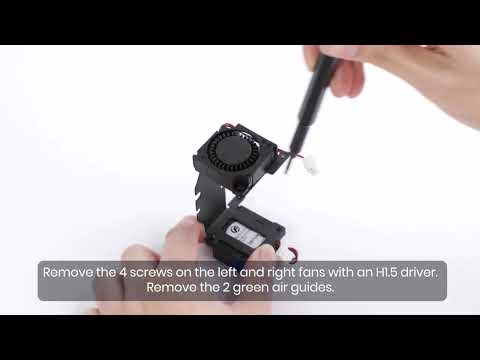
Solution: Replace the model cooling fan. Refer to the following resources for detailed instructions:
If none of the above methods solve the problem, please contact us directly at us and provide logs (via the app: Me > About > Upload Log, or via the device: Setting > Upload Log), G-code, STL model, and photos of the issue for analysis.