Step 3: Connect the Exhaust Duct
The Purifier P1 is an air purification accessory designed for the eufyMake E1 (V8260) UV Printer. It uses internal recirculation filtration to purify the gases produced during printing, with no need to vent outdoors.
Package Contents
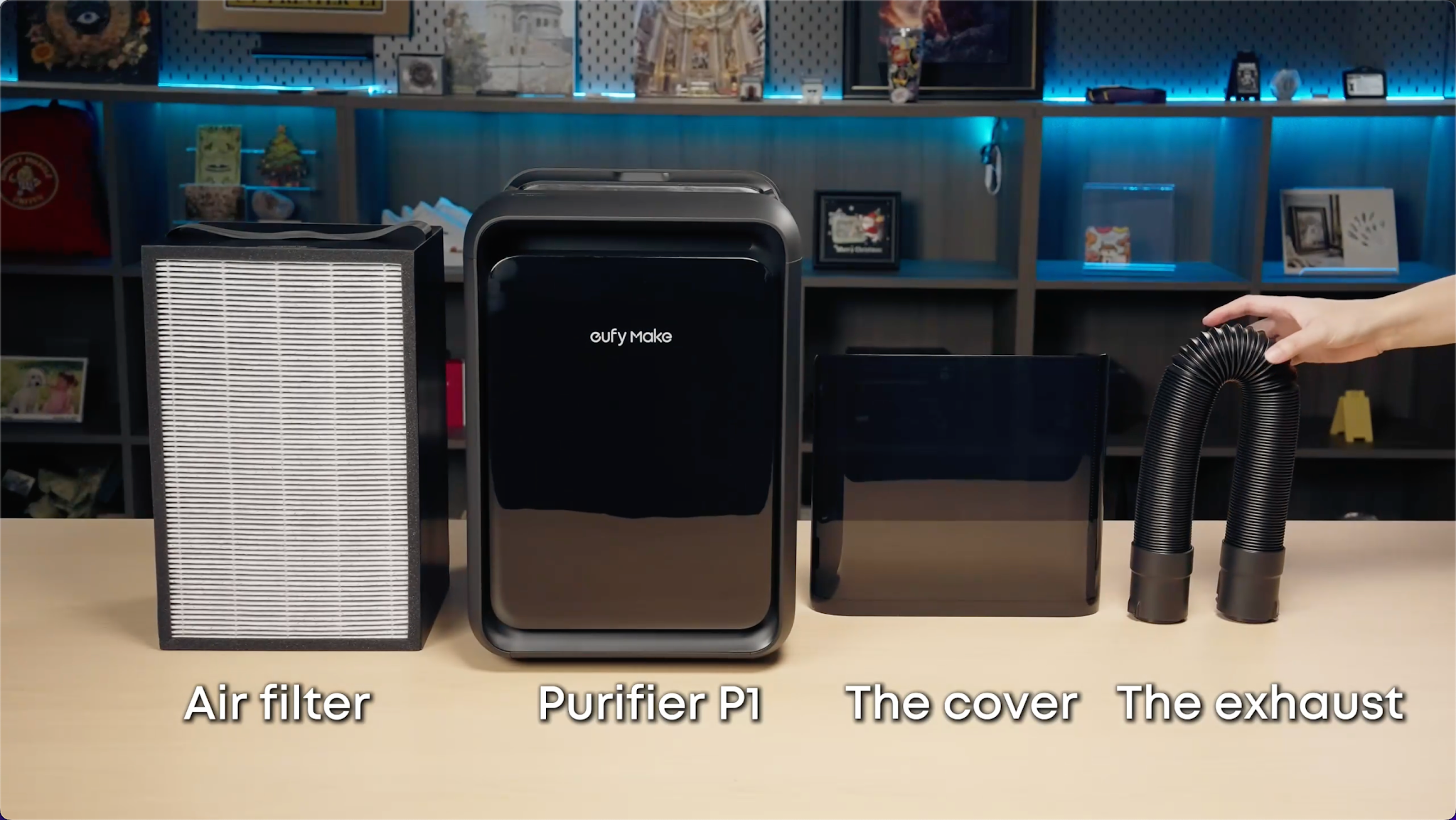
The Purifier P1 filtration and purification accessory kit includes:
-
Purifier (with filter)
-
1.5 m exhaust duct
-
Power adapter
Note: The air guide must be purchased separately.
After unboxing, check that all accessories are included. If anything is missing, contact customer support.
Installation Steps
Step 1: Install the Air Guide
-
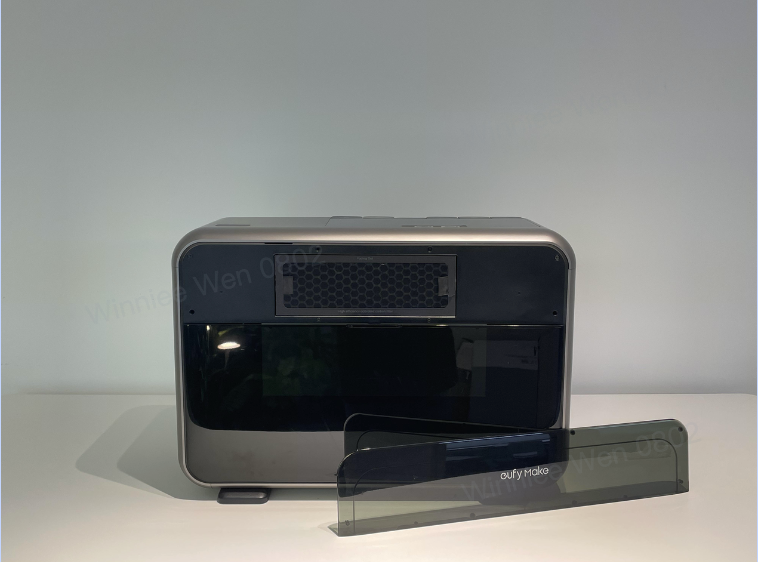
Remove the cover from the printer's air filtration compartment.
-
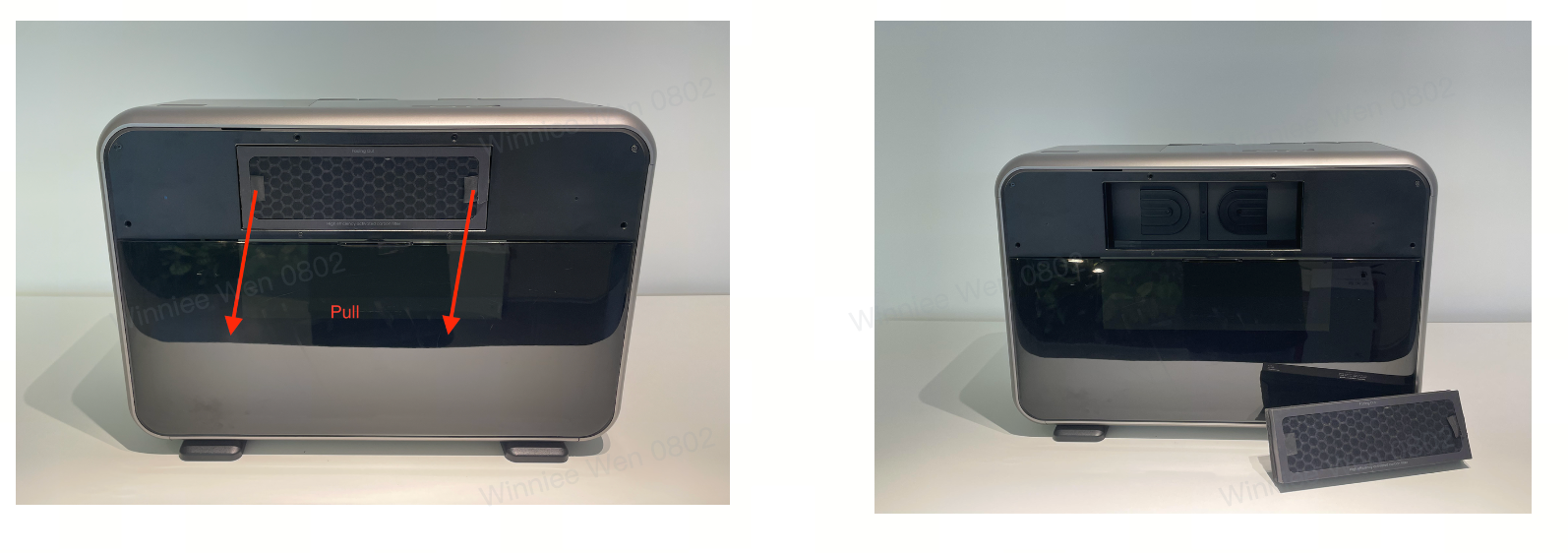
Pinch the tabs with both hands and remove the original filter.
-
Firmly insert the air guide into place.
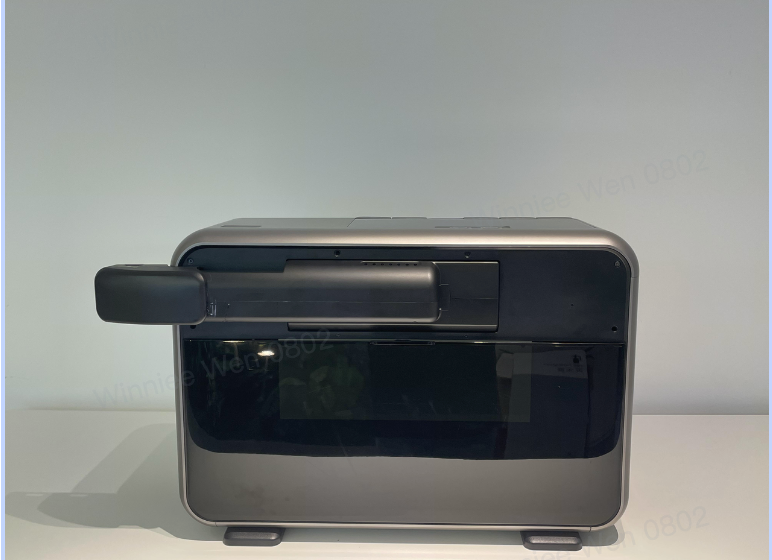
Note: Make sure the steel-ball locating pin on the air guide is fully inserted.
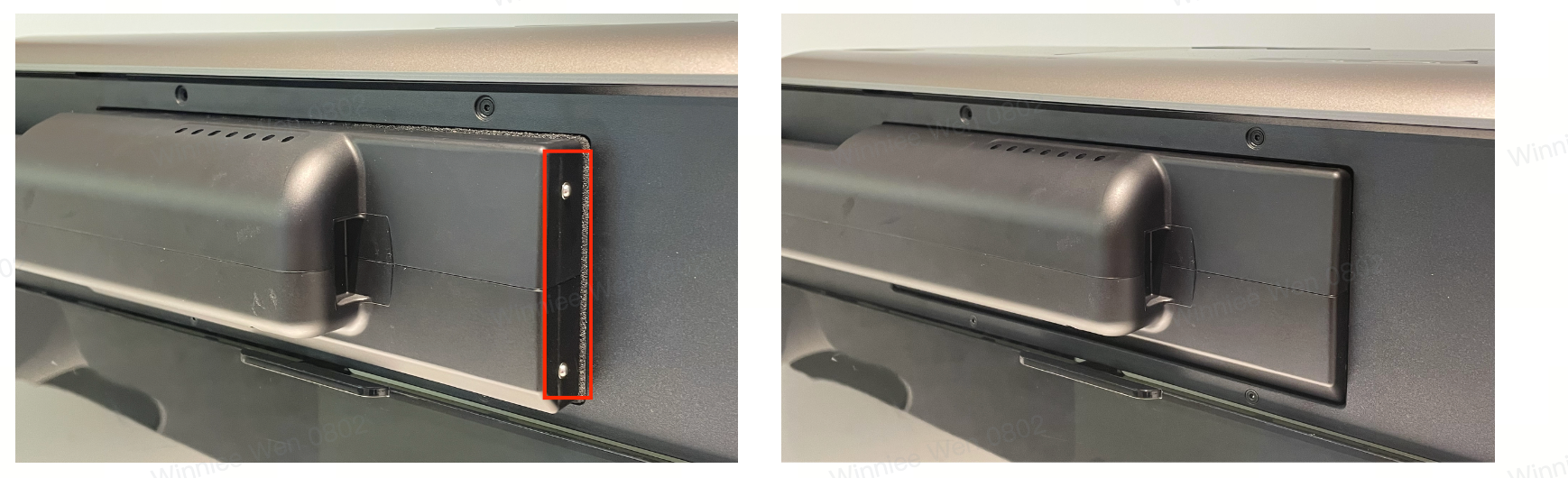
Step 2: Install the Filter
-
Remove the purifier's cover and peel off the protective film from the cover.
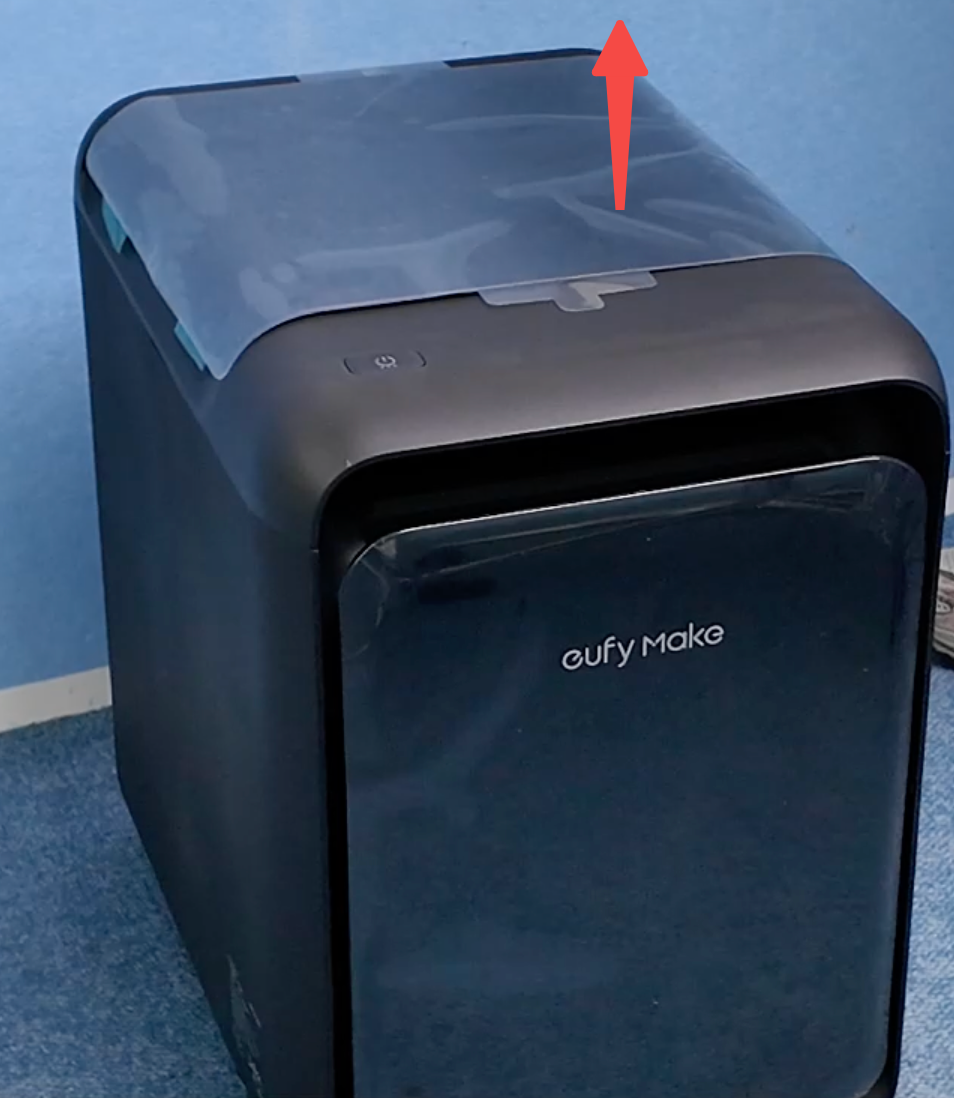
-
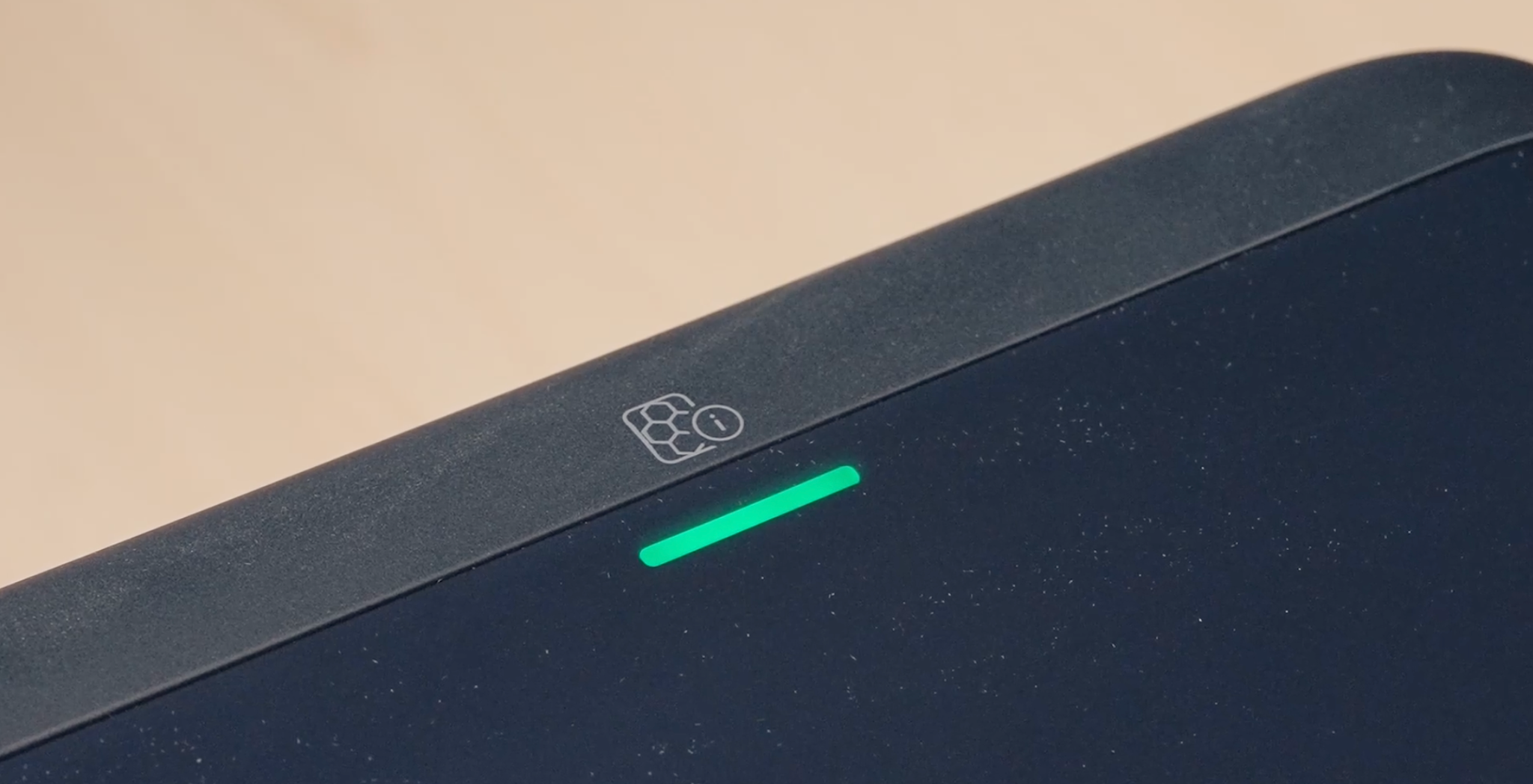
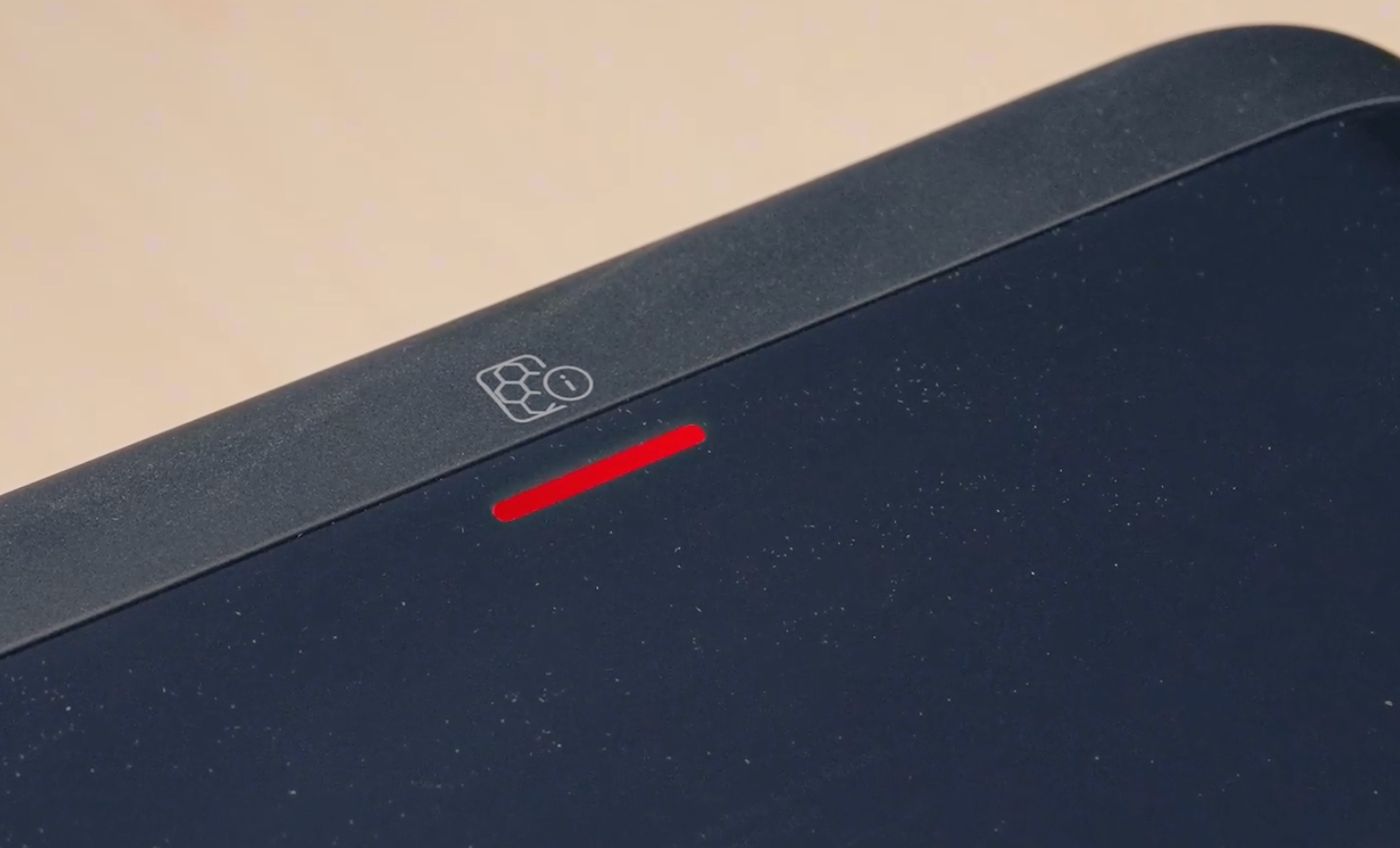
Remove the filter, which is still wrapped in protective film, and take off the protective plastic bag. Insert the filter following the direction indicator on the filter. Once power is connected, the indicator light will show whether the filter is installed correctly. After confirming that the filter is properly seated, reinstall the cover.
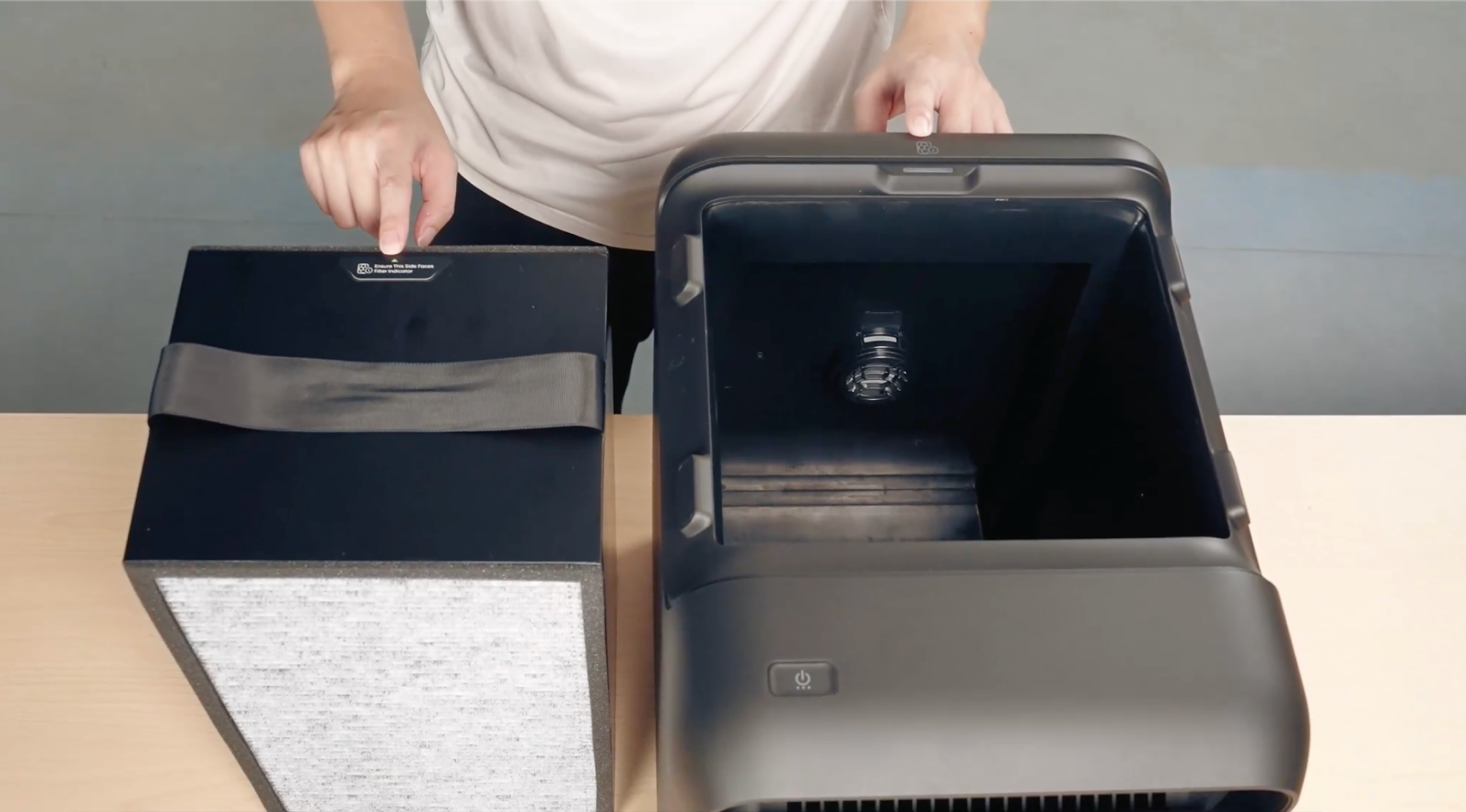
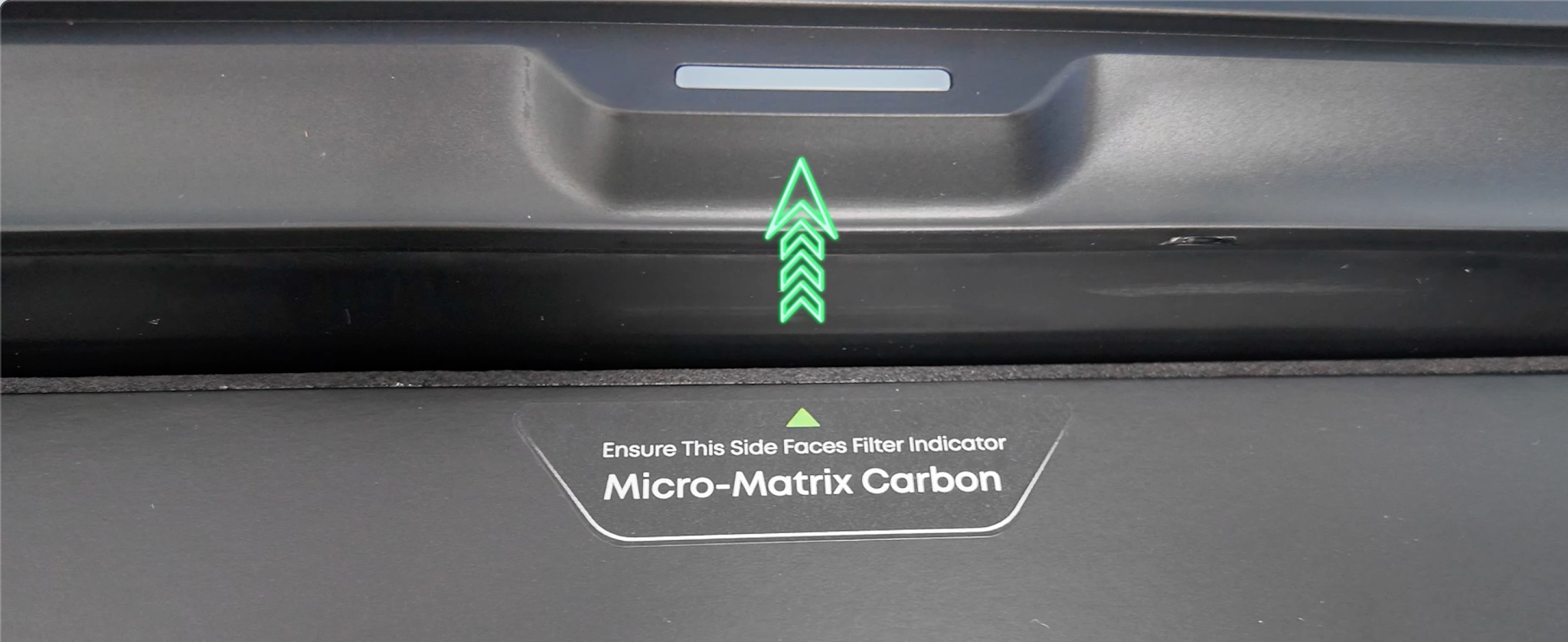
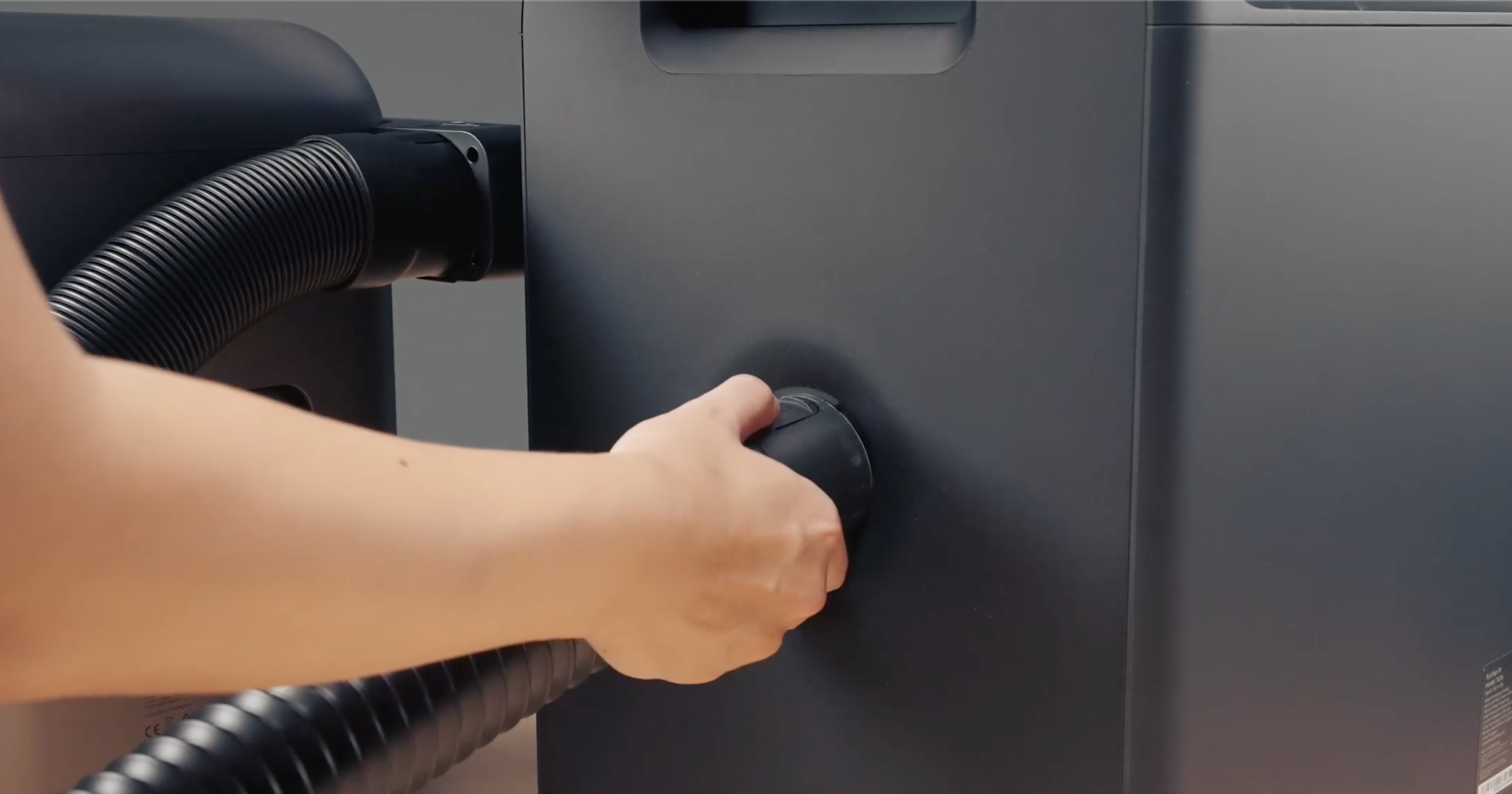
Step 3: Connect the Exhaust Duct
Connect one end of the 1.5 m exhaust duct to the air guide and the other end to the purifier.
Step 4: Connect Power
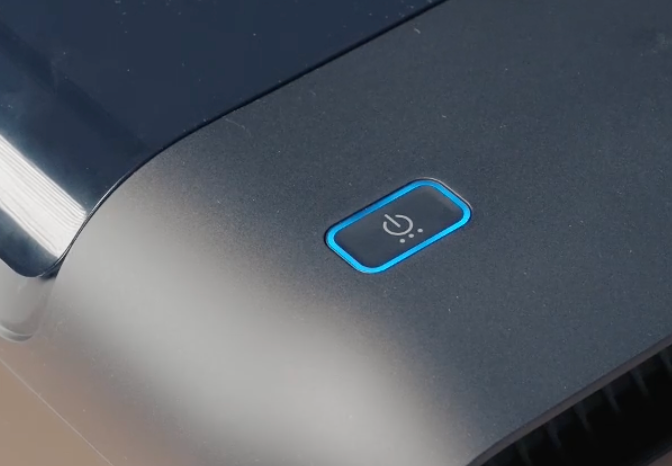
Connect the power adapter and press the red power button to turn on the device.
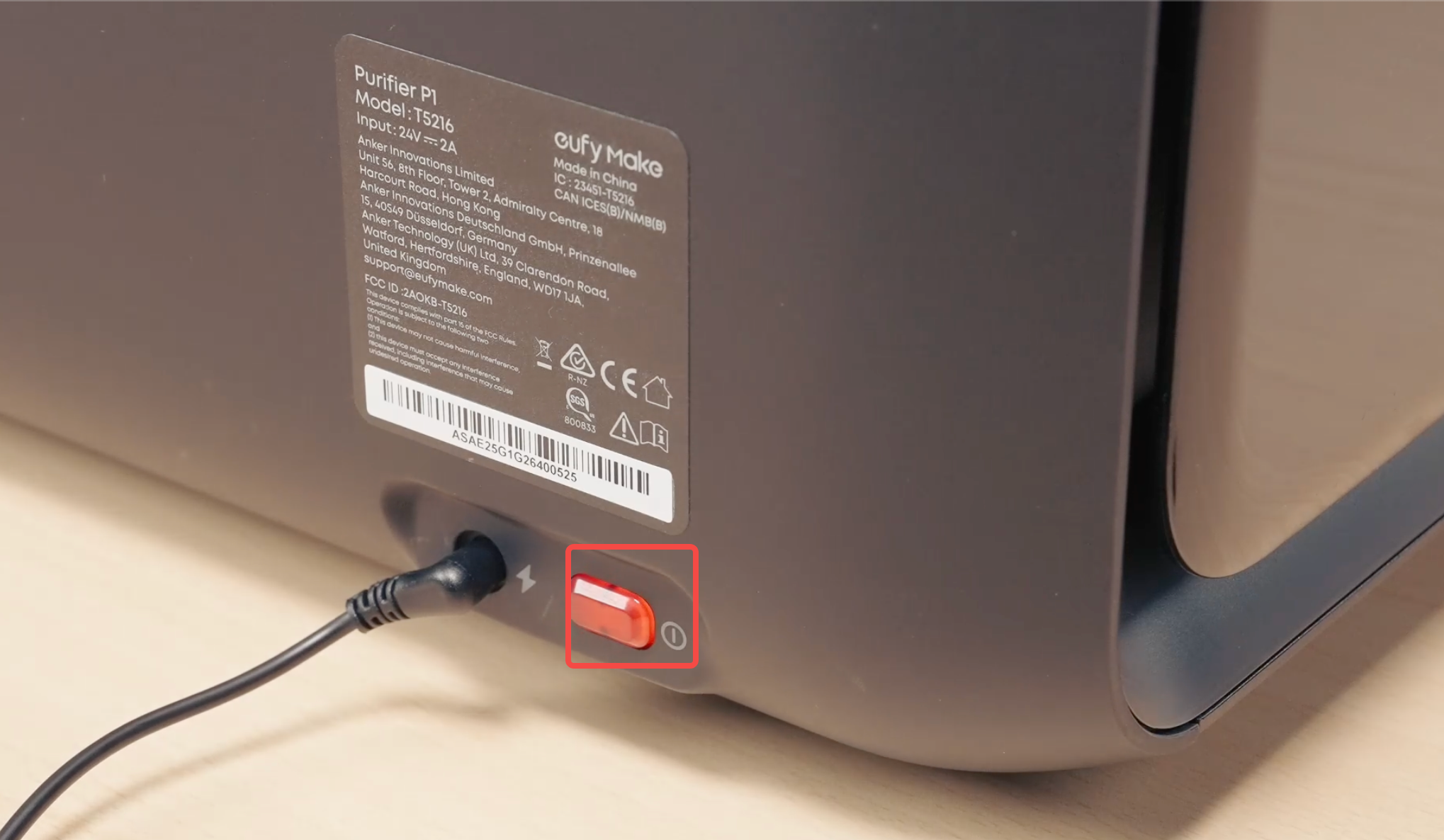
The indicator light will enter pairing mode and remain solid blue.
Step 5: Pair and Connect
After completing the physical connections, pair the Purifier P1 with the eufyMake E1 for linked control. Follow the pairing process below.
Pairing Process
-
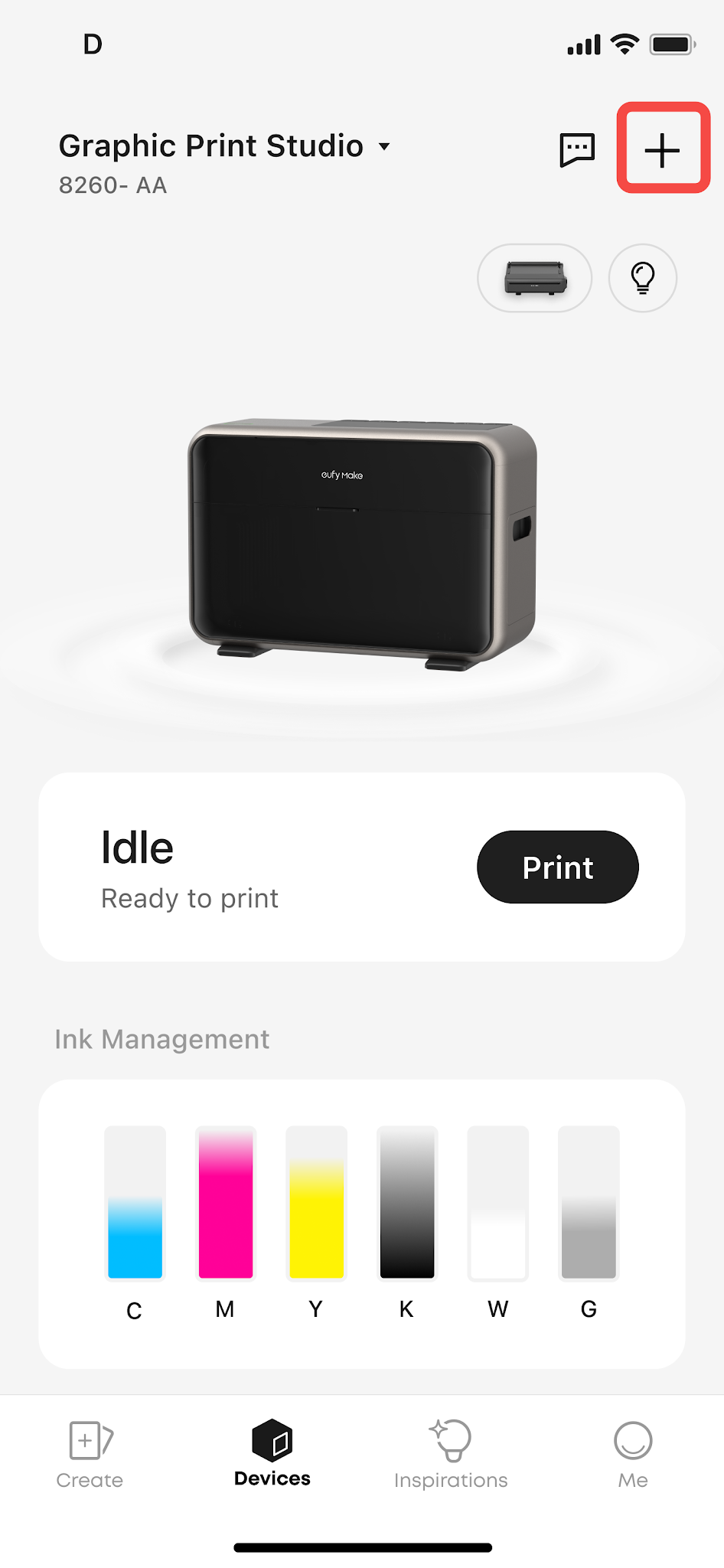
Open the software. Make sure the account has a printer bound to it and that you are using the primary binding account. You cannot pair the purifier if no printer is bound to the account.
-
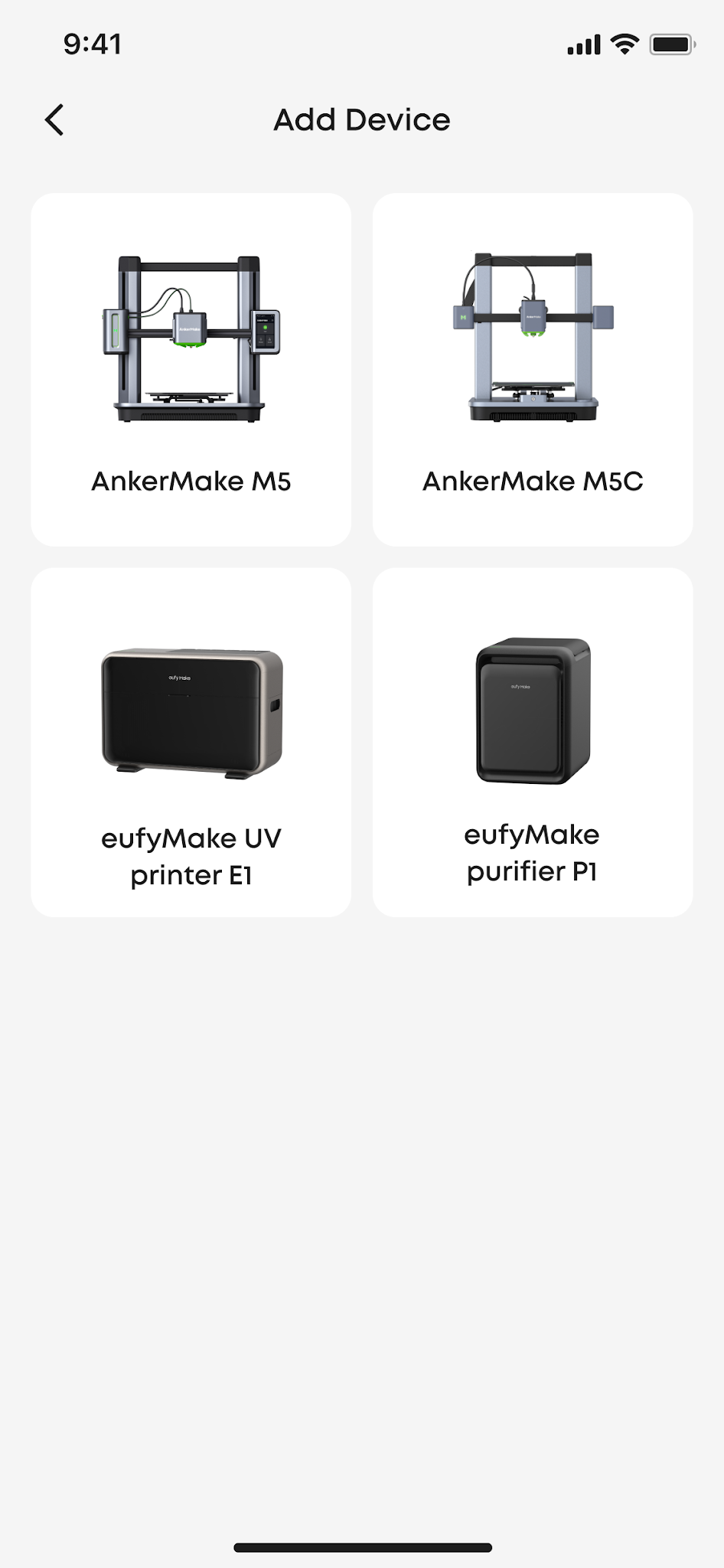
Select the printer you want to connect to, tap the "+" on the device page, and then select the purifier accessory icon.
-
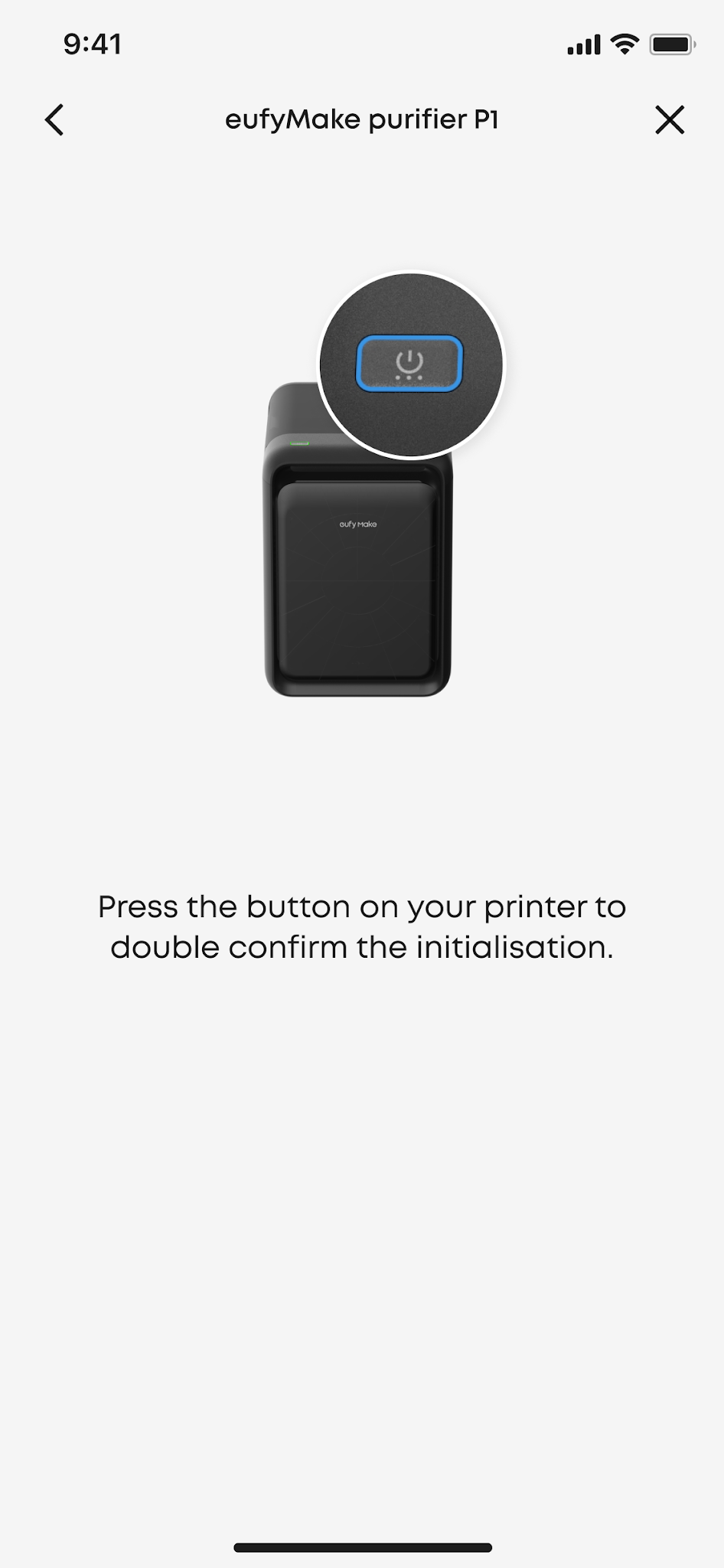
Turn on Bluetooth and search for devices, then select the corresponding purifier.
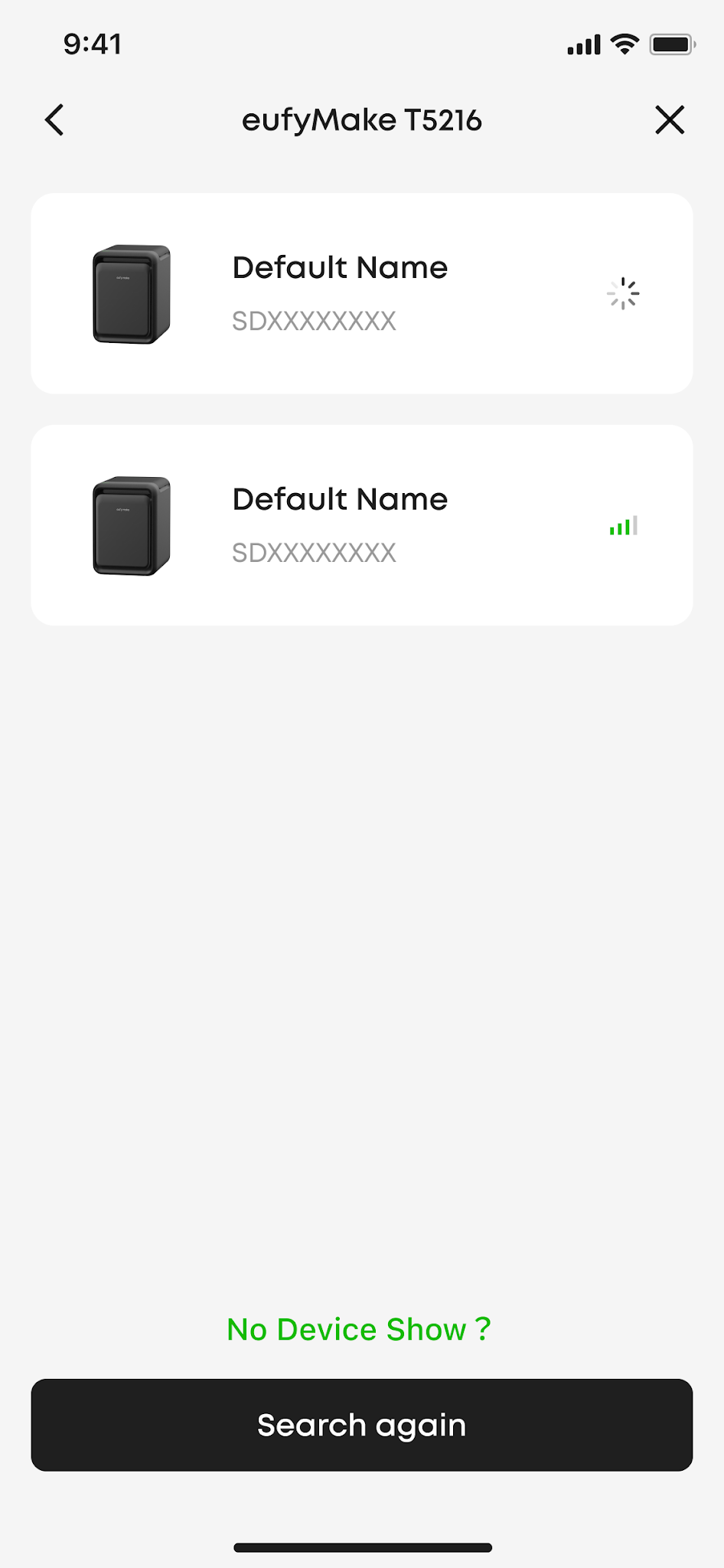
On first power-on, the device automatically enters pairing mode, indicated by a solid blue light.
If this is not the first power-on, press and hold the button on the purifier to enter pairing mode.
-
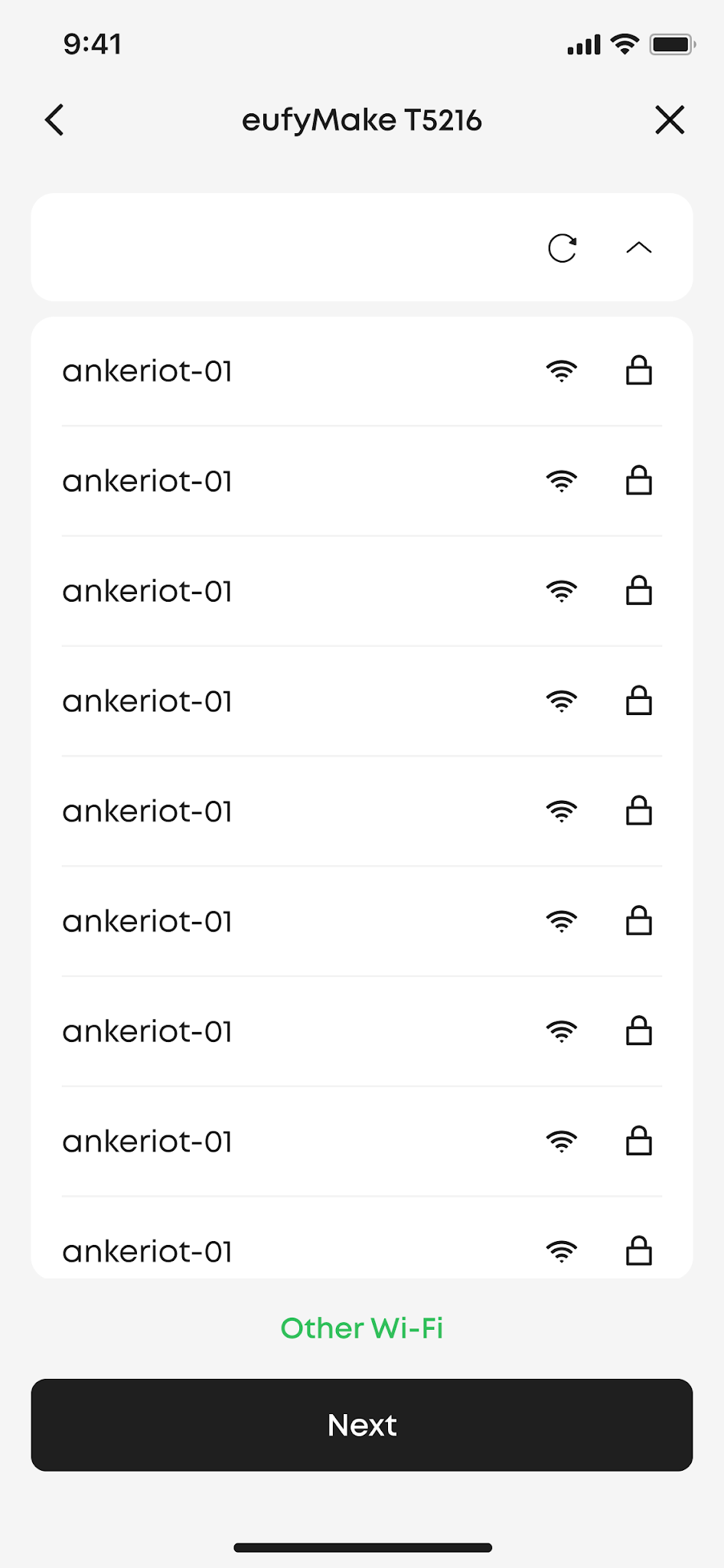
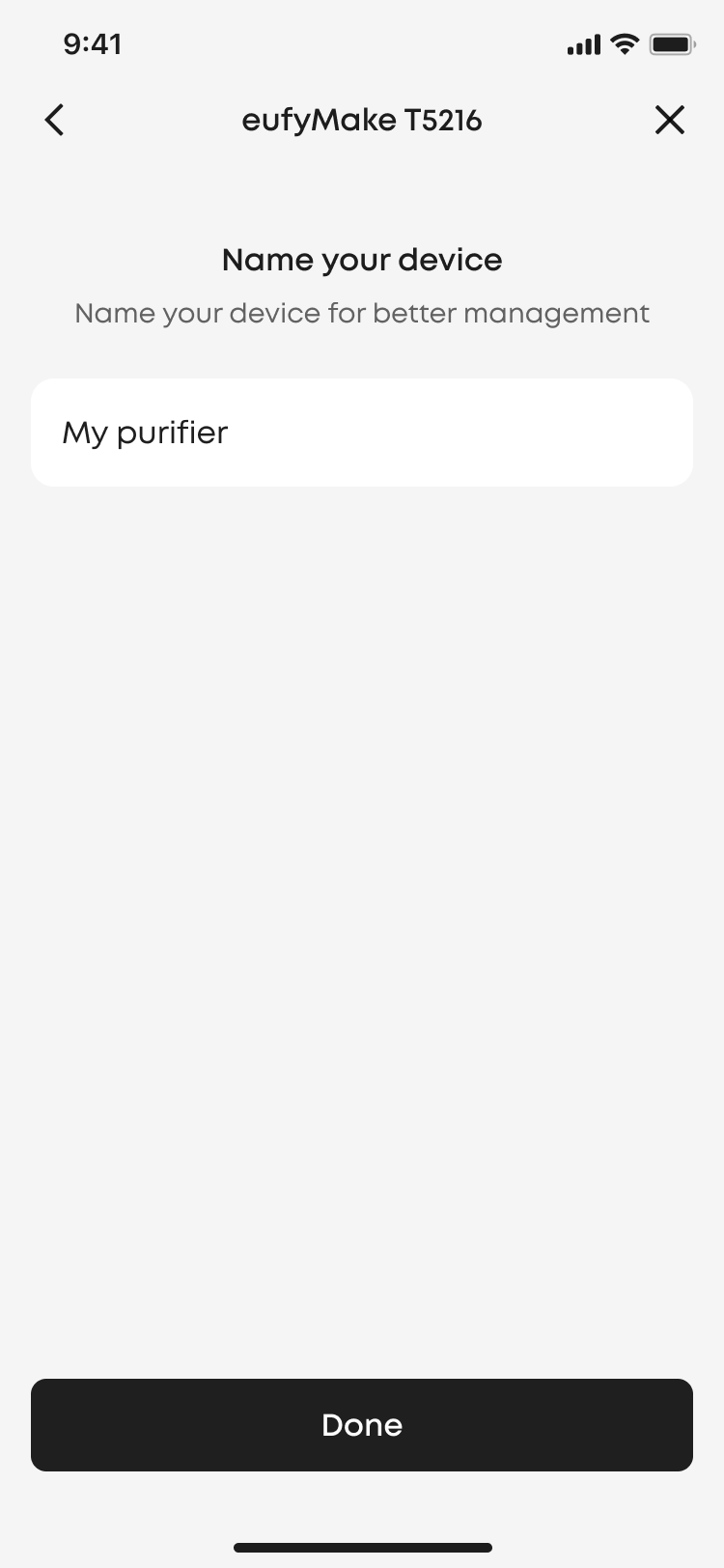
Connect to Wi-Fi, name the device, and add it to the account.
-
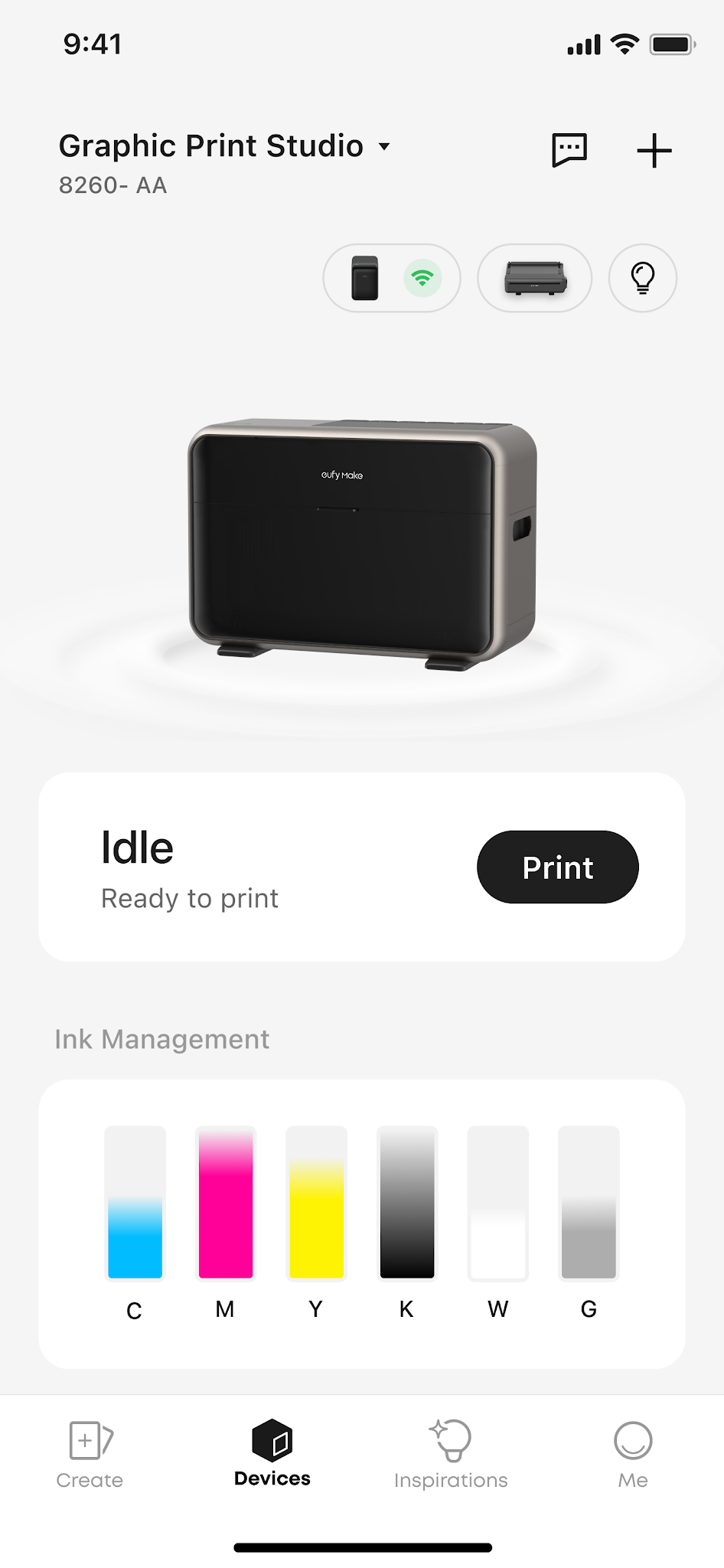
Return to the device page. When the indicator light turns off, binding is complete.
Tip: Pairing mode lasts for 10 minutes. If pairing times out, press and hold the function button for 3 seconds to re-enter pairing mode.
Indicator Light Status
If the red light is on, power off and restart first; if it remains on after restarting, contact after-sales support.
Changing Devices
Changing the printer: Simply reconnect the purifier to the new printer. There is no need to reconfigure Wi-Fi.
Changing the purifier: After powering on the new purifier, repeat the pairing process above to complete the connection. If the printer is already bound to another purifier, the previous device will be removed after confirmation.
FAQs
Q: What should I do if pairing times out?
Pairing mode lasts for 10 minutes. If pairing times out, press and hold the function button for 3 seconds to re-enter pairing mode.
Q: What does a green indicator light mean?
A green indicator light means the purifier is running.
Q: What should I do if the red light is on?
A solid red light indicates a hardware fault. Power off and restart the device first. If the red light remains on, contact after-sales support.
Q: Does it support 5 GHz Wi-Fi?
No. It supports only 2.4 GHz Wi-Fi. If your router combines 2.4 GHz and 5 GHz networks under a single SSID, separate them in the router settings or temporarily disable the 5 GHz network.
Q: What should I do if the device is offline?
Confirm that the router is working and that the device is within Wi-Fi signal range. Try powering the device off and back on, then wait 1–2 minutes to see if it reconnects. Check whether the router password has been changed or whether any network filtering has been applied. If the device is still offline, contact after-sales support.
-


