The Purifier P1 is an air purification accessory designed for the eufyMake E1 UV Printer. If you encounter a problem, first check the indicator light status, then follow the troubleshooting steps for the corresponding situation. If the issue cannot be resolved, contact after-sales support.
Factory Reset
Press and hold the power button for 5 seconds to restore factory settings. Use this when experiencing issues such as abnormal unbinding or when re-pairing is required.
Indicator Light Status
The Purifier P1 indicates its operating status using three types of indicator lights:
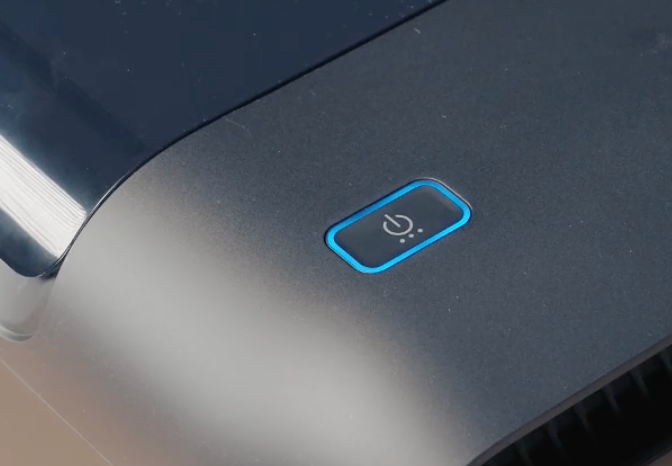
1. Ring Indicator Light (Around the Button)
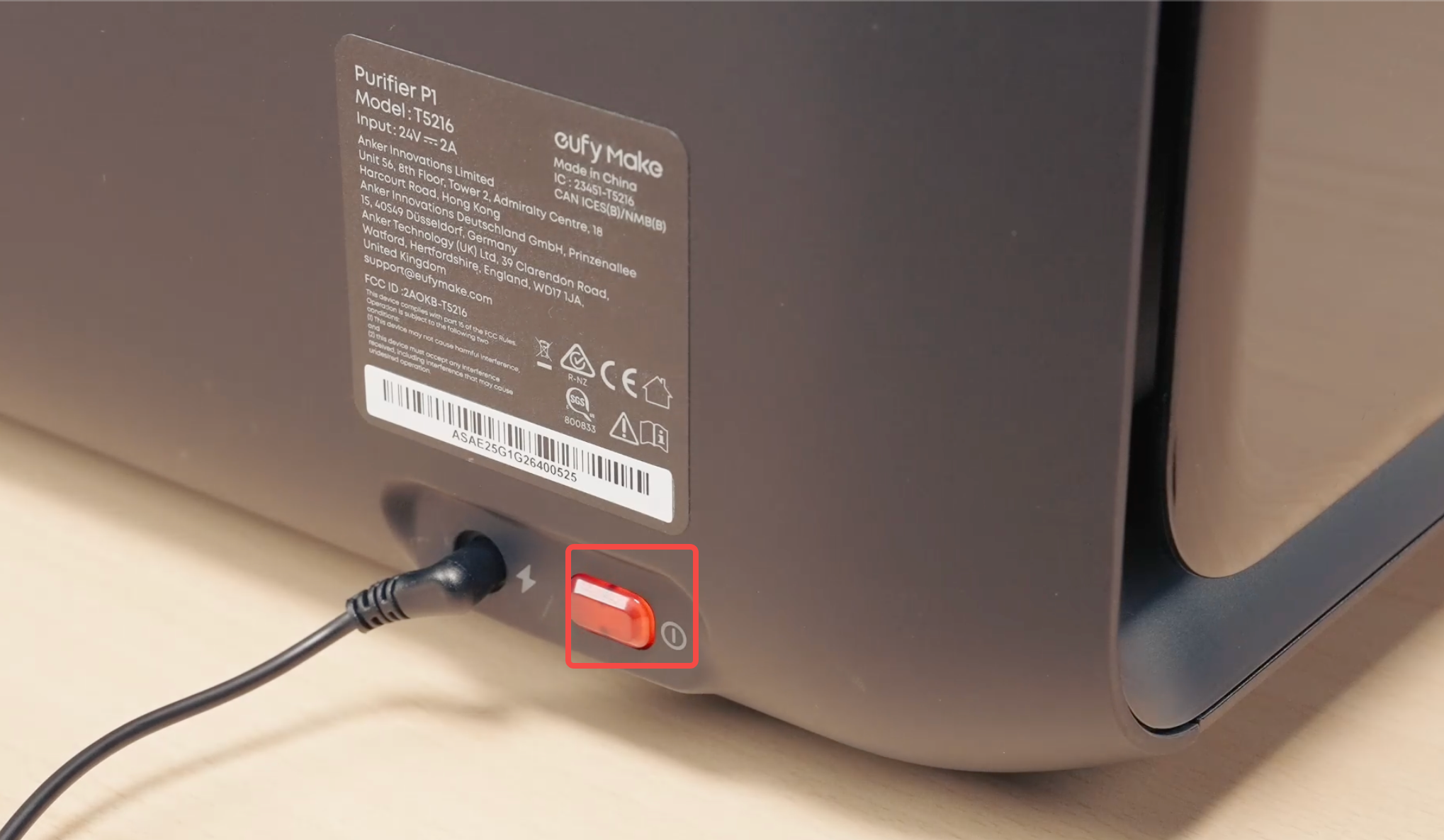
2. Power Indicator Light
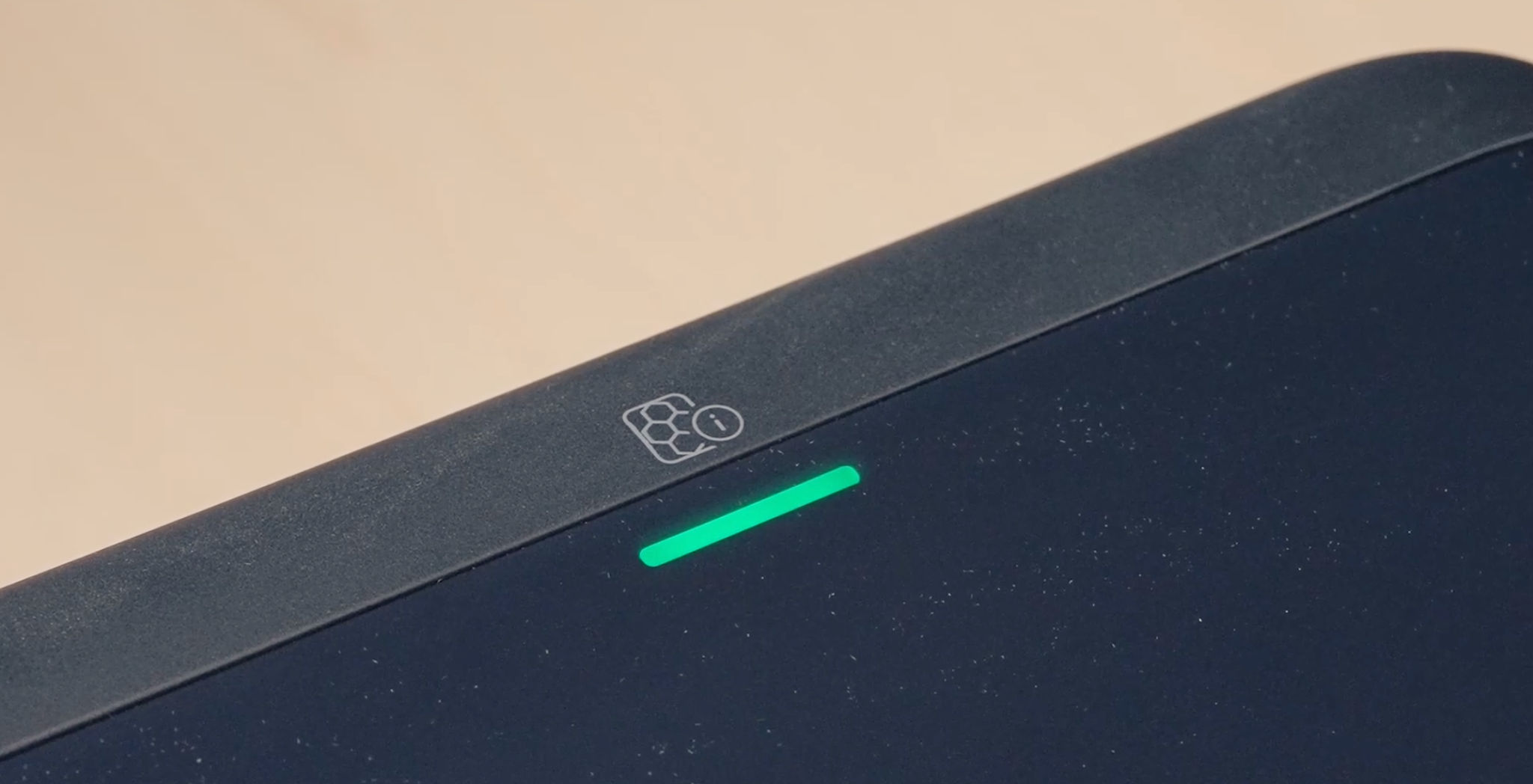
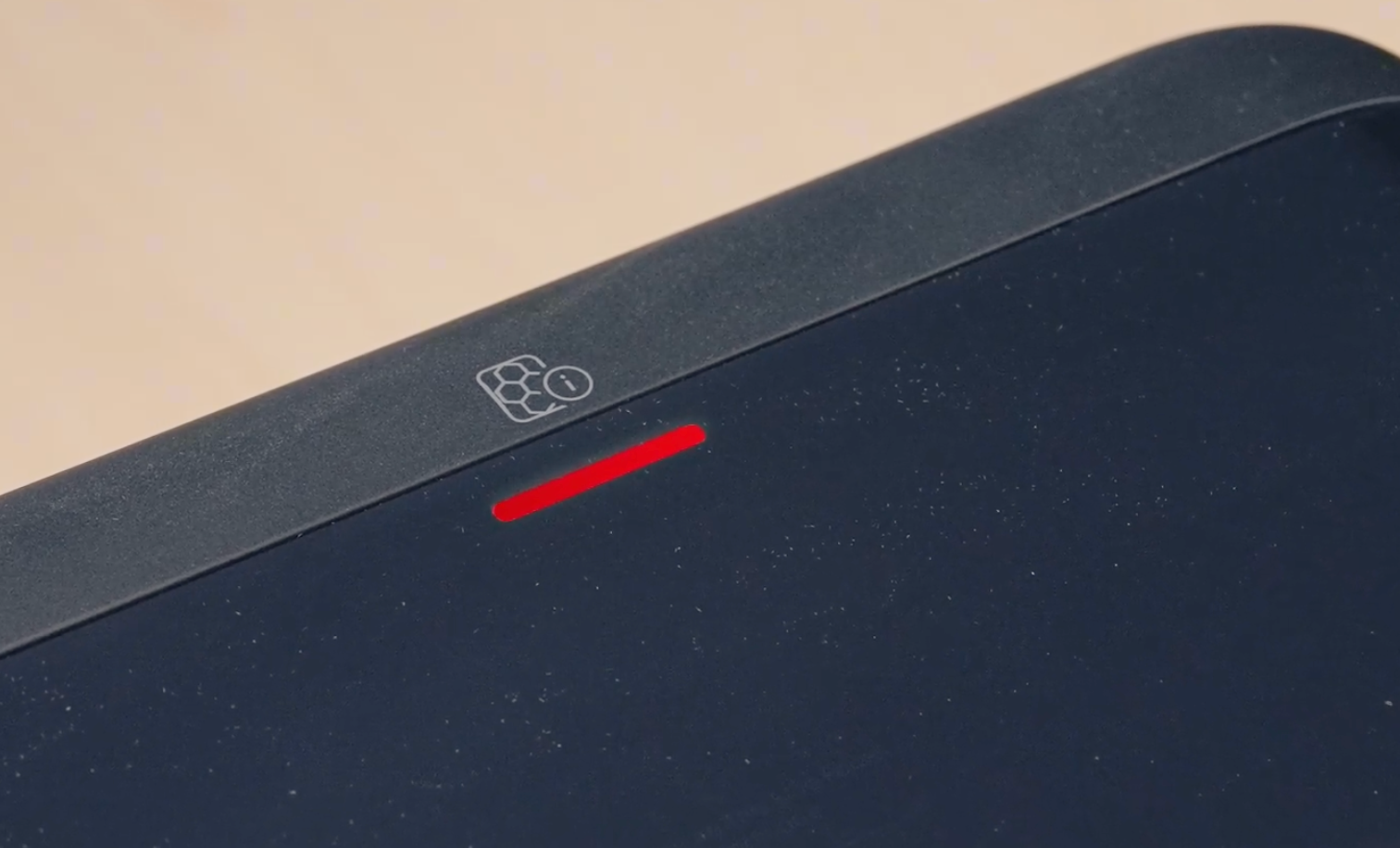
3. Filter Indicator Light
Categorized Troubleshooting
Power & Startup
No response after plugging in, with no lights except the power button
-
Confirm that the outlet has power and the power cord is firmly connected.
-
Briefly press the power button to turn on the device. The device enters deep sleep after shutdown and does not automatically turn on when plugged in. Press the power button to wake it.
-
If there is still no response, try a different power cord or outlet.
-
If the issue persists, contact after-sales support.
Solid red light after power-on
This indicates a fault lock. Power off the device for 30 seconds, then power it back on and check whether the self-check passes. If the green light flashes twice and the device then enters standby, the self-check has passed normally.
If the red light remains on, see the Solid Red Light (Fault Lock) section below.
2. Network Connection
Cannot enter pairing mode (no blue light visible)
Press and hold the function button for 3 seconds. The ring light should turn solid blue.
Pairing mode lasts for 10 minutes. After it times out, the blue light turns off and the device returns to standby. Press and hold the function button again to re-enter pairing mode.
When powered on for the first time, the device automatically enters pairing mode with no button press required.
Note: If the device is already bound, pressing and holding the function button for 3 seconds will not enter pairing mode, and the device will not respond.
Blue light is on, but the software cannot find the device
-
Confirm that Bluetooth is enabled on the phone.
-
On Android phones, make sure location permission is granted to the app.
-
Keep the phone as close to the device as possible, within 1 m, while searching.
-
Restart the app and toggle the phone's Bluetooth off and back on, then try again.
Pairing/connection failed
-
Only 2.4 GHz Wi-Fi is supported. 5 GHz Wi-Fi is not supported. If your router combines 2.4 GHz and 5 GHz networks under a single SSID, separate them in the router settings.
-
Avoid networks that require web-based authentication, such as company intranets, campus networks, or hotel networks.
-
Confirm that the Wi-Fi password has been entered correctly.
-
Press and hold the power button for 5 seconds to restore factory settings.
Device offline/software shows the device as offline
-
Confirm that the router is working and that other devices can access the internet.
-
Confirm that the purifier is within the router's coverage range.
-
Power the device off and back on, then wait 1–2 minutes to see if it reconnects.
-
Check whether the router password has been changed or whether any network filtering has been applied.
-
If the device is still offline, contact after-sales support.
3. Solid Red Light (Fault Lock)
A solid red light means the device has detected a fault and entered a locked state. First, power off the device for 30 seconds and restart it.
If the red light remains on, identify the issue based on the accompanying symptom:
4. Airflow & Motor
No airflow/fan not spinning
-
Confirm that the device is not in standby. Press the function button to switch to level 1, 2, or 3.
-
Check whether the filter is installed correctly. A missing filter triggers protection.
-
Check whether the red light is solid, indicating a fault lock.
-
Power off and restart the device, then try again.
Reduced airflow
-
Confirm the current operating level.
-
Check whether the filter is excessively dirty or its remaining life is low. Reduced airflow from a dirty filter is normal.
-
Check whether the air inlet or outlet is obstructed.
Abnormal or loud noise
-
Confirm that the filter is installed correctly and is not loose.
-
Check for foreign objects at the air inlet.
-
Confirm that the device is placed on a level, stable surface.
-
Increased airflow noise at higher operating levels is normal. If abnormal noise persists, contact after-sales support.
5. Filter
Solid red filter indicator light
"Non-official filter/cannot recognize" prompt
Confirm that you are using an official filter. If the error persists with a genuine official filter, the filter chip may be damaged. Contact after-sales support.
After replacing the filter, filter life still shows 0% or has not updated
-
Confirm that the new filter is an official filter and is installed correctly.
-
Power the device off and back on, then wait for the filter to be recognized. The green light flashes twice when recognition is successful.
-
If the filter life still does not update, contact after-sales support.
6. Buttons
Buttons not responding
-
Confirm that the device is not in fault lock. The buttons are disabled when the red light is solid.
-
Confirm that the device is not updating. The buttons are locked while the yellow light is breathing.
-
Confirm that the device is not performing a self-check. The buttons are briefly locked during power-on.
-
If none of the above applies, power off and restart the device. If the buttons still do not respond, contact after-sales support.
FAQs
Q: What should I do if the red light is on?
First, power off the device for 30 seconds and restart it. If the red light remains on, check whether the filter is installed correctly and whether there are any foreign objects at the air inlet. Restart the device 2–3 times. If the issue persists, contact after-sales support.
Q: Will the device be damaged if power is interrupted during a firmware update?
Do not power off or disconnect the device during a firmware update. If power is accidentally interrupted during an update, the device will automatically roll back to the previous firmware version when power is restored. Simply start the update again.
Q: What should I do if the buttons do not respond?
First, confirm that the device is not in fault lock, firmware update, or self-check mode. Then power off and restart the device. If the buttons still do not respond, contact after-sales support.


