Fault Phenomenon
-
The power supply is connected, but the power indicator does not light up
-
The power supply is connected, and only the red indicator light is on
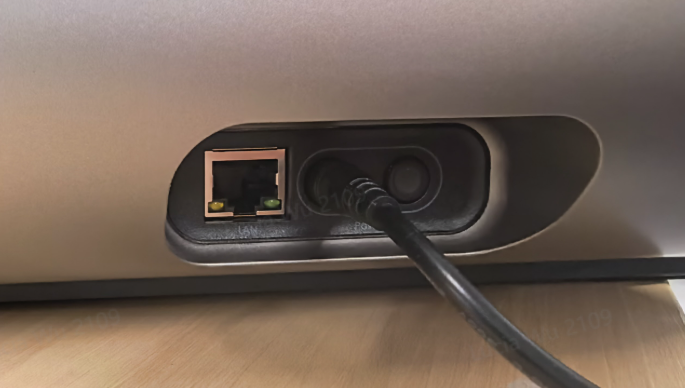
Power light is not lit
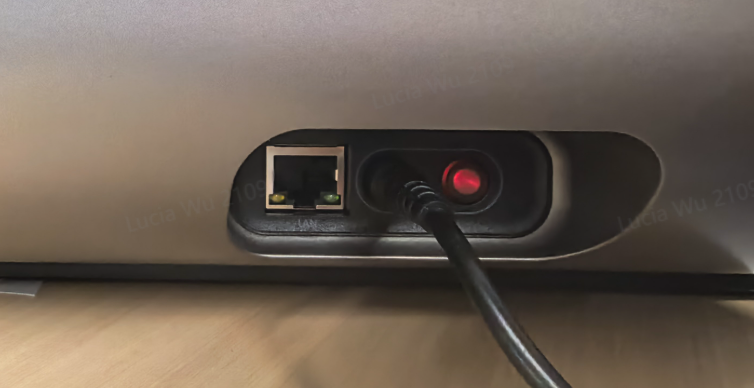
The power light is red
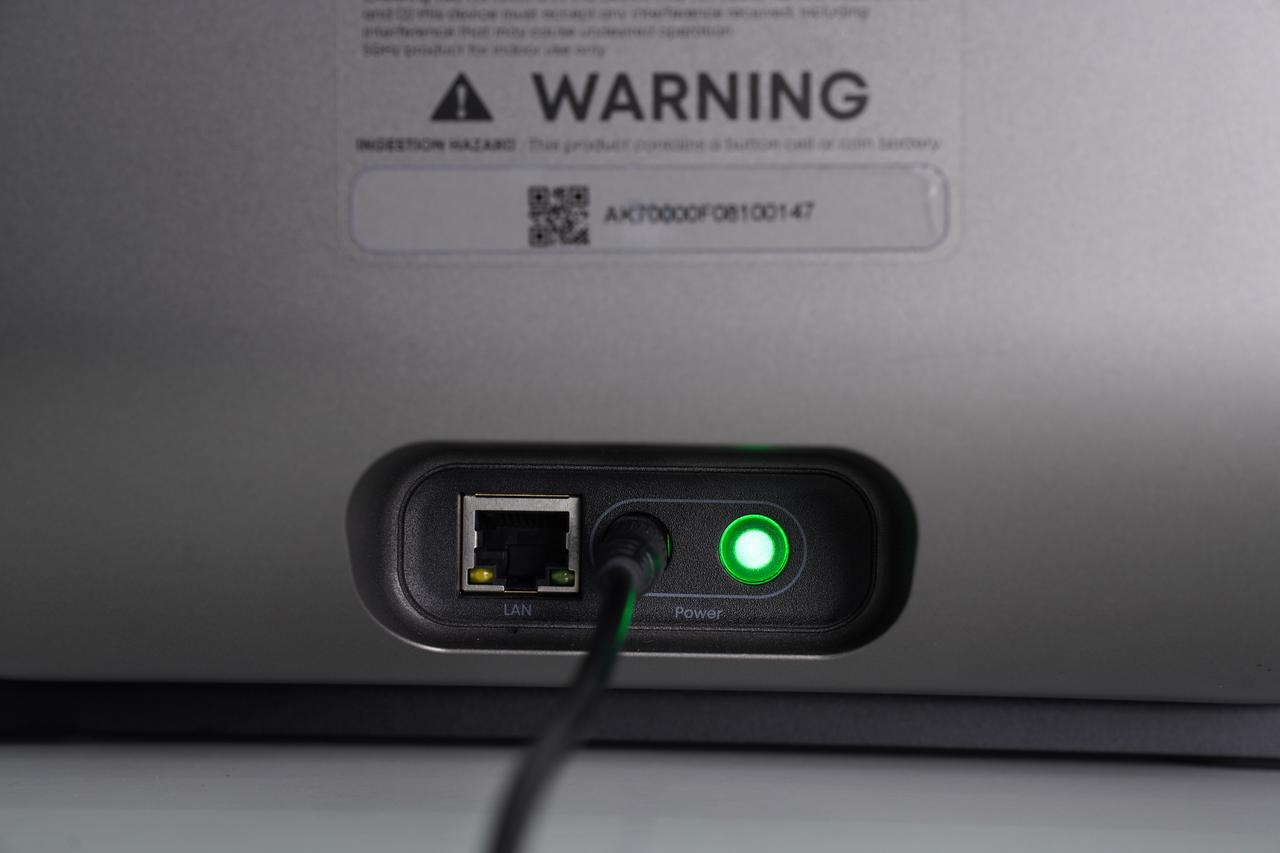
Power light is normal (green)
Cause Analysis
Required Tools
None
Safety Precautions
When replacing the power adapter, always use the officially designated model. Using a non-approved adapter may cause device damage.
Troubleshooting Steps
Scenario 1: Power supply connected, power indicator does not light up
-
Check and confirm that the power source is functioning normally.
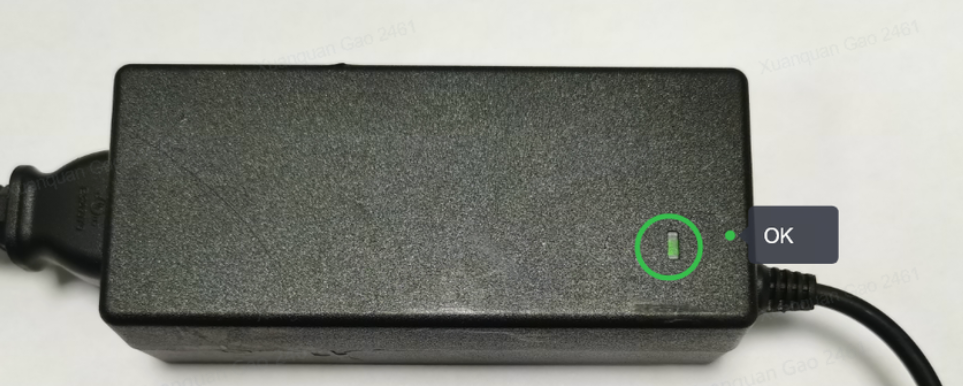
Inspect the power adapter as shown below. After unplugging and reconnecting the adapter, a green light indicates normal operation, while a red light indicates damage.
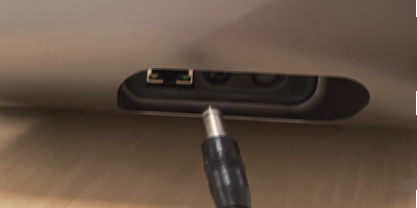
Unplug the plug
-
If the adapter is damaged, replace it with an official eufyMake power adapter.
-
If the adapter is normal, please contact eufyMake Customer Support at support@eufymake.com with the following information:
-
Your Order Information
-
Printer SN. Please refer to:https://support.eufymake.com/s/article/How-to-Check-the-Device-Serial-Number-SN
-
Printer and App Logs. Please refer to https://support.eufymake.com/s/article/Log-Feedback-Upload-Process-App-PC-Overview
-
Relevant photos and videos.
Scenario 2: Power supply connected, only red indicator light is on
-
Unplug the printer power cord.
-
Please refer to the following guide to remove the left and upper housings:
https://support.eufymake.com/s/article/eufyMake-UV-Printer-E1-Printer-Outer-Shell-Disassembly-SOP
-
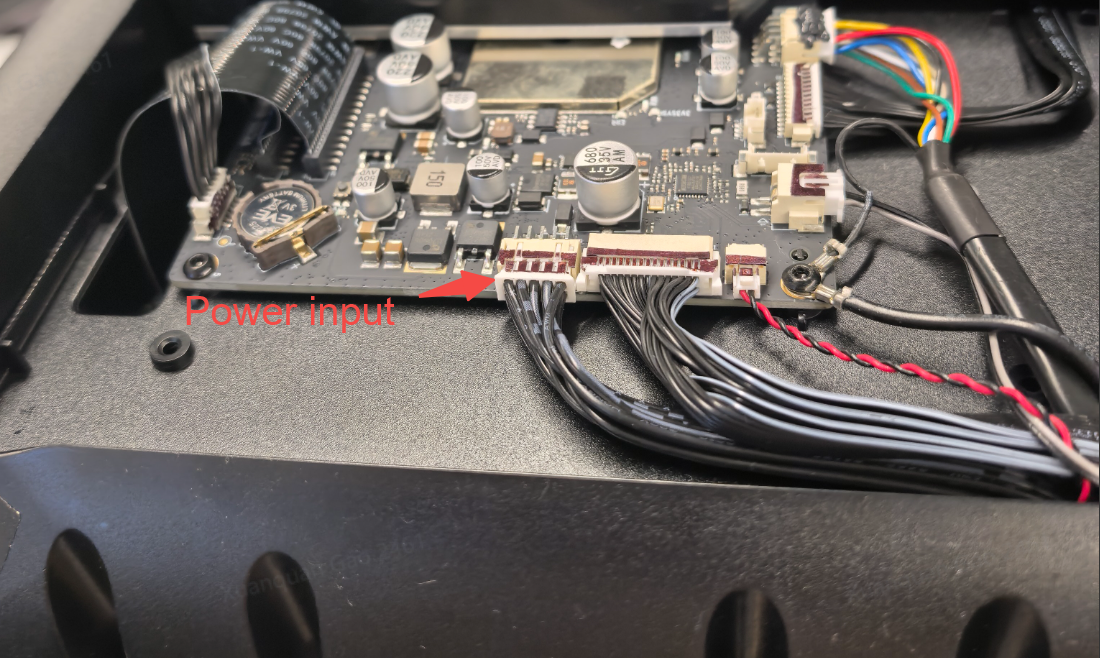
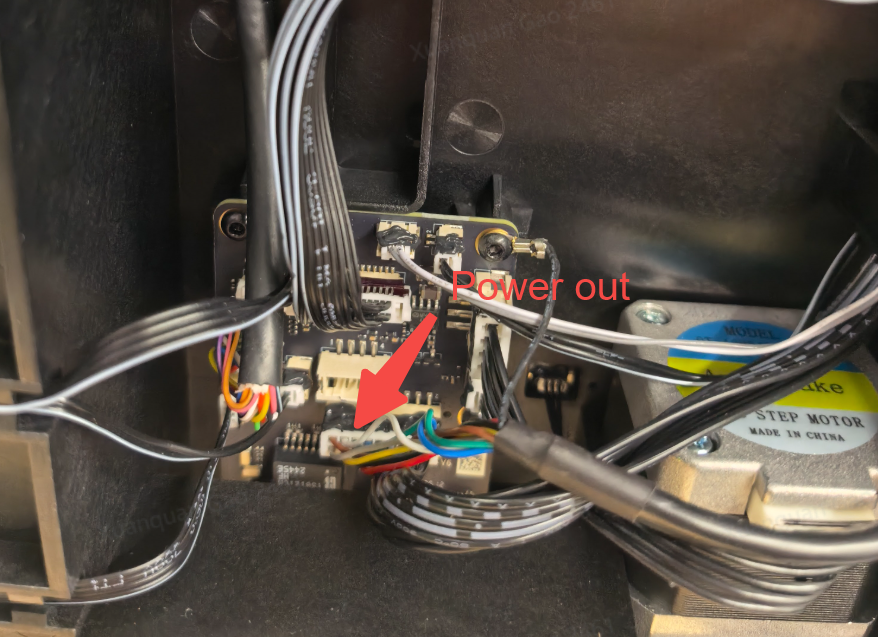
Check the power cables connected to the motherboard and the power supply board. Remove and firmly reinsert the cables as shown below. Disconnect and reconnect the motherboard power input and power output securely, then check if the printer operates normally.
-
If the power indicator returns to normal, reassemble the printer following the same SOP and confirm the issue is resolved.
-
If the printer still shows only a red indicator, please contact eufyMake Customer Support at support@eufymake.com and include the following information:
-
a. Your purchase order information
-
b. Printer SN, please refer to: https://support.eufymake.com/s/article/How-to-Check-the-Device-Serial-Number-SN
-
c. Printer and APP logs, please refer to: https://support.eufymake.com/s/article/Log-Upload-Process-App-PC-Overview
-
d. Related troubleshooting videos and photos










