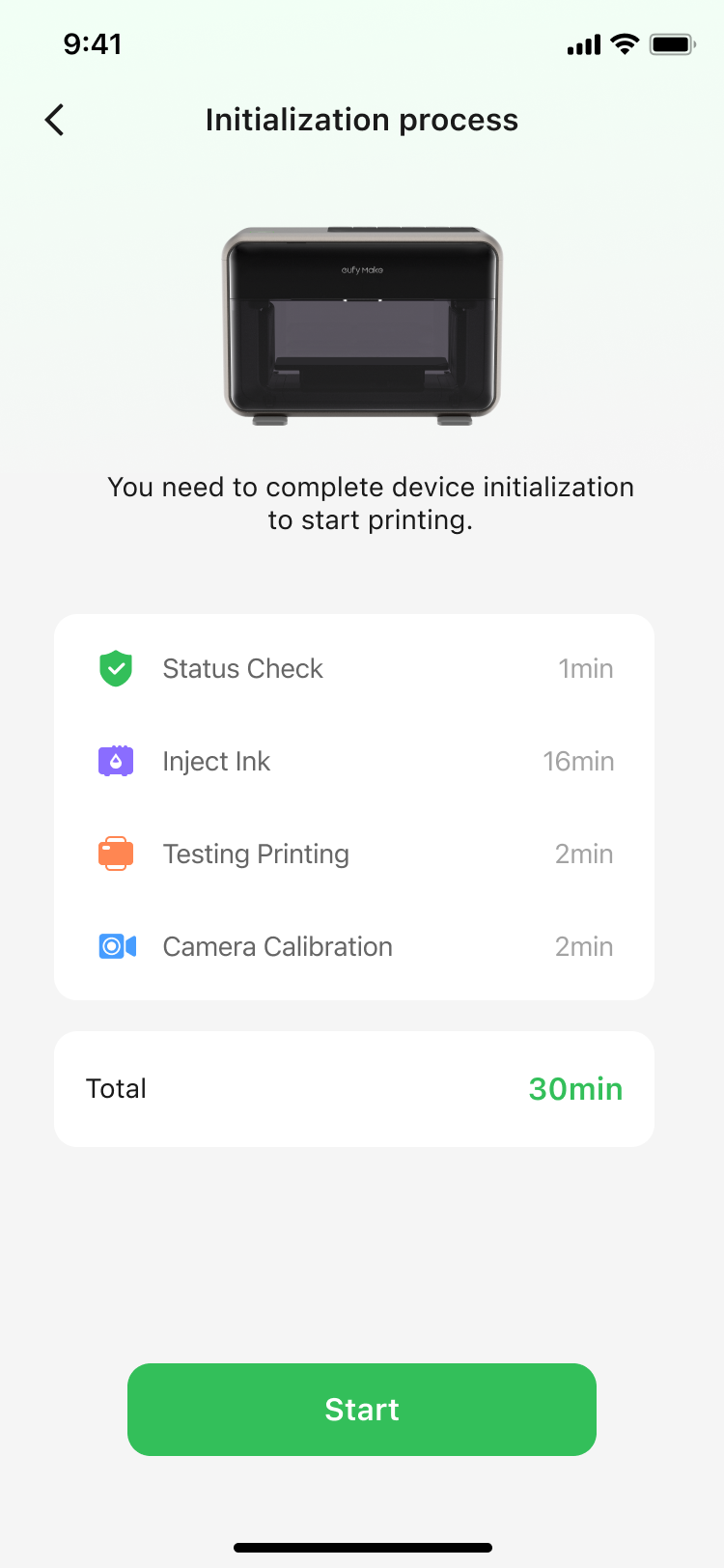
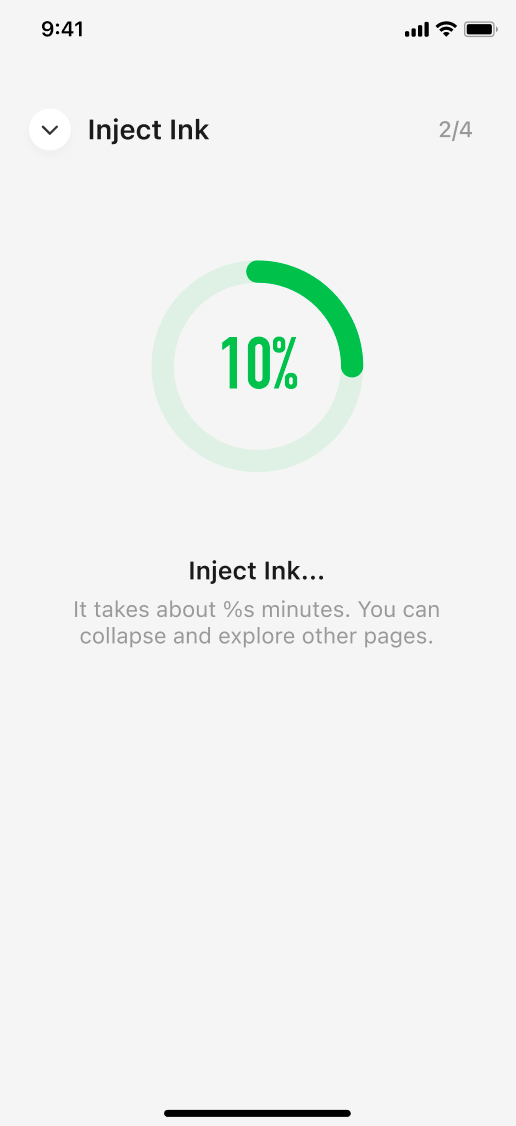
Initial Ink Injection
When your printer is powered on for the first time or reset to factory settings, it performs an initial ink injection.
-
The printer first flushes out the moisturizing liquid that was pre-filled in the print head for storage protection.
-
It then draws fresh ink into the internal tubes to prepare the system for stable, high-quality printing.
Replacing ink cartridges does not trigger another initial ink fill.
Pre-Print Priming
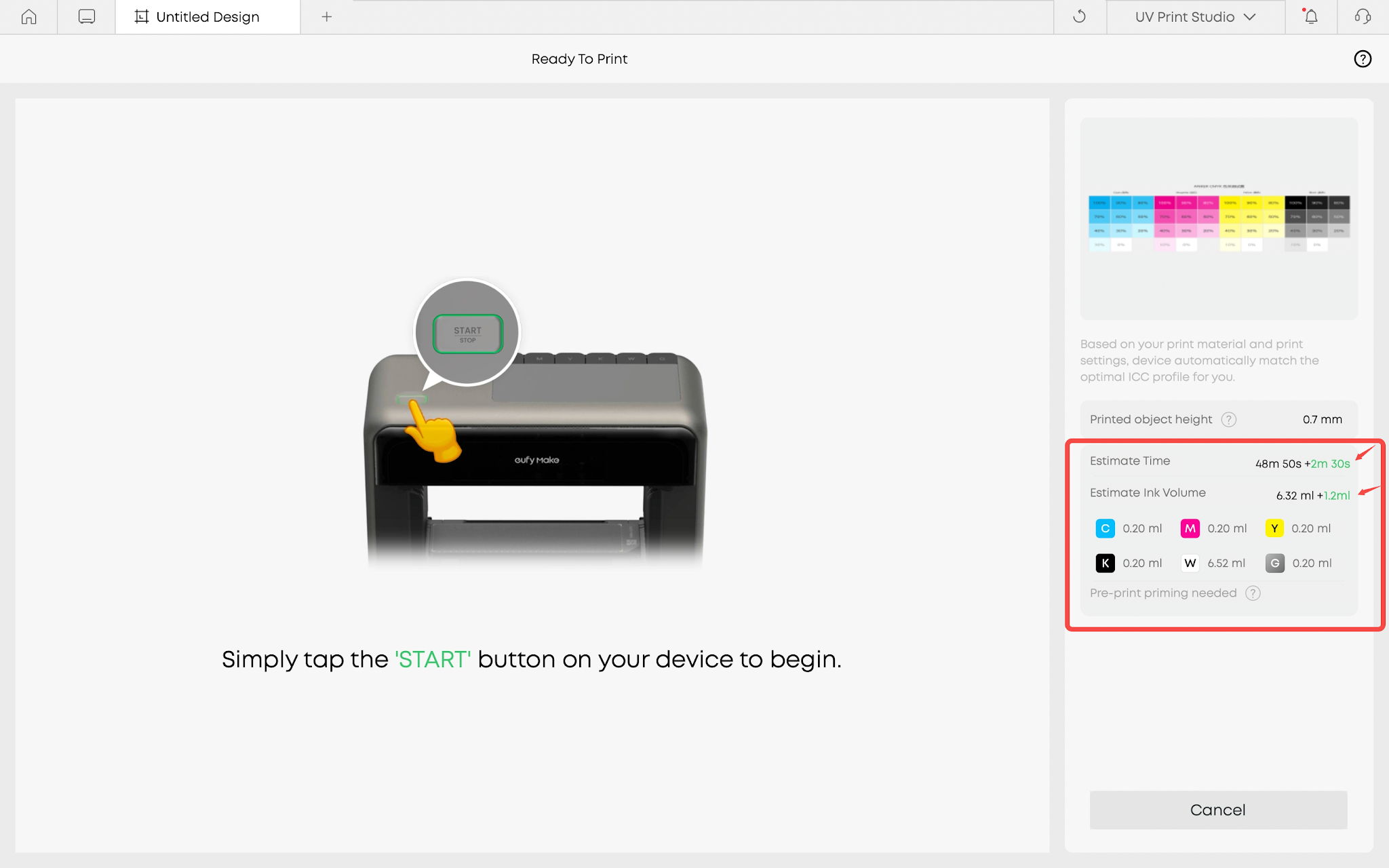
Before printing, the printer performs a pre-print priming to ensure the print head is in optimal condition. Pre-print priming triggers if more than 12 hours have passed since the last priming. Performing a medium clean or Inject Ink will reset the timer. A priming operation will be executed for the first print after a device restart or OTA update, as well as when resuming a paused print.
It helps:
-
Stabilize ink flow and pressure
Ensure consistent colors from the first layer
Automatic Maintenance
The printer performs several automated maintenance tasks during idle periods to prevent drying, clogging, or ink instability.
-
Flash Clean - quick refresh, minimal ink use
Automatic Deep Clean - for frequent or daily printing
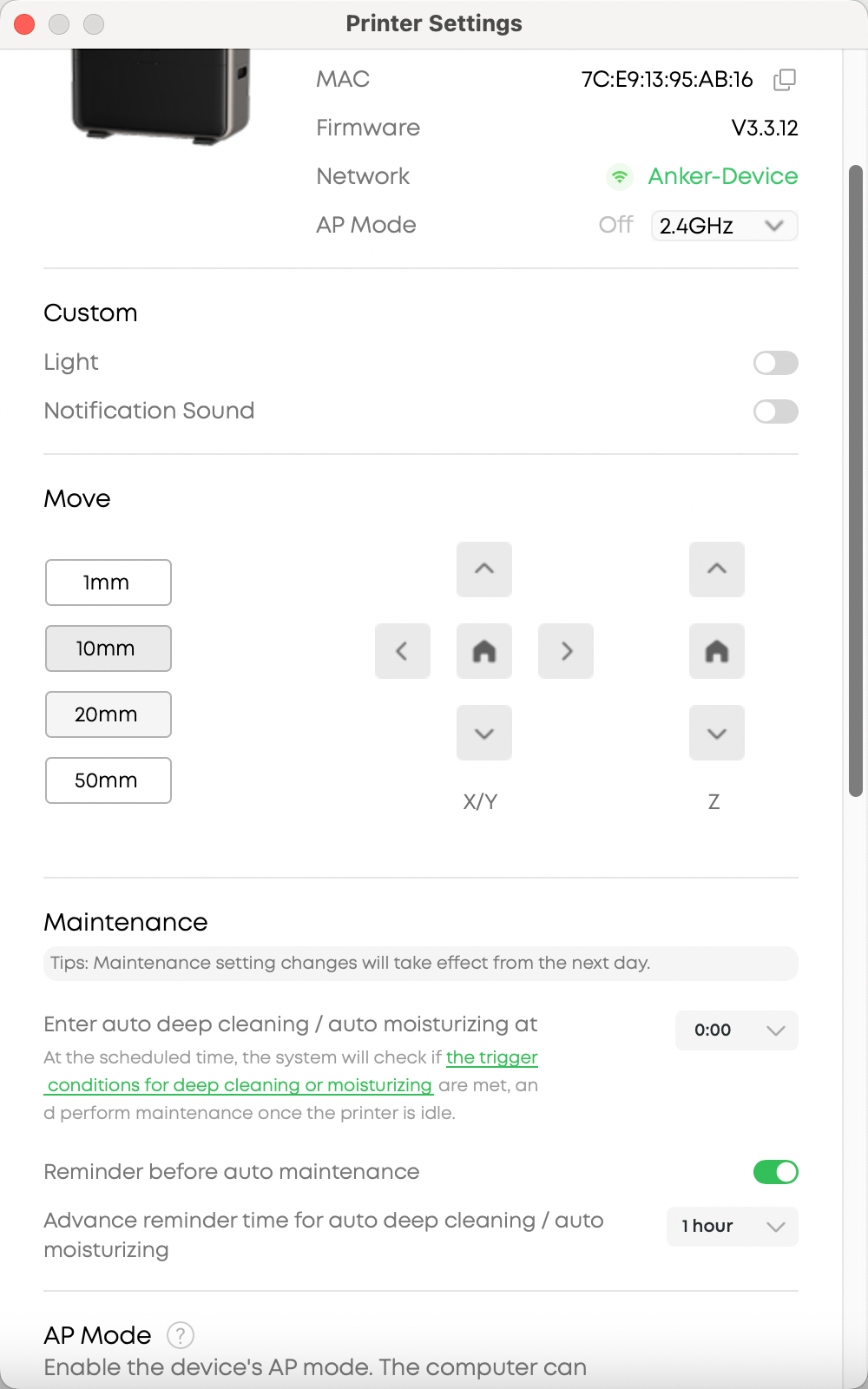
Triggered at your settled time (midnight as default) If no Deep Clean or Moisturization (manual or automatic) has been performed within 72 hours. (You can adjust the maintenance time and set an advance reminder time yourself.)
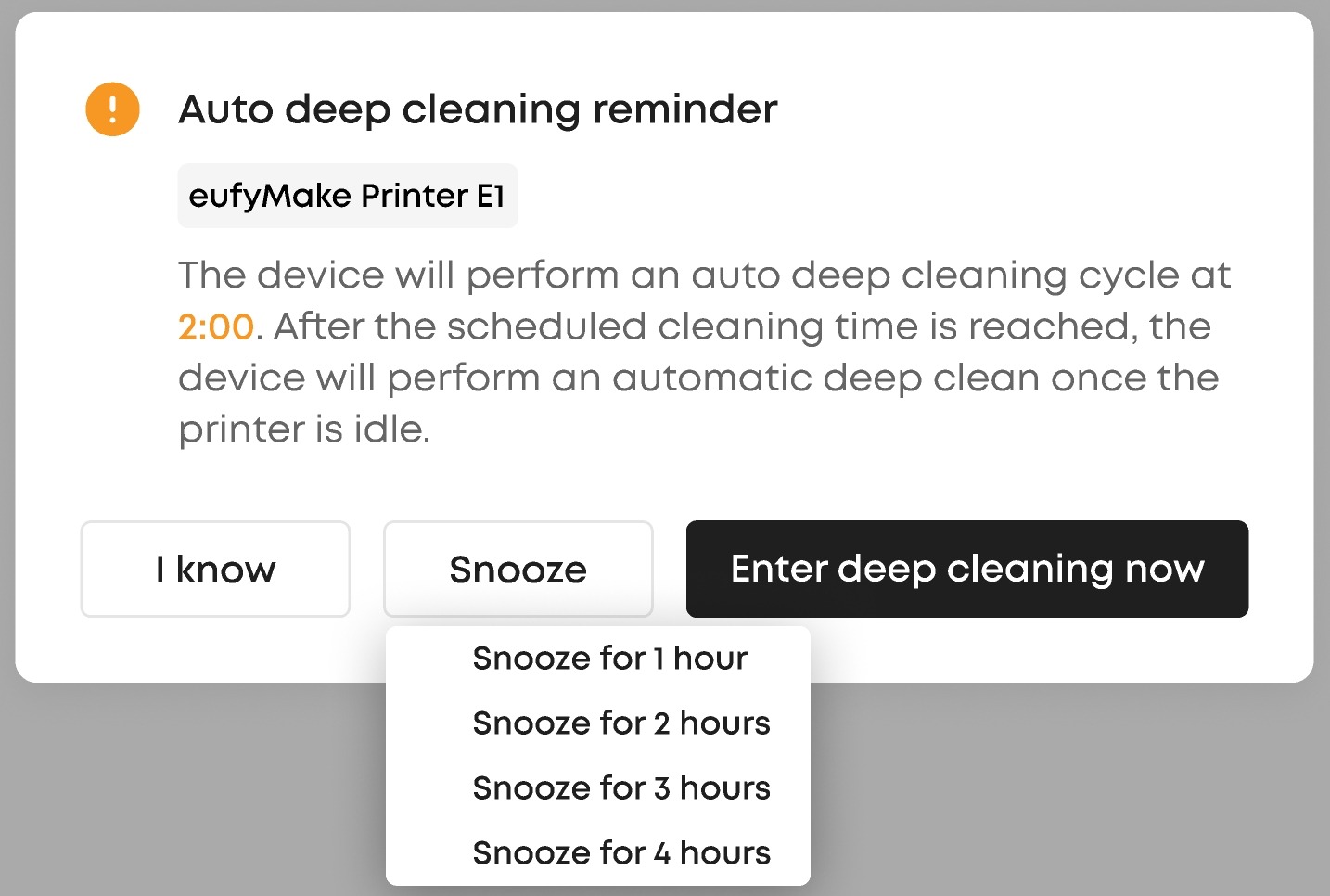
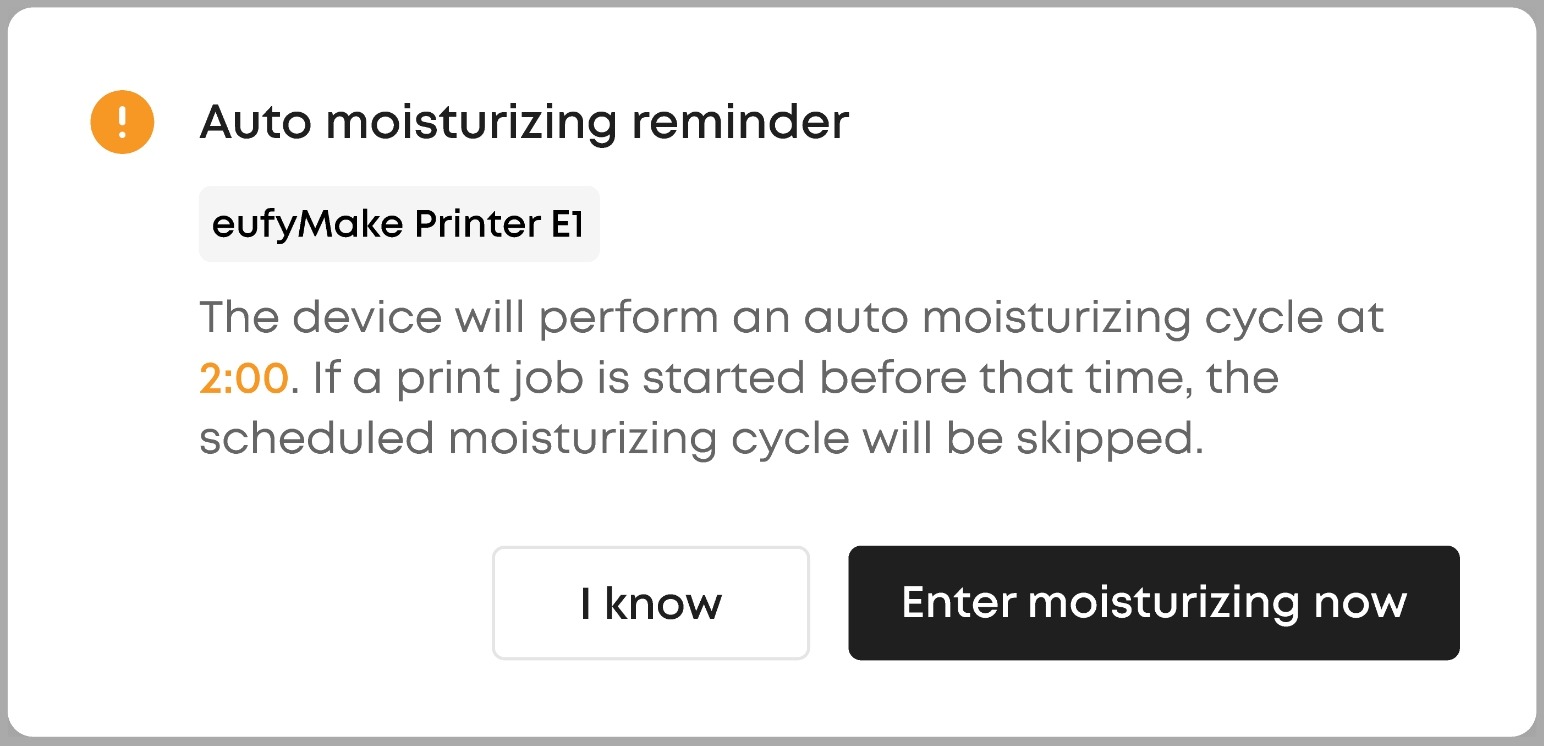
Automatic Moisturizing - for occasional printing or idle periods
Triggered at your settled time (midnight as default) If the device remains idle for 24 hours without printing. During moisturizing, the printer does not consume additional ink or moisturizing fluid beyond the values listed.(You can adjust the maintenance time and set an advance reminder time yourself.)
Safe Shutdown Maintenance
For normal use, keep the device powered on so automatic maintenance can function normally.
If you will not be using the device for an extended period:
-
Press and hold the power button for 5 seconds.
-
Wait approximately 7 min 30 s for the moisturizing process to complete.
When the printer remains moisturized for a long period (e.g., during vacation), it will not consume additional moisturizing fluid or ink.
Manual Cleaning
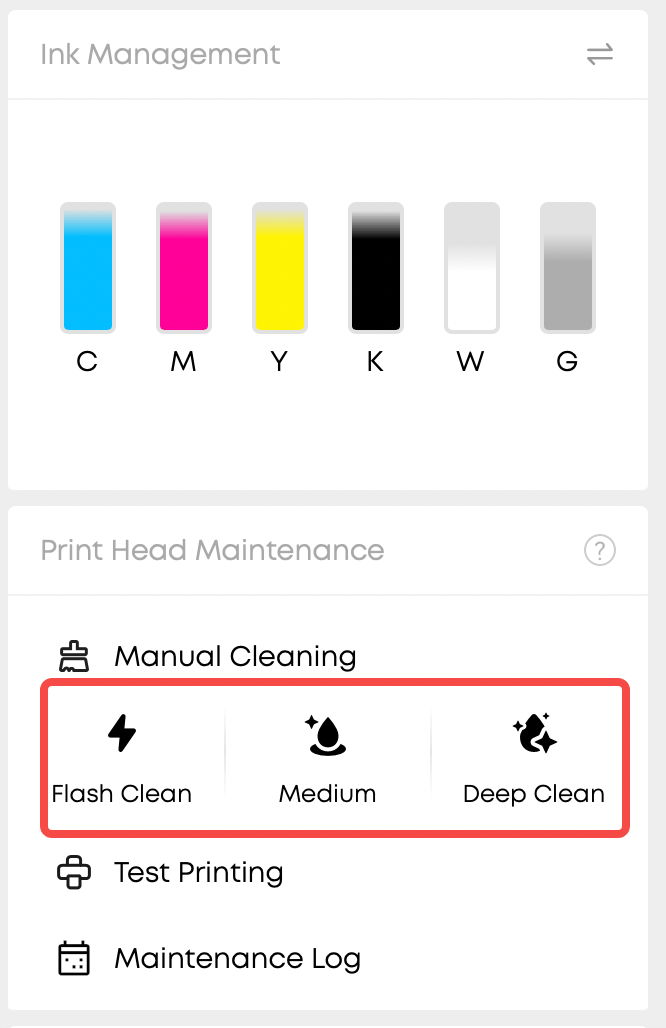
While automatic maintenance helps prevent potential issues, manual cleaning is designed to resolve print quality problems that may occur during use. If you notice color shifts or irregularities in your output, you can conduct these actions below:
-
Flash Clean – quick refresh, minimal ink use (≈ 0.0002ml ink per channel)
-
Medium Clean – standard cleaning to stabilize output (≈ 0.2 ml ink per channel)
-
Deep Clean – intensive cleaning for print head clogging or severe print issues (≈ 1.5 ml ink + 1.83 ml cleaning liquid per color channel)
Frequently Asked Questions (FAQ)
Q1: Why does my printer need White Ink Flash Cleaning?
White ink contains pigment particles that naturally settle when the printer sits idle. If less than 3ml of white ink has been used in the past 36 hours, these particles can accumulate in the ink tubes, causing faded or uneven white color in your prints. Flash cleaning circulates the ink to re-suspend the particles and restore optimal print quality.
Q2: Can I skip White Ink Flash Cleaning?
Yes. When you see the "White ink flash cleaning" option on the Ready to Print page, you can toggle it off to skip the cleaning for that specific print. However, we recommend keeping it enabled to ensure the best white ink quality, especially if your printer has been idle or used lightly.
Q3: How much ink and time does White Ink Flash Cleaning consume?
The consumption depends on how much white ink was already used in the past 36 hours:
-
Ink consumption: Up to 3ml (specifically: 3ml minus what was already consumed)
-
Time required: Approximately 4-9 minutes
-
Cleaning liquid: 1.83ml
The exact amounts are displayed on the Ready to Print page before you start printing.
Q4: What happens if my white ink is low when Flash Cleaning is needed?
If your white ink level is at or below 12%, the printer will still perform flash cleaning (if enabled) and send you a low ink notification. However, if the ink is completely empty, the printer will display an error message and prevent printing until you replace the ink cartridge. Flash cleaning will not be attempted with empty ink.
Frequently Asked Questions (FAQ)
Q1: What is the difference between Automatic Maintenance and Manual Cleaning?
Automatic Maintenance runs in the background to prevent issues before they occur:
-
Flash Clean (every 10 mins when idle) keeps nozzles clear with minimal ink use
-
Deep Clean (every 72 hours) provides thorough cleaning for frequent users
-
Moisturizing (after 24 hours idle) protects the print head for occasional users
-
White Ink Flash Clean (before printing if <3ml used in 36 hours) prevents white ink settling
Manual Cleaning is for troubleshooting print quality problems that occur during use. Use Flash Clean for minor issues, Medium Clean for moderate problems, and Deep Clean for severe clogging or defects.
Q2: Why does my printer consume ink even when I am not printing?
Your printer performs automatic maintenance to keep the print head in optimal condition and prevent clogging:
-
Flash Clean (every 10 mins): Uses only 0.0002ml per color - minimal consumption
-
Deep Clean (every 72 hours): Uses 1.5ml cleaning liquid per channel for thorough cleaning
-
Pre-print Priming: Uses 0.2ml per color to ensure stable ink flow before each print session
These maintenance routines significantly reduce print failures and extend the lifespan of your print head. The small amount of ink consumed is essential for maintaining reliable, high-quality printing.
Q3: Should I turn off my printer when not in use?
It depends on how long you will be away:
-
For regular use (daily or weekly printing): Keep the printer powered on so automatic maintenance can function normally
-
For extended periods (vacation, long breaks): Use Safe Shutdown by pressing and holding the power button for 5 seconds, then wait ~7.5 minutes for moisturizing to complete. This protects the print head for weeks without consuming additional fluids
Keeping the printer on allows it to maintain itself automatically, which is more convenient and ensures better print quality when you need it.
Q4: How often should I replace my ink cartridges?
Ink consumption depends on your usage patterns:
-
Initial setup: 15ml per color (one-time only, includes system priming and flushing)
-
Pre-print priming: 0.2ml per color after 12+ hours of inactivity
-
Automatic maintenance: 0.0002ml per flash clean, 1.5ml per deep clean (every 72 hours)
-
Actual printing: Varies based on design size, layer count, and white ink usage
Most users can complete hundreds of prints per cartridge. The app will notify you when ink levels are low (≤12%) so you can plan your replacement in advance.










