Applicable Scenarios
When you need to divide a large image into multiple smaller pieces for batch printing, you can use the Image Cutting function.
Common usage scenarios :
-
The image size exceeds the printable area of the printer and needs to be printed in batches and assembled afterward.
-
A large image needs to be divided into uniform smaller sections for easier layout and printing.
-
Creating puzzle-style layouts or grid-based design effects.
Operating Steps
1. Import images
-
Import the bitmap file that needs to be split. Supported formats include PNG, JPG, and BMP.
2. Select the Image and Open the Image Cutting Tool
-
Click the image on the canvas to ensure it is selected (selection border is visible).
-
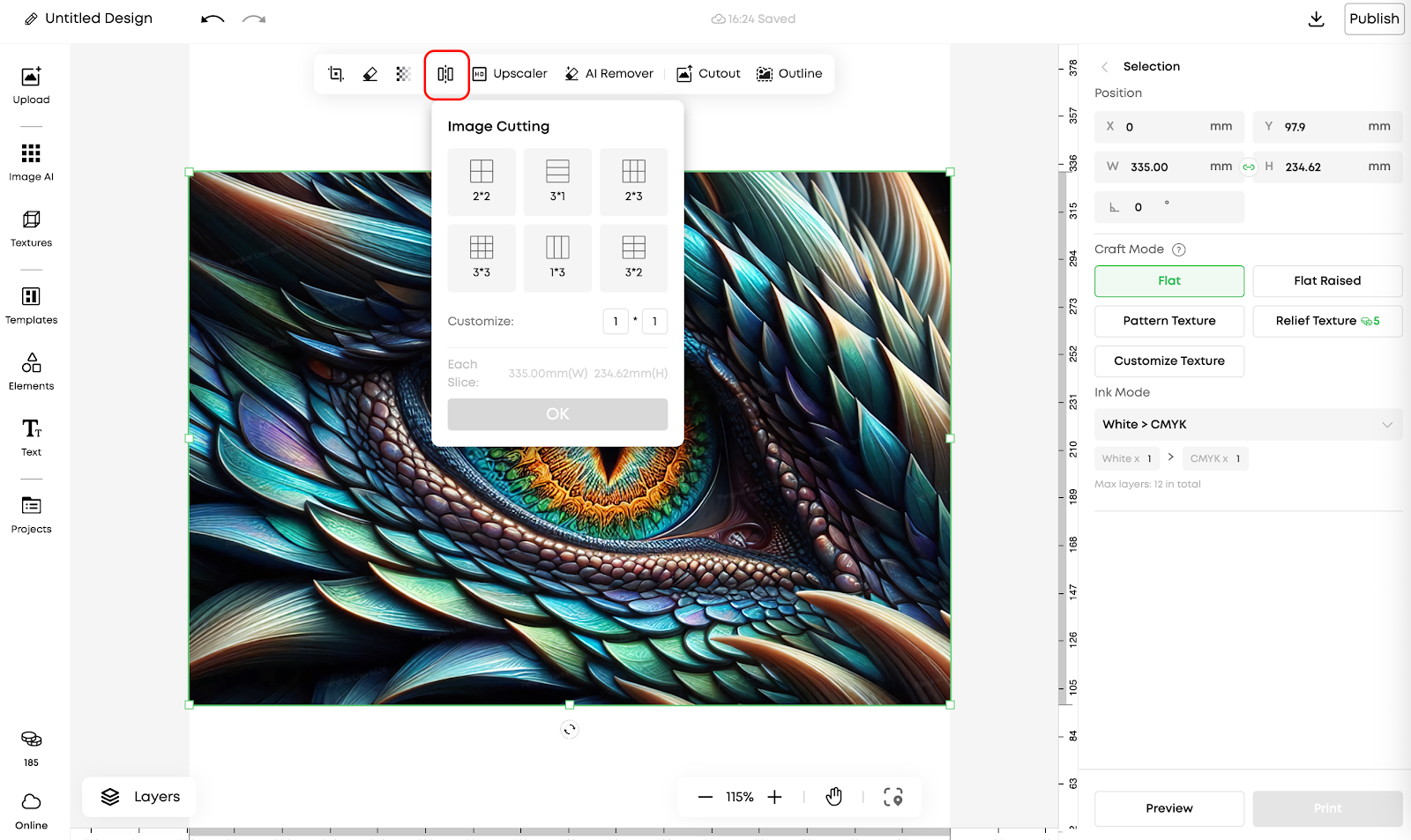
Click Image Cutting in the top toolbar.
3. Set split method
In the Image Cutting panel, choose one of the following methods:
Method 1: Preset segmentation
-
Select a commonly used preset segmentation option from the panel.
Method 2: Manual segmentation
-
Manually enter the number of horizontal and vertical segments.
-
Supported range: 1–10 segments in each direction.
4. Confirm and complete the split
-
After confirming that the preview effect is correct, click OK.
-
The system will automatically generate multiple segmented image blocks.
-
The split image blocks will appear on the canvas and can be positioned or adjusted individually.










