Fault Description
After the printer enters moisturizing mode, it may report an abnormal waste ink pump pressure error, such as:
0xFD0119002F, 0xFD0119002E
Cause Analysis
-
The waste ink channel in the capping station is not switching correctly.
-
Waste ink pump hardware malfunction.
Troubleshooting
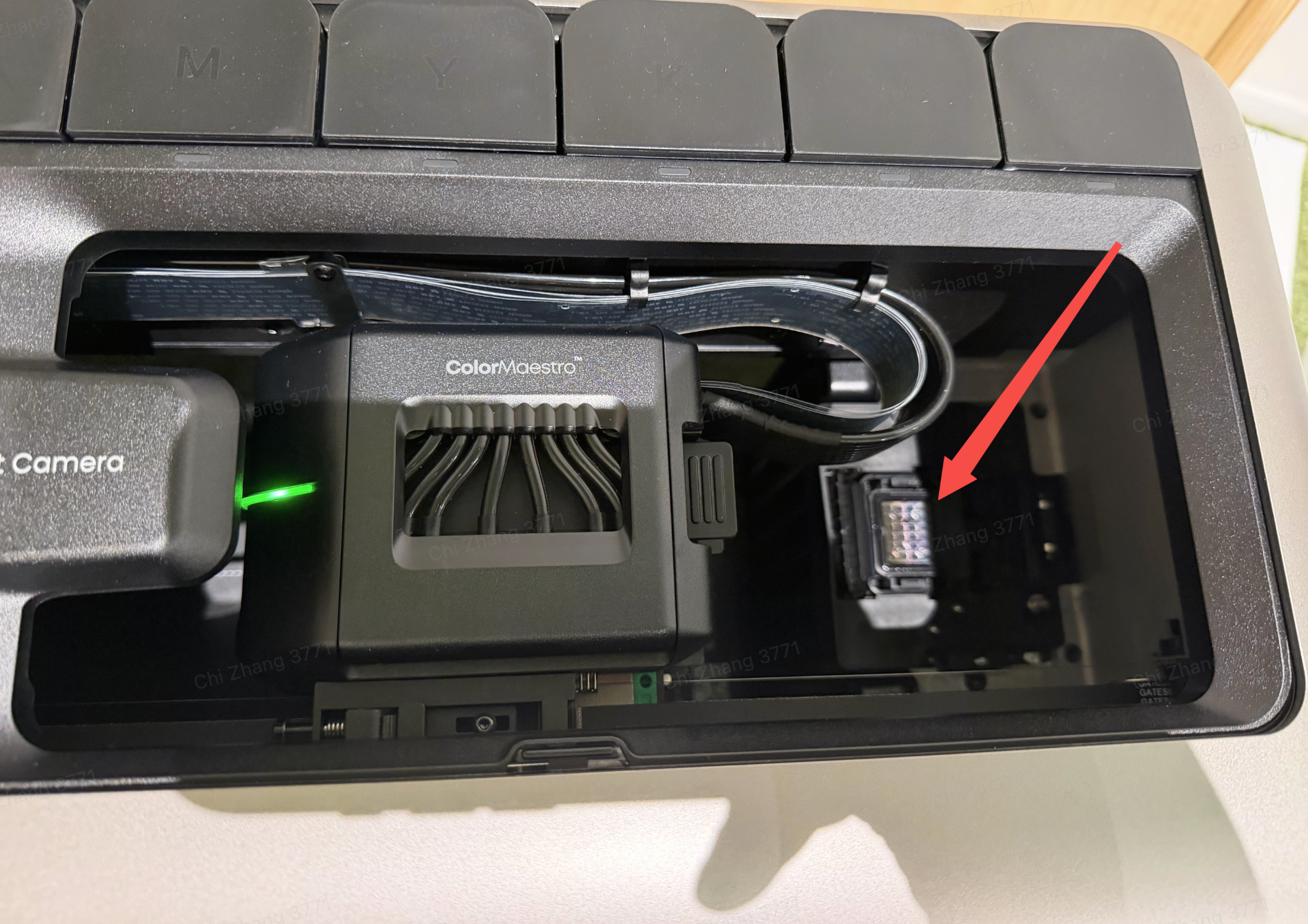
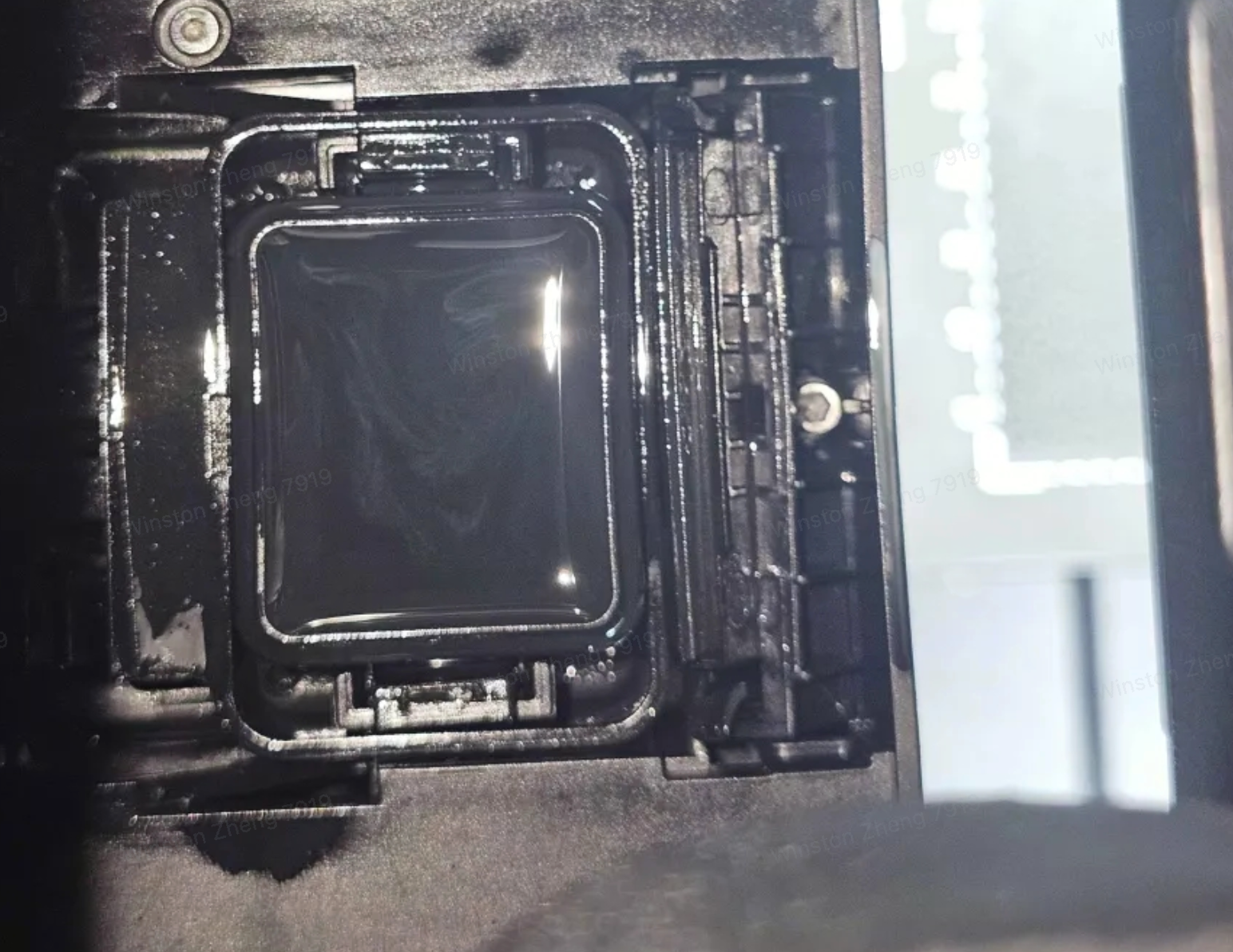
Check the capping station for any liquid accumulation:
-
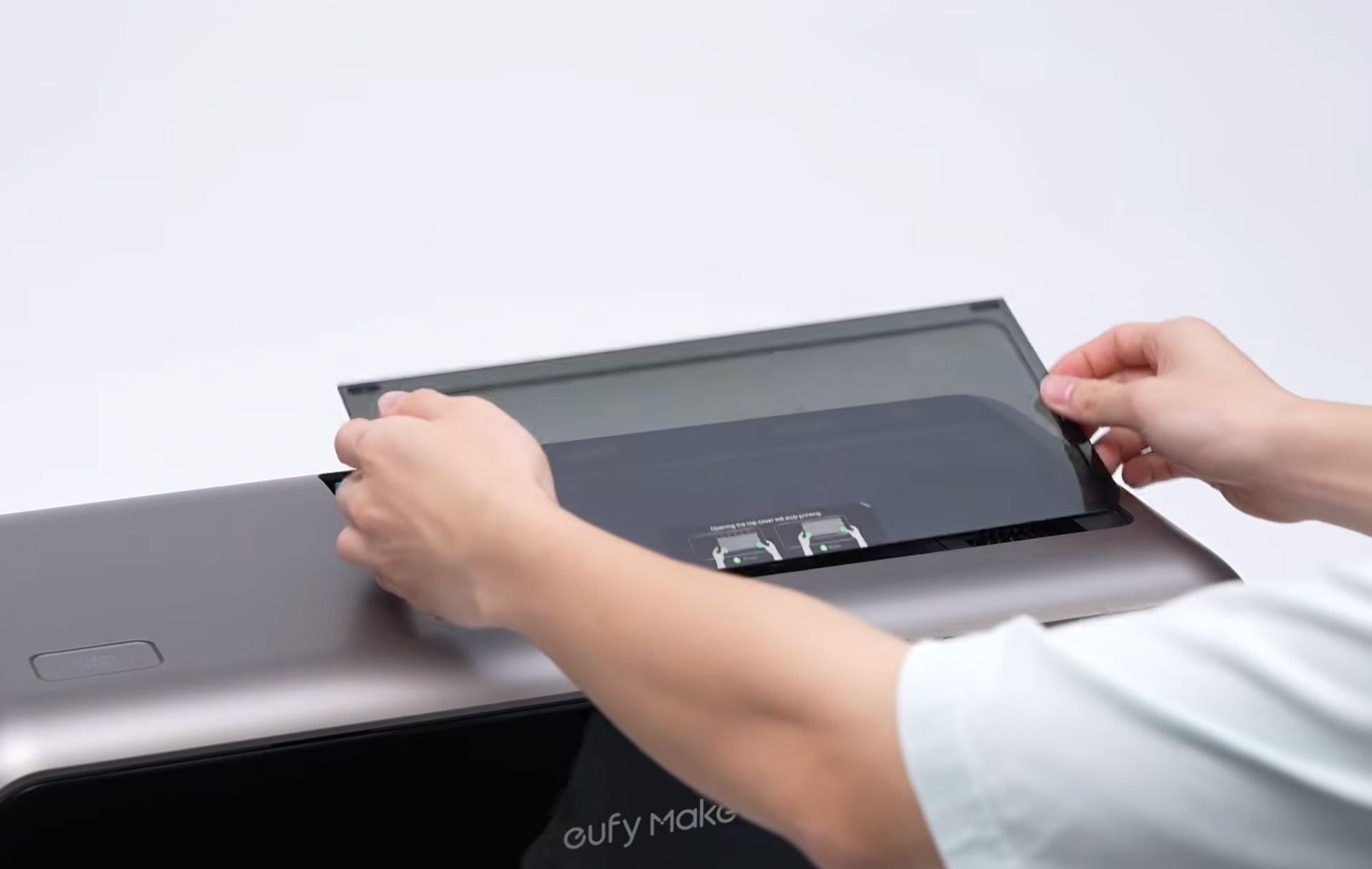
Open the top cover.
-
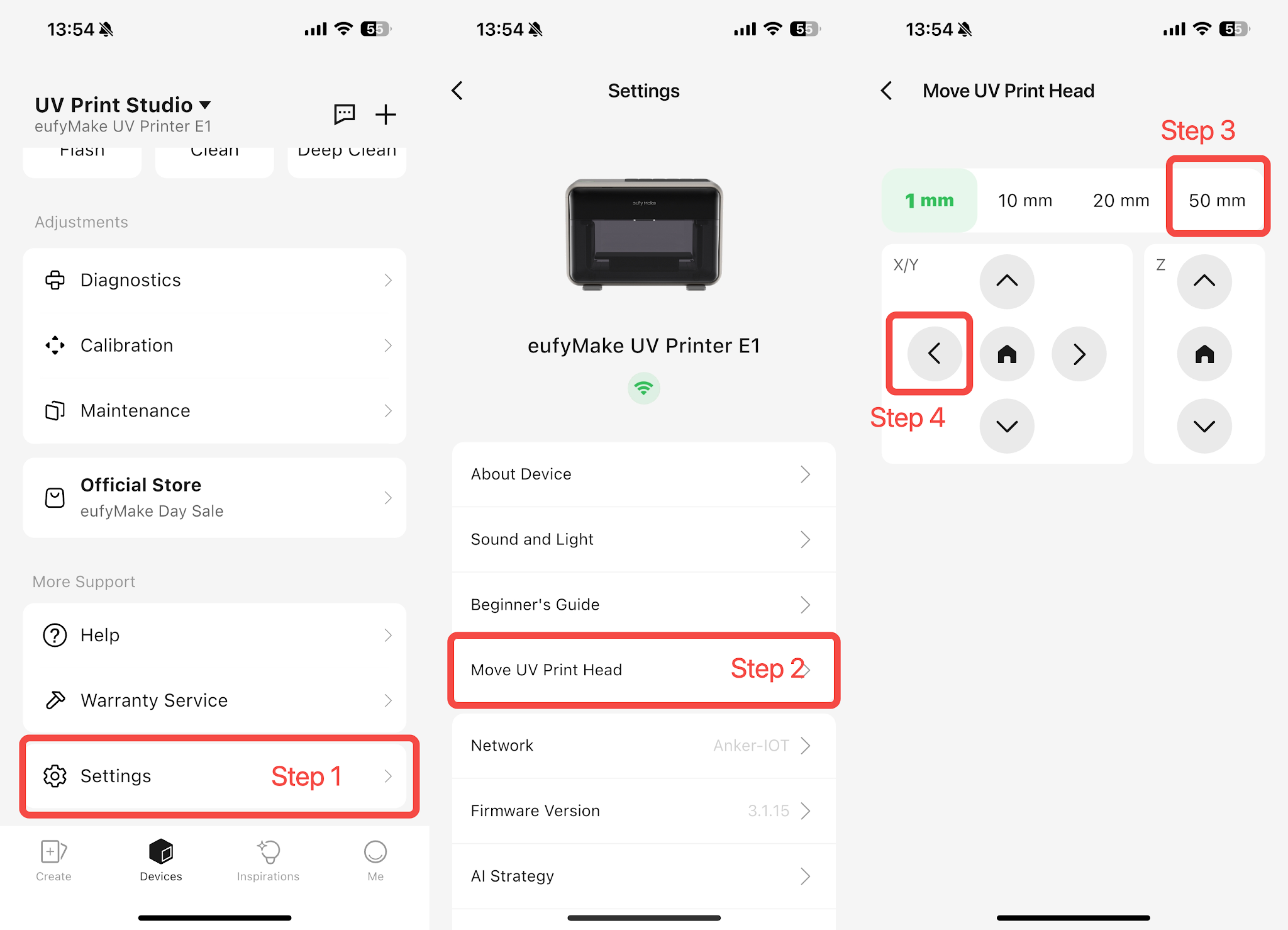
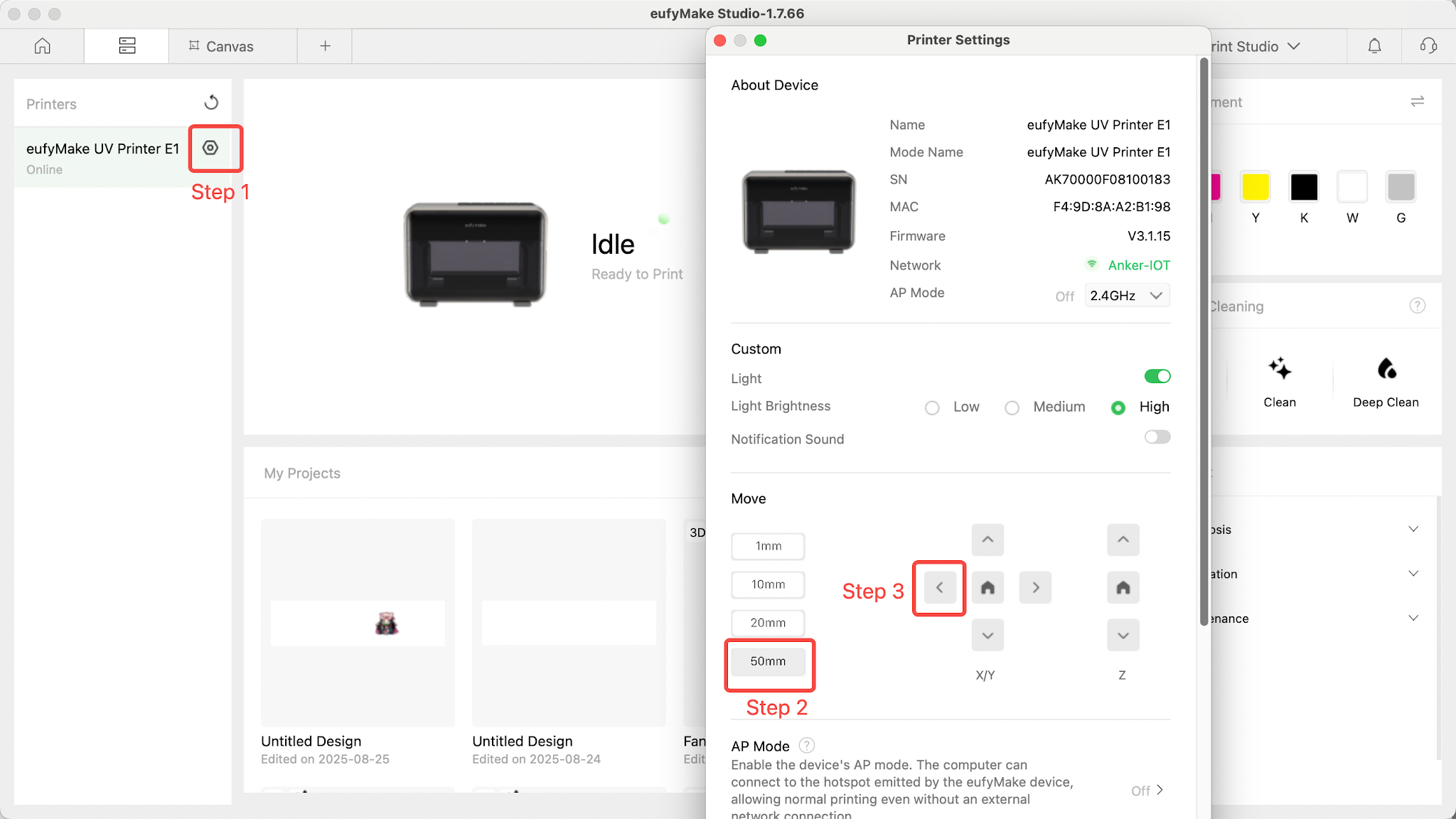
In the software, find "Move" and move the print head to a suitable position.
-
Check the capping station for any liquid accumulation.
-
If there is any liquid accumulation, take a photo and report it to the eufyMake Customer Support Team.
-
If there is no liquid accumulation, try the following methods:
Method 1
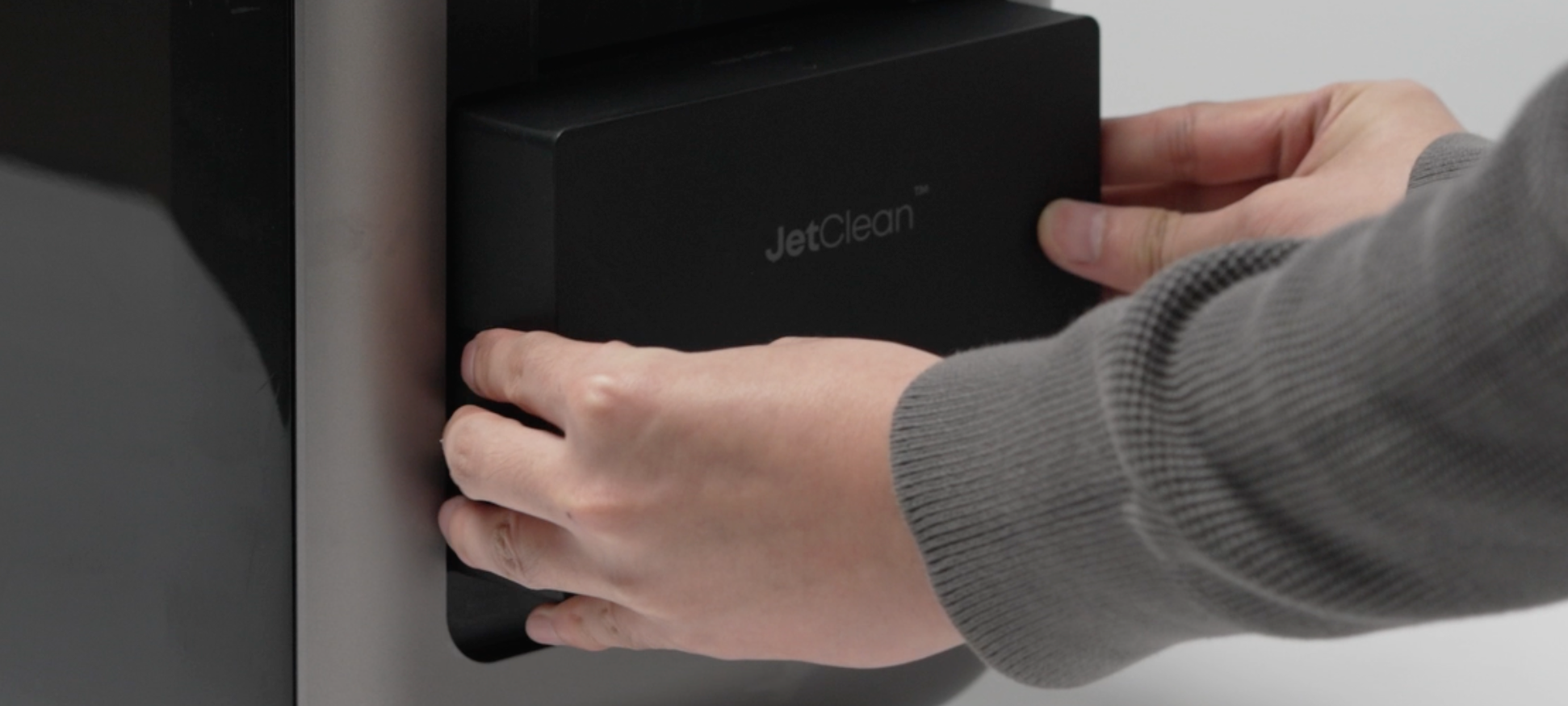
Disconnect the power cable, remove the right-side cover, remove the cleaning cartridge and reinstall it, then reconnect the power cable. The printer will automatically enter self-test mode. If successful, the app will show that the negative pressure test has passed. If not, try Method 2.
Method 2
-
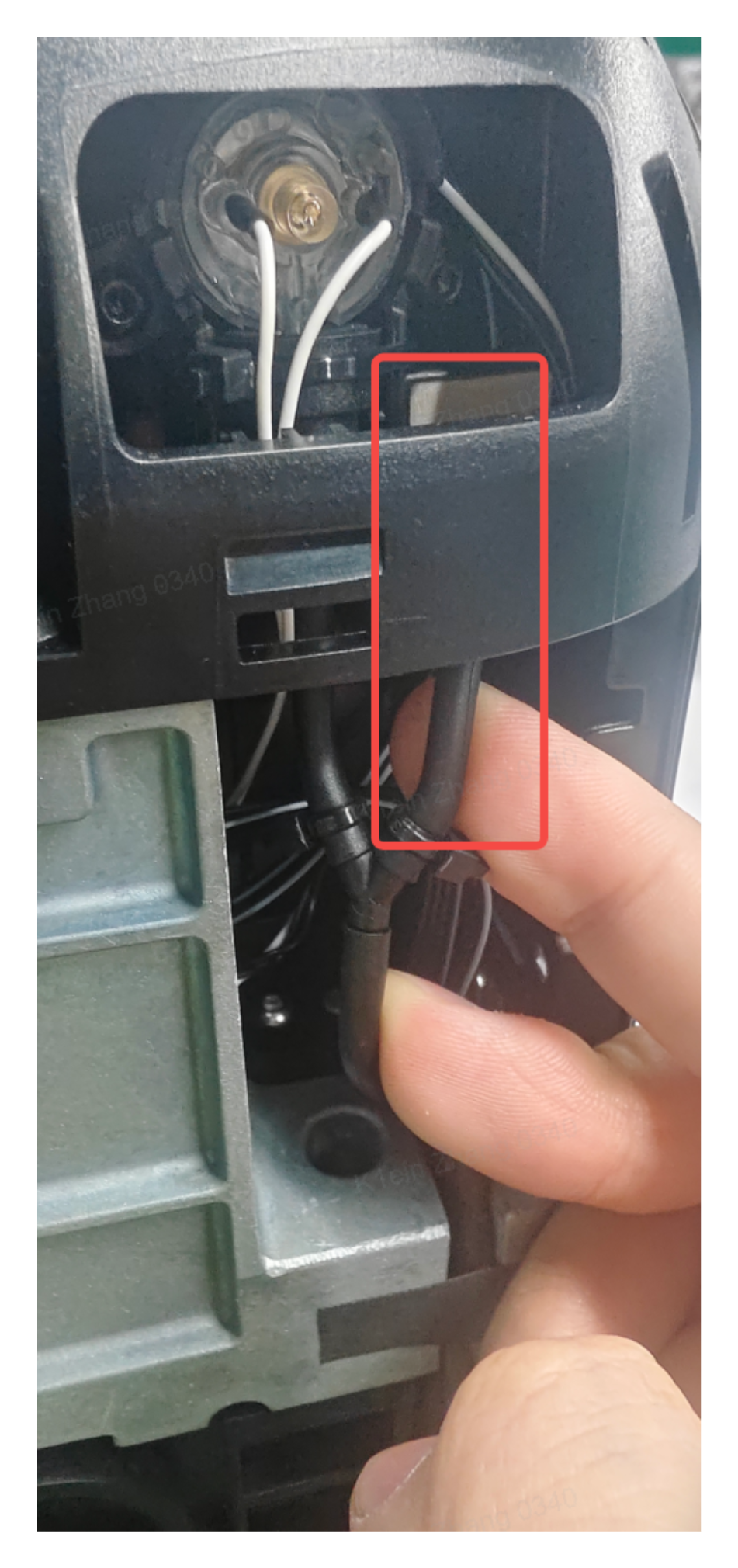
Open the right-side cover and locate the vent tube shown in the image.
-
Disconnect and then reconnect the power cable. The printer will automatically enter self-test mode.
-
Immediately after reconnecting the power cable, pinch the vent tube with your fingers until the app shows that the negative pressure test has passed.
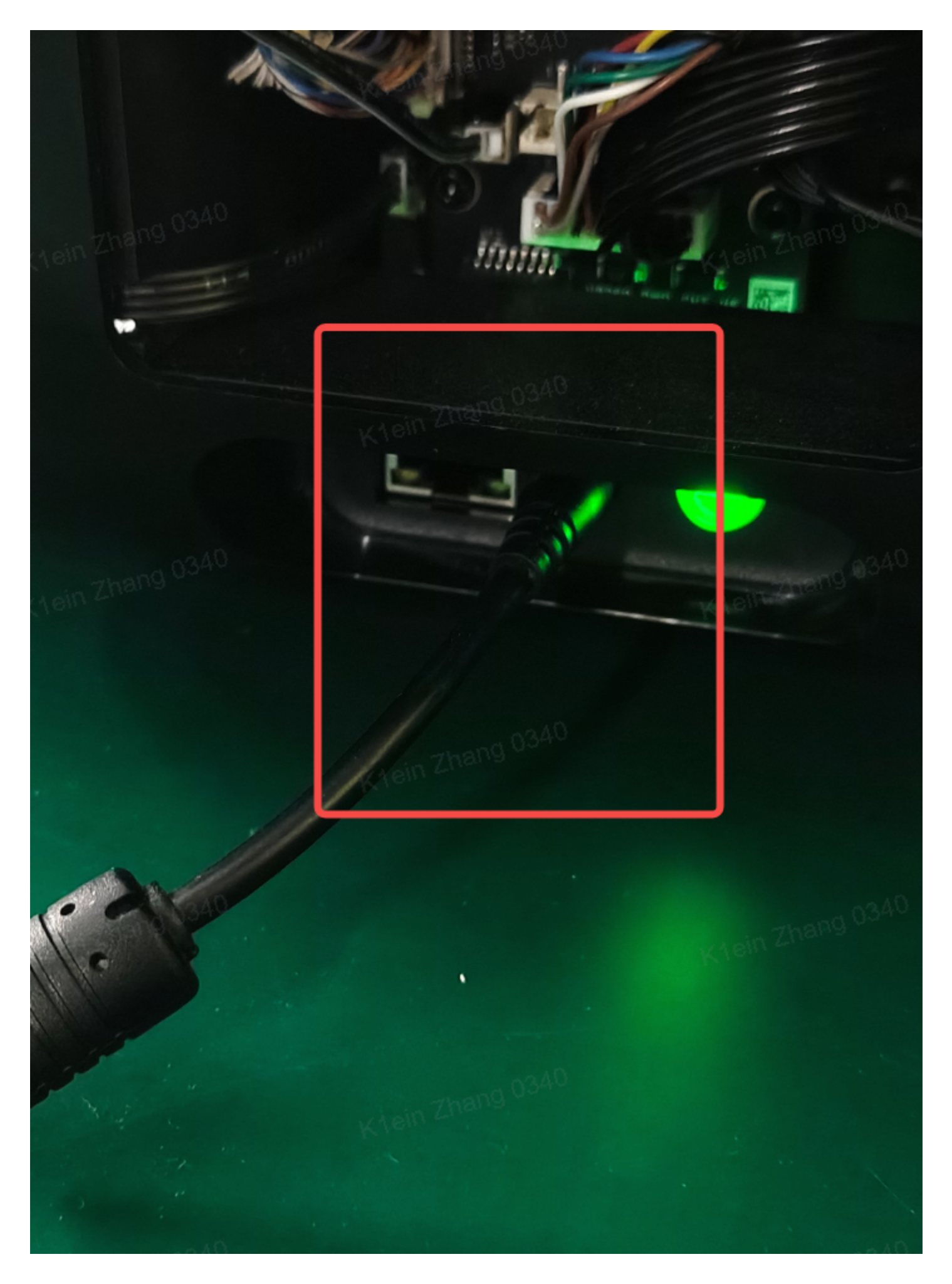
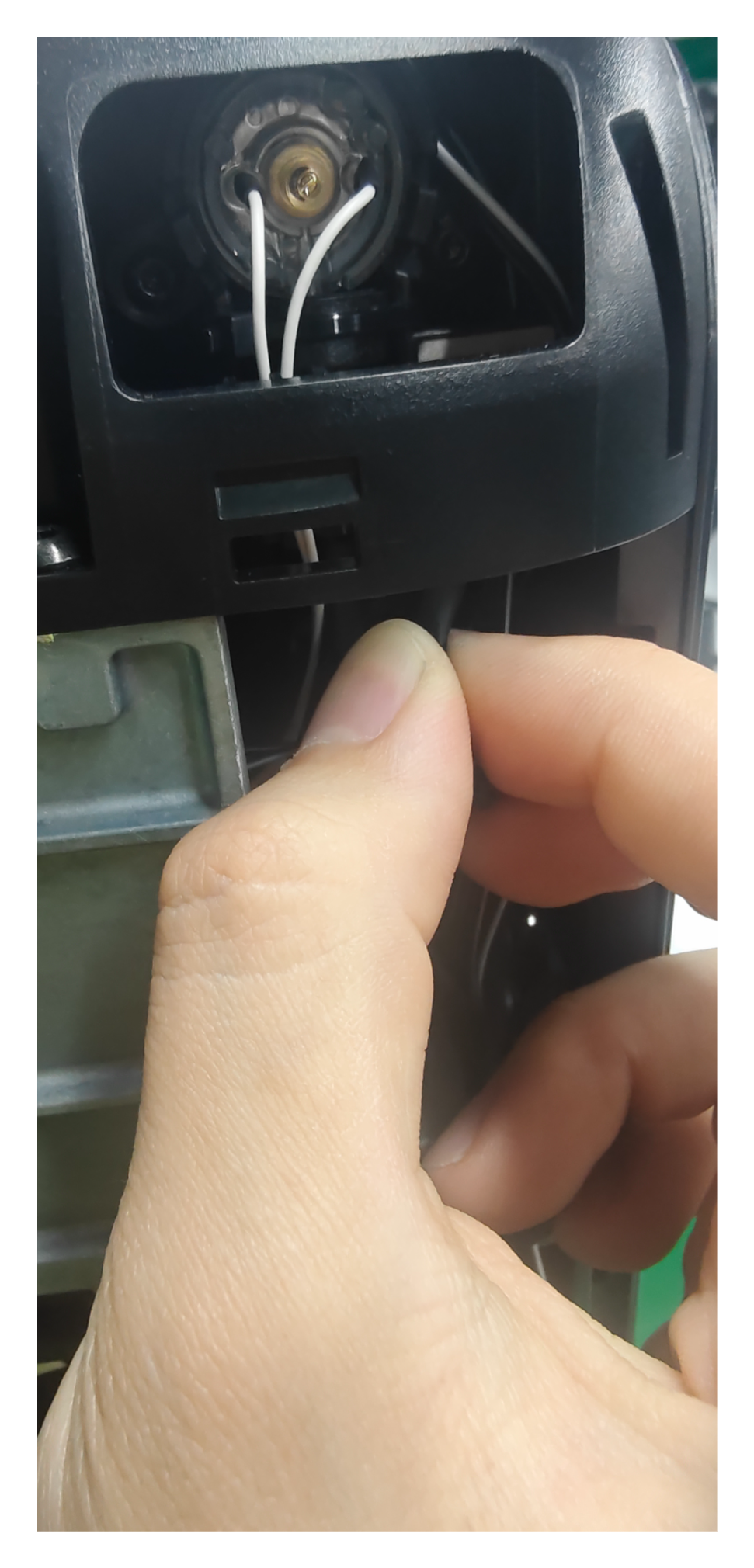
If neither of the above methods works, take a photo of the capping station showing that there is no liquid accumulation and report it to the eufyMake Customer Support Team.
Support Contact
If the issue persists after completing the above steps, please contact eufyMake Customer Support at support@eufymake.com with the following information:
-
Your Order Information
-
Printer SN. Please refer to: https://support.eufymake.com/s/article/How-to-Check-the-Device-Serial-Number-SN
-
Printer and App Logs. Please refer to https://support.eufymake.com/s/article/Log-Upload-Process-App-PC-Overview
-
Relevant photos and videos.