Symptom Description
1. When using the UV printer to print on a blank substrate, one or more colors fail to print.
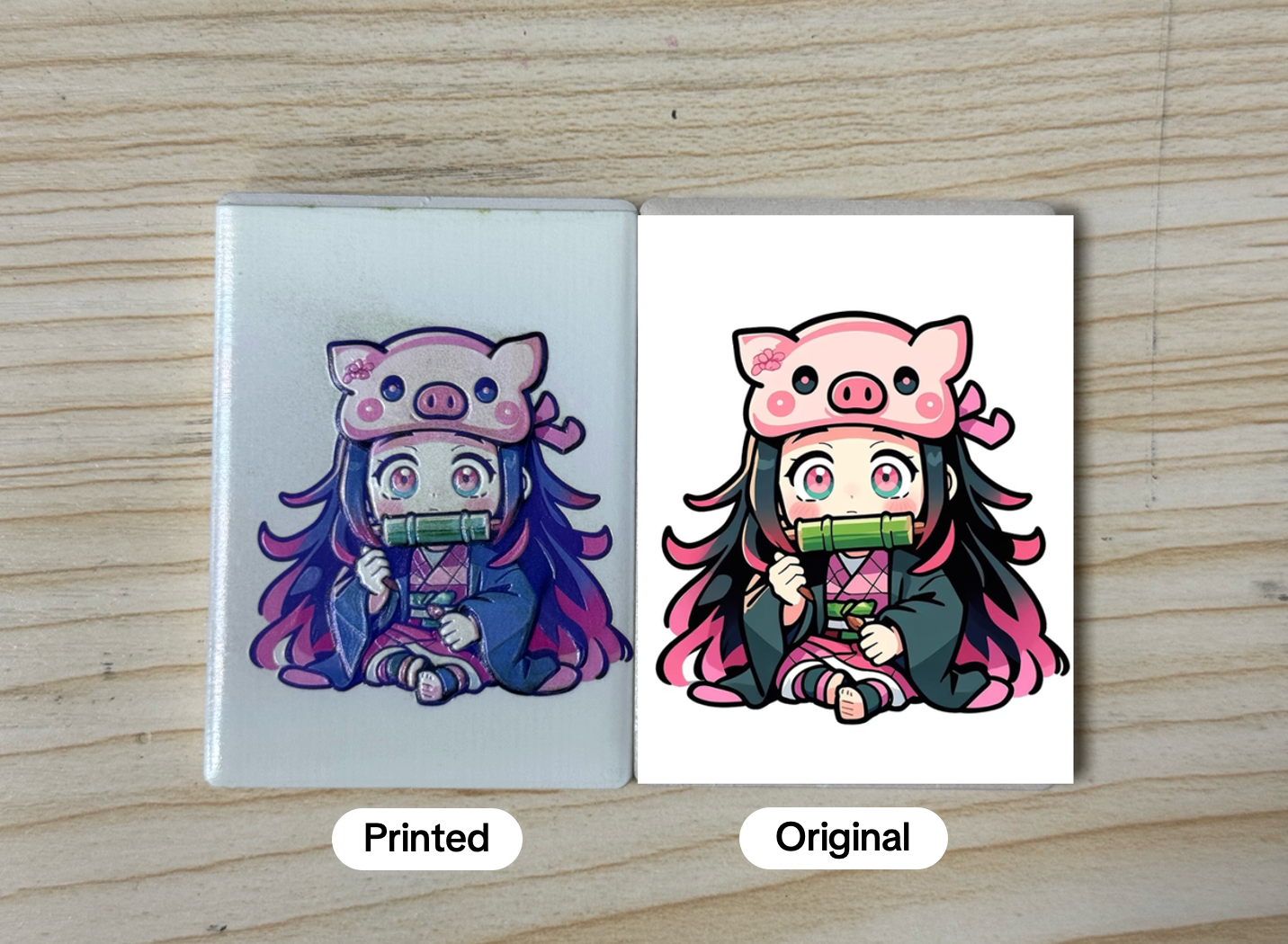
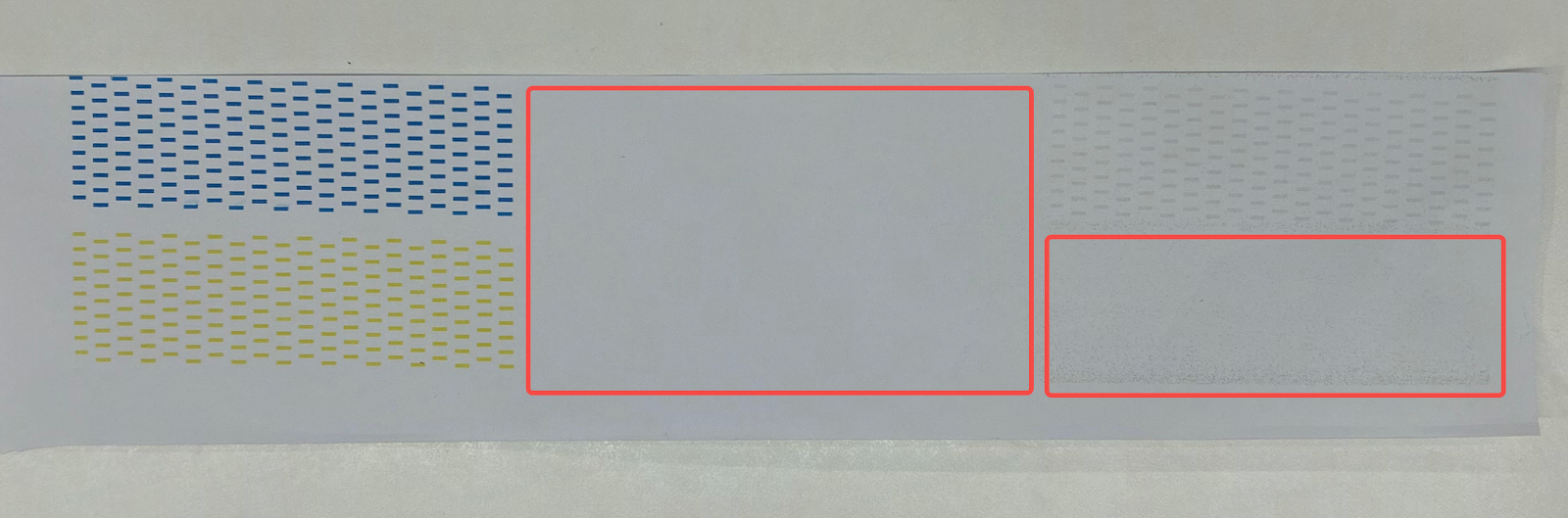
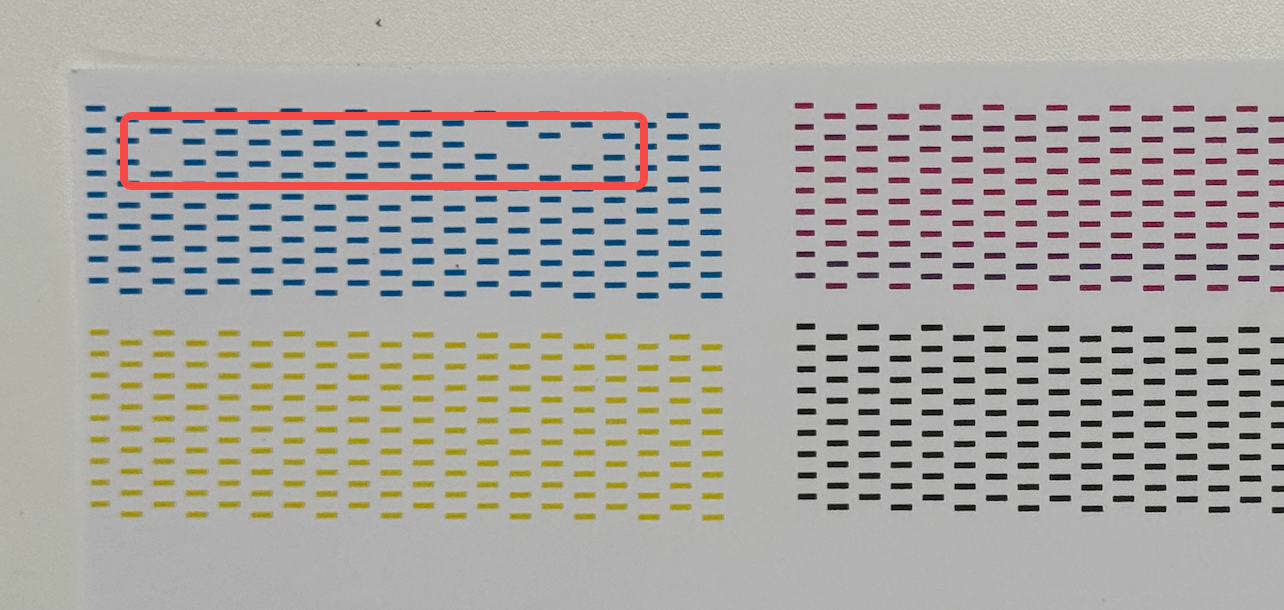
2. A certain color is missing, or lines show severe breaks/disconnections.
Possible Causes
1. Ink has expired or non-official ink is being used.
2. The ambient temperature is too low, causing the ink to become more viscous and less fluid, resulting in improper ejection.
3. The printer was powered off without performing maintenance, leading to nozzle clogging.
4. Improper operation during printing caused the substrate to scrape the nozzle surface, damaging the printhead.
5. Ink cartridge issues resulting in nozzle misfiring.
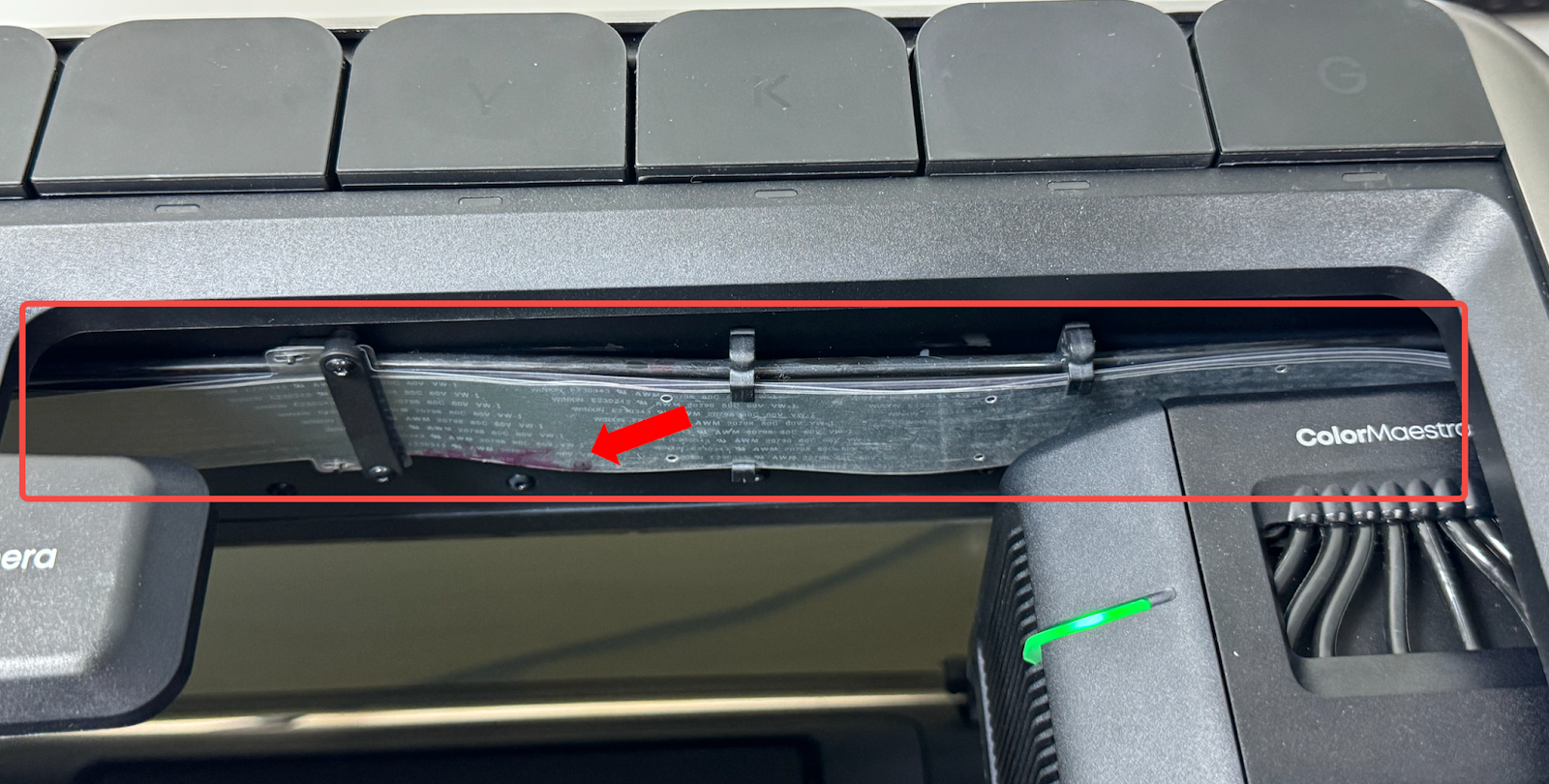
6. The flexible flat cable connected to the printhead is damaged, or the printhead itself has failed.
Troubleshooting
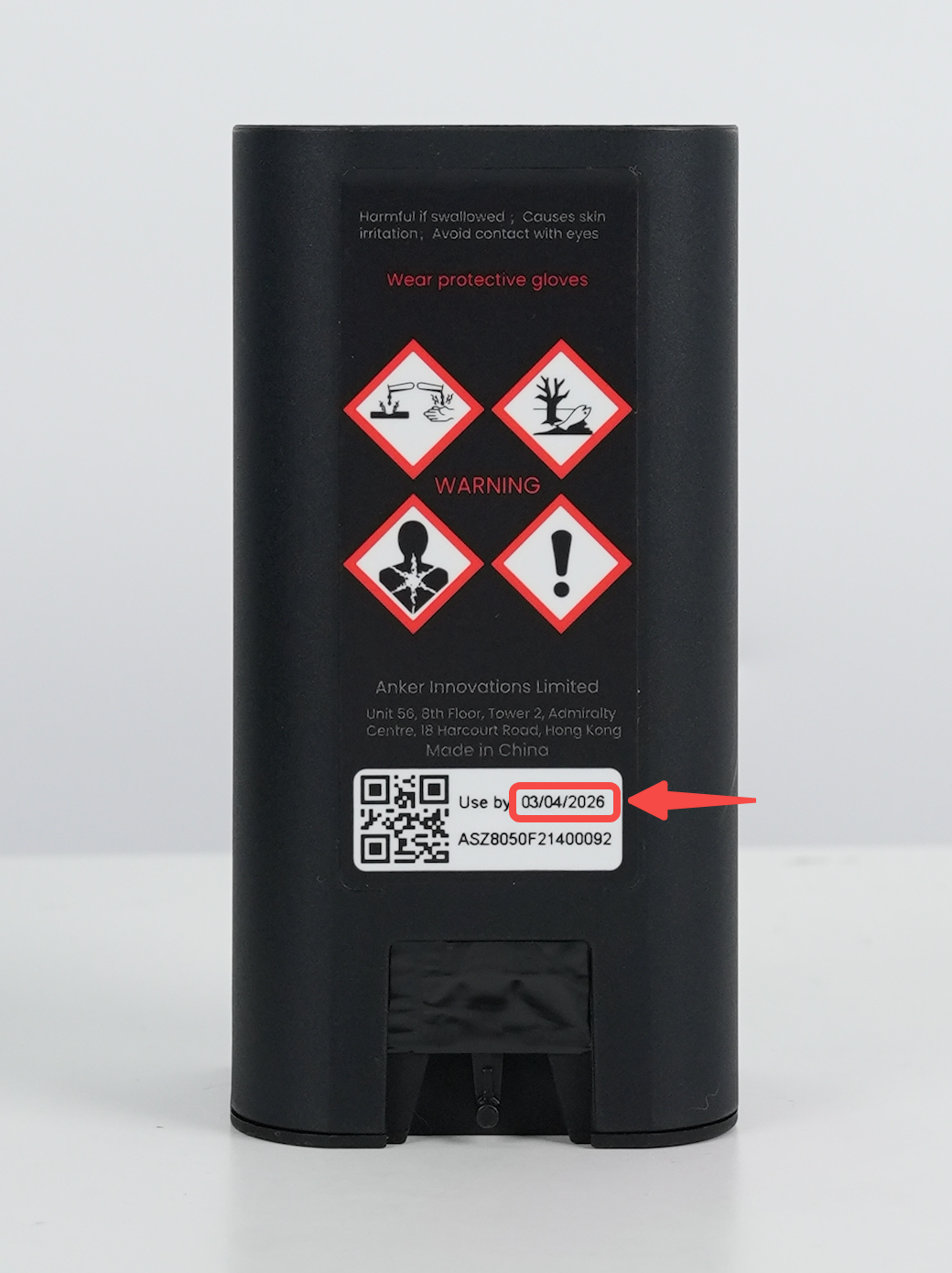
1. Check ink quality – Confirm the ink is within its shelf life and that official ink is being used.
2. Check environment – Ensure the printer is operating at room temperature (15°C to 35°C).
3. Check the last maintenance – Verify if proper maintenance was performed before the last power-off.
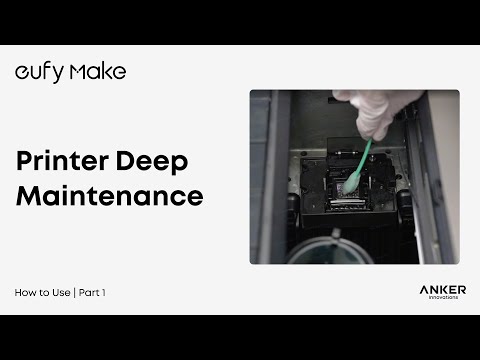
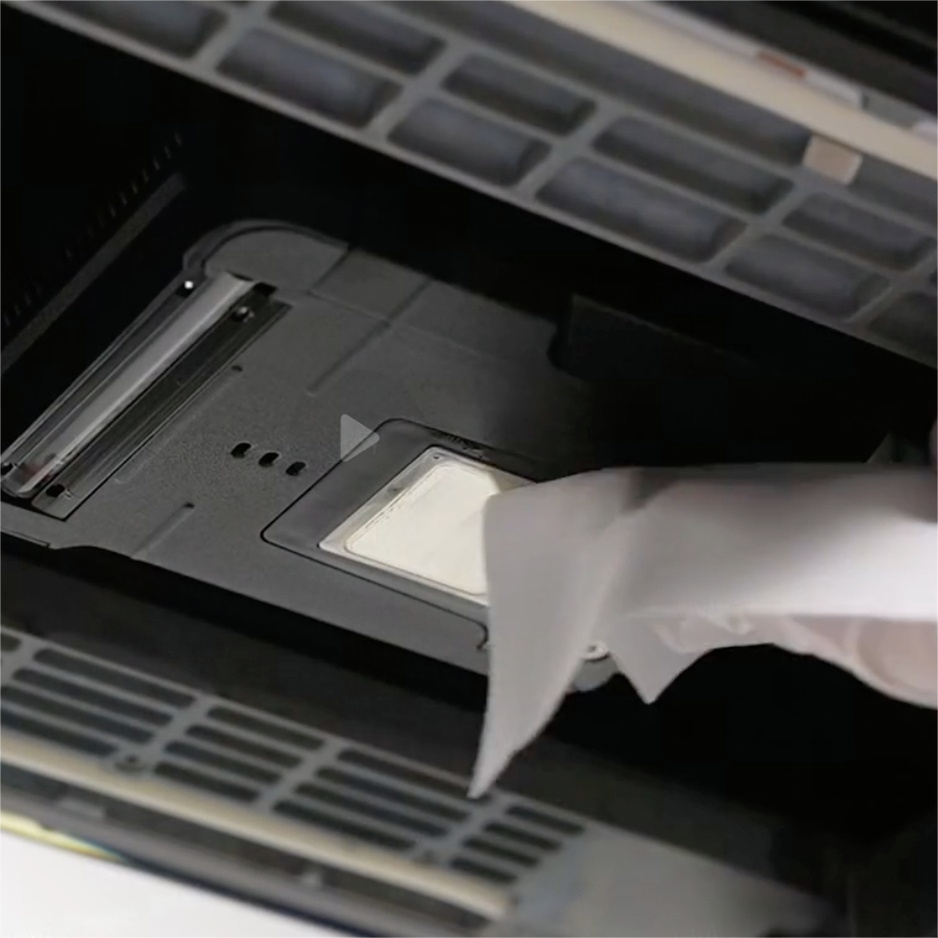
4. Inspect printhead – Use a lint-free cloth to gently wipe the nozzle surface and check for scratches.
5. Print a test pattern – Examine whether the test pattern is normal.
Note: If white ink or varnish does not print, we recommend testing on transparent film or colored paper. On white paper, white ink and varnish are difficult to see clearly.
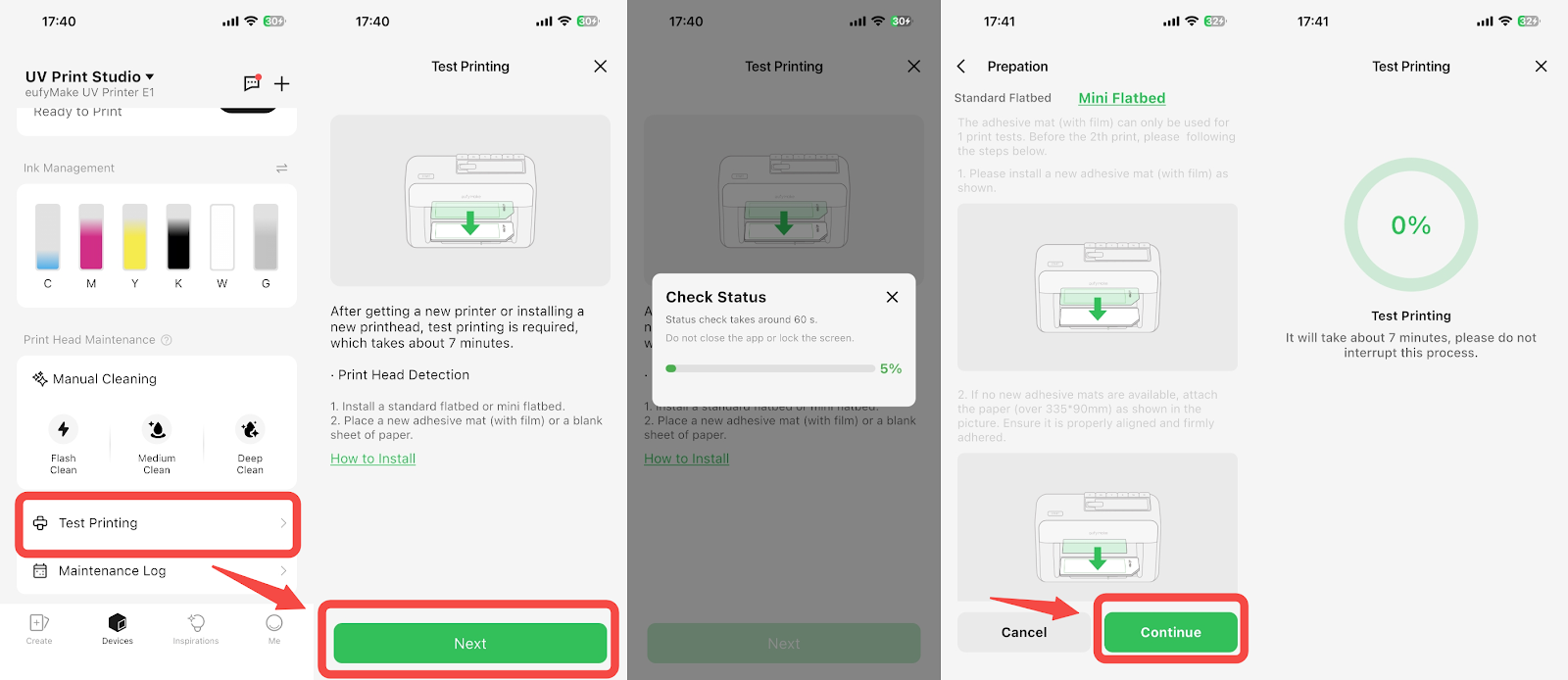
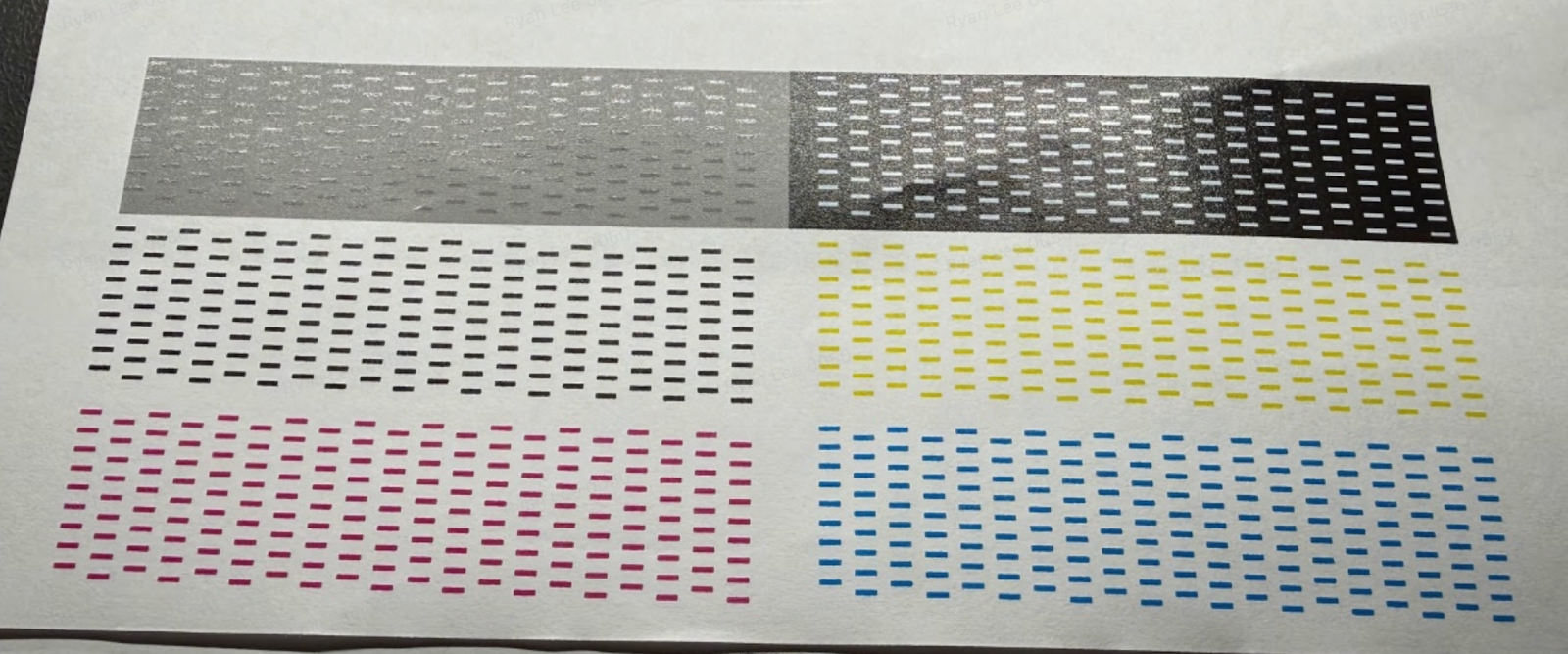
a. Referring to the figure above: If all line graphs of a certain color are missing, or there are serious breaks in the line graphs, click NO and select the color channel with abnormalities. The software will automatically run Medium Clean. After medium cleaning, it will automatically print and check a new test pattern.
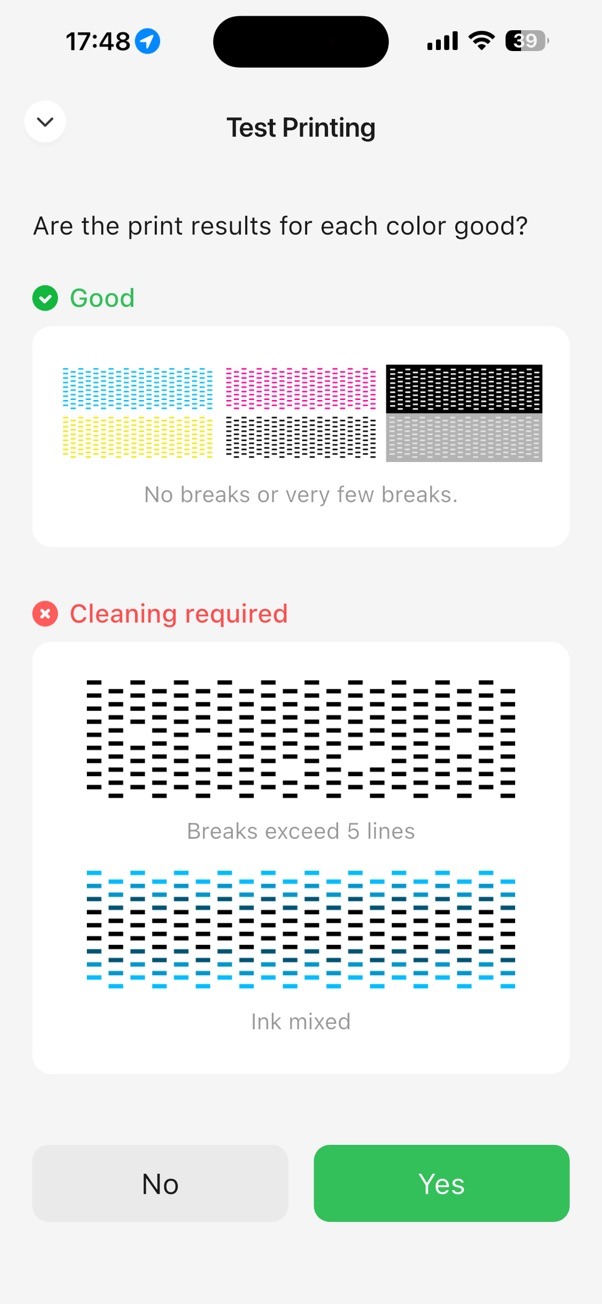
b. If the test chart passes, click YES to start printing.
If the test chart shows serious disconnection or no ink at all, click YES to enter the main device interface and perform Deep Clean.
6. After the Deep Clean is complete, print a test pattern and check the results.
a. If issues persist, repeat Deep Clean once more.
b. If problems remain, continue troubleshooting based on the fault:
-
Broken line issue:
Replace the ink cartridge with a new one and check if the issue improves.
-
Single color channel not printing:
Check for damage to the flexible flat cable inside the machine.
-
No colors print: Upload the printer log.
7. If the above steps do not resolve the problem, please contact eufyMake Customer Support and provide the following:
-
Purchase order information
-
Printer SN (Refer to How to Check the Device Serial Number (SN))
-
Printer and app logs (Refer to Log / Feedback Upload Process (App & PC) – Overview)
-
Photos of failed prints and test patterns (taken under good lighting)
-
Video recorded during Step 5-b (Deep Clean)
-
Troubleshooting results from Steps 1–6