Powering On and Switching Speeds
T520Q uses single-button control. All operations are performed using either short presses or long presses:
-
Power on: After connecting the power, press the button once to turn on the fan. The fan runs at Speed 1.
-
Switch speeds: Press the button again to cycle through Speed 1 → Speed 2 → Speed 3 → Standby.
-
Power off: Long-press the button for 2 seconds. The fan enters standby (off) mode.
Speeds and Indicator Light
T520Q shows its current operating status through the surrounding light ring. The applicable scenarios and corresponding indicator lights for each speed are as follows:
Usage Restrictions
To ensure effective exhaust performance and safe use, note the following restrictions:
-
Not for windowless spaces: T520Q must vent gases outdoors. It cannot be used in fully enclosed, windowless spaces where the exhaust duct cannot connect to the outside. Choose the T5216 Purifier P1 Kit instead.
-
Not recommended in high winds or rain: This may cause rainwater backflow and reduce exhaust effectiveness.
-
Keep the main unit near a window: The exhaust duct must connect to the outside, so place the main unit near a window or vent.
Daily Maintenance
Cleaning the Filter Screen
The fan and air guide require regular cleaning, especially the filter screen. It is recommended to wipe the filter screen regularly to keep airflow unobstructed.
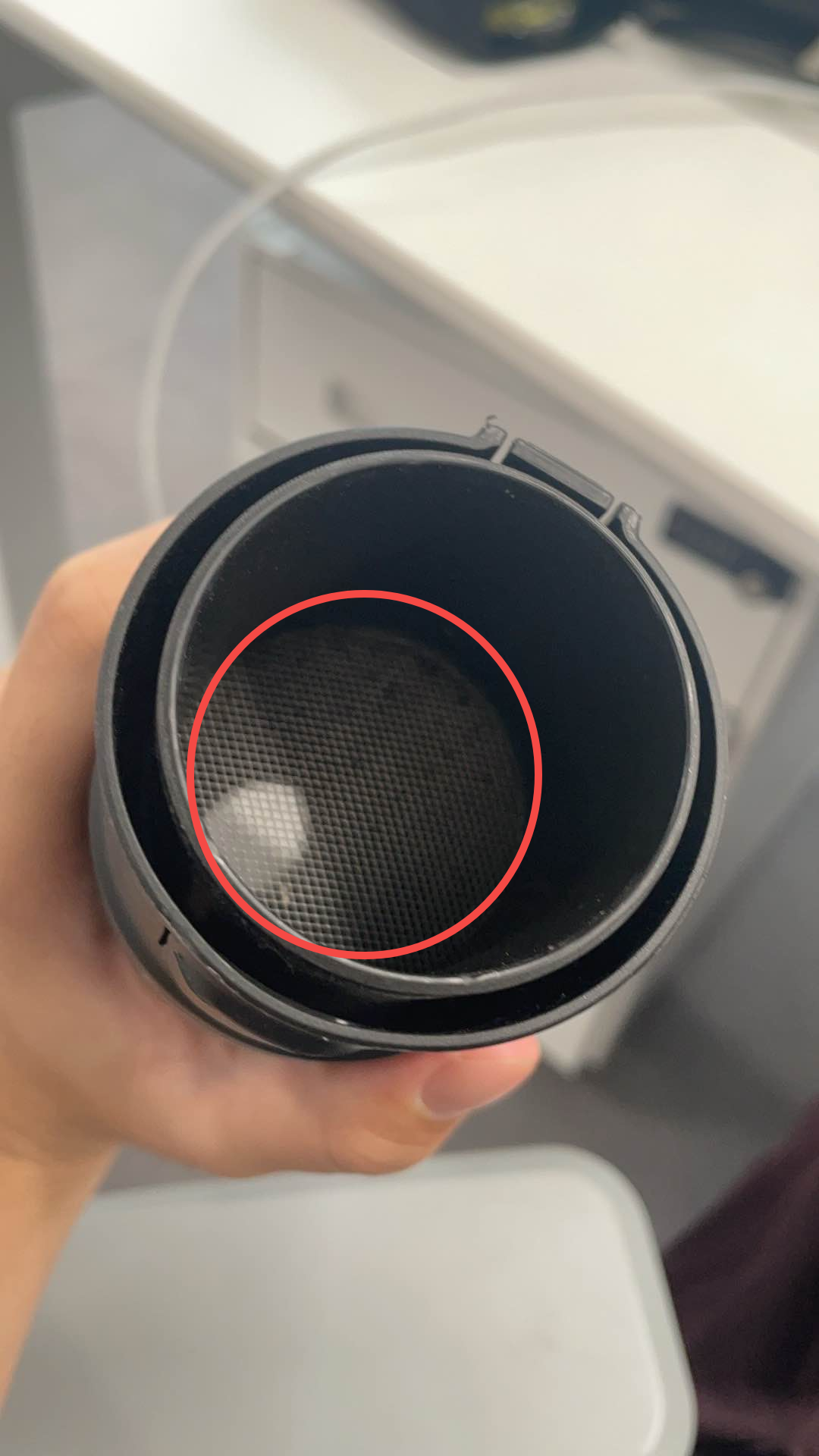
C
Checking the Exhaust Hose
Repeated bending of the hose generally does not affect exhaust effectiveness. If the hose is squeezed by a window or other objects, it can still be used normally as long as it is not punctured.
If you suspect the hose is leaking, run your hand along the hose connections and body while the machine is on. If you feel an obvious air leak, re-secure the hose or check whether the connections are properly fitted. It is recommended to check the hose regularly for damage.
Troubleshooting
Indicator light is green but the fan does not spin
This occurs when the system detects no fault, but the fan is not operating. Check whether the fan or shaft is blocked by foreign objects. Remove any blockage and restart the device. If the issue persists, contact after-sales support.
No response after powering on
Check whether the power adapter and cables are properly connected and whether power is being supplied normally. If the power supply is confirmed to be normal but there is still no response, contact after-sales support.
Button cannot switch speeds
First, power off the device and restart it. If the speed still cannot be switched, contact after-sales support for repair.
FAQ's
Q: What should I do if the red light is on?
A steady red light indicates a hardware fault. Power off the device and restart it first. If the red light stays on, contact after-sales support.
Q: Can I use it in high winds or rain?
Not recommended, as this may cause rainwater backflow and reduce exhaust effectiveness. It is recommended to purchase and install a rain cap to prevent water from entering the hose in rainy weather.
Q: How do I check for hose leaks?
With the machine on, run your hand along the hose connections and body. If you feel an obvious air leak, re-secure the hose or check the connections.
Q: What is the odor-removal effect when using the A3 platform board or roll attachment (open printing)?
During open printing (with the front and rear covers open), most of the printing odor is drawn into the air guide by the fan and vented outside. Select the appropriate speed based on the printing mode to effectively reduce the spread of odors.


