Local Mode ≠ Offline Mode
Before getting started, please understand an important distinction:
Local Mode refers to where your project files are stored — your projects are saved as .empf files on your computer's local hard drive, not on a cloud server. You can manage local files freely, just like with traditional professional software such as Photoshop or Word: save, save as, create copies, back up to a USB drive, etc.
Offline Mode refers to the network connection status — the state of working without an internet connection.
These are independent concepts:
-
Local Mode + Online: Projects saved locally, all online features available (cloud AI, cloud assets, etc.)
-
Local Mode + Offline: Projects saved locally, online features temporarily unavailable, but editing is completely unaffected
-
Cloud Storage Mode: Projects saved in the cloud, auto-synced, similar to the previous approach
In simple terms: Local Mode is about "where the file lives," while Offline Mode is about "whether you have internet." The two can be freely combined.
Why Introduce Local Mode?
In previous versions, eufyMake Studio used a "cloud-first" design where all projects were saved to the cloud by default. While convenient for syncing, this didn't match the workflow of many professional users:
-
Couldn't "save" to overwrite the original file like traditional software — could only "export" to a new location
-
Lacked version management — couldn't quickly create copies to manage different versions
-
Double-clicking a project file didn't link the editor to the original file
-
Unexpected program crashes could cause loss of unsaved work
Local Mode solves these issues, giving you a file management experience consistent with professional software like Photoshop and Illustrator.
Core Features
Standard File Operations
Local Mode supports all familiar file operations via the File menu:
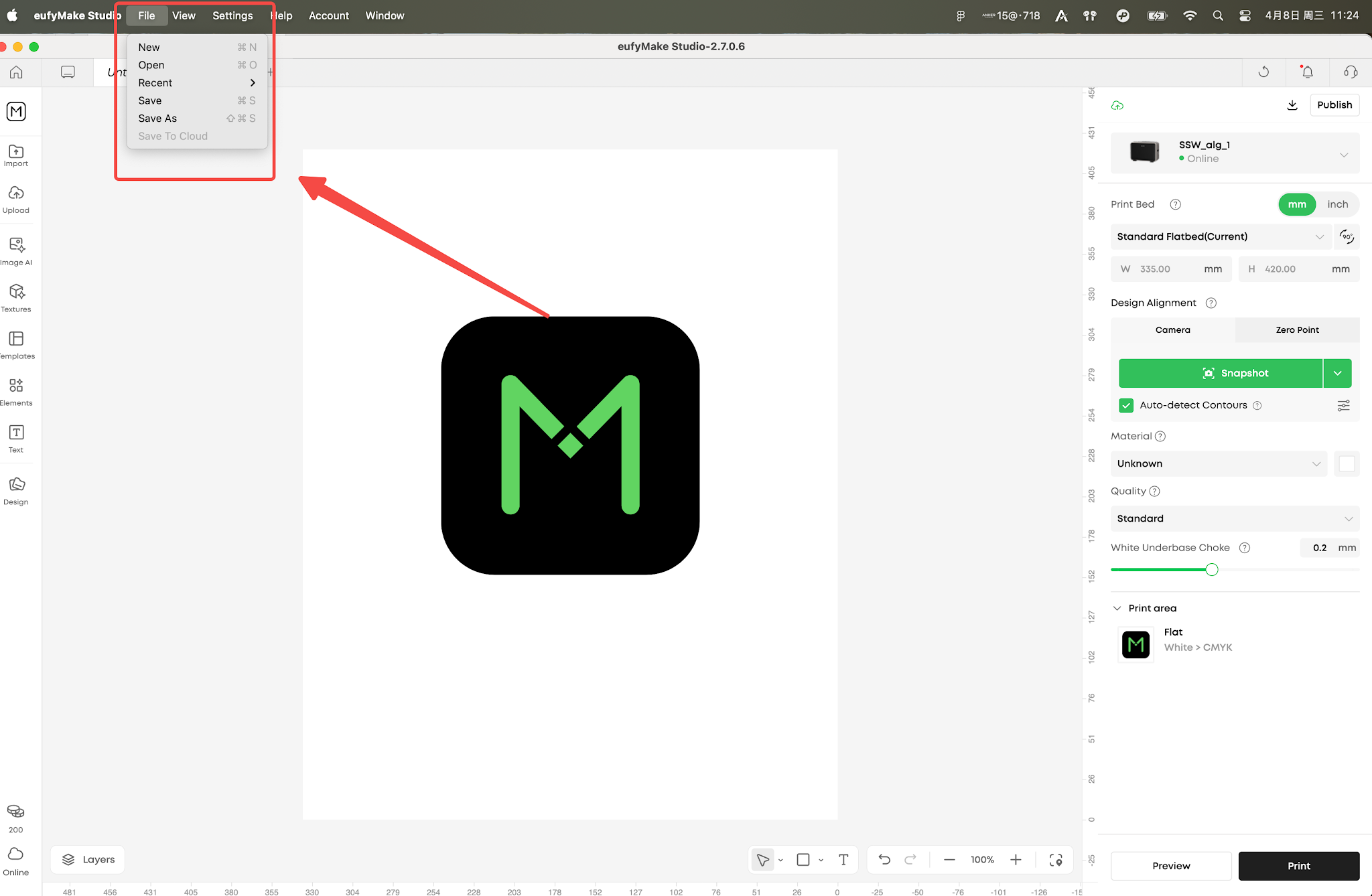
Tip: You can also double-click an .empf file on your computer to open it directly in eufyMake Studio.
First Save
When creating a new project and pressing Save for the first time, you'll be prompted to choose:
-
Save locally: Choose a folder to save the .empf file on your computer
-
Save to Cloud: Save to cloud storage (requires login)
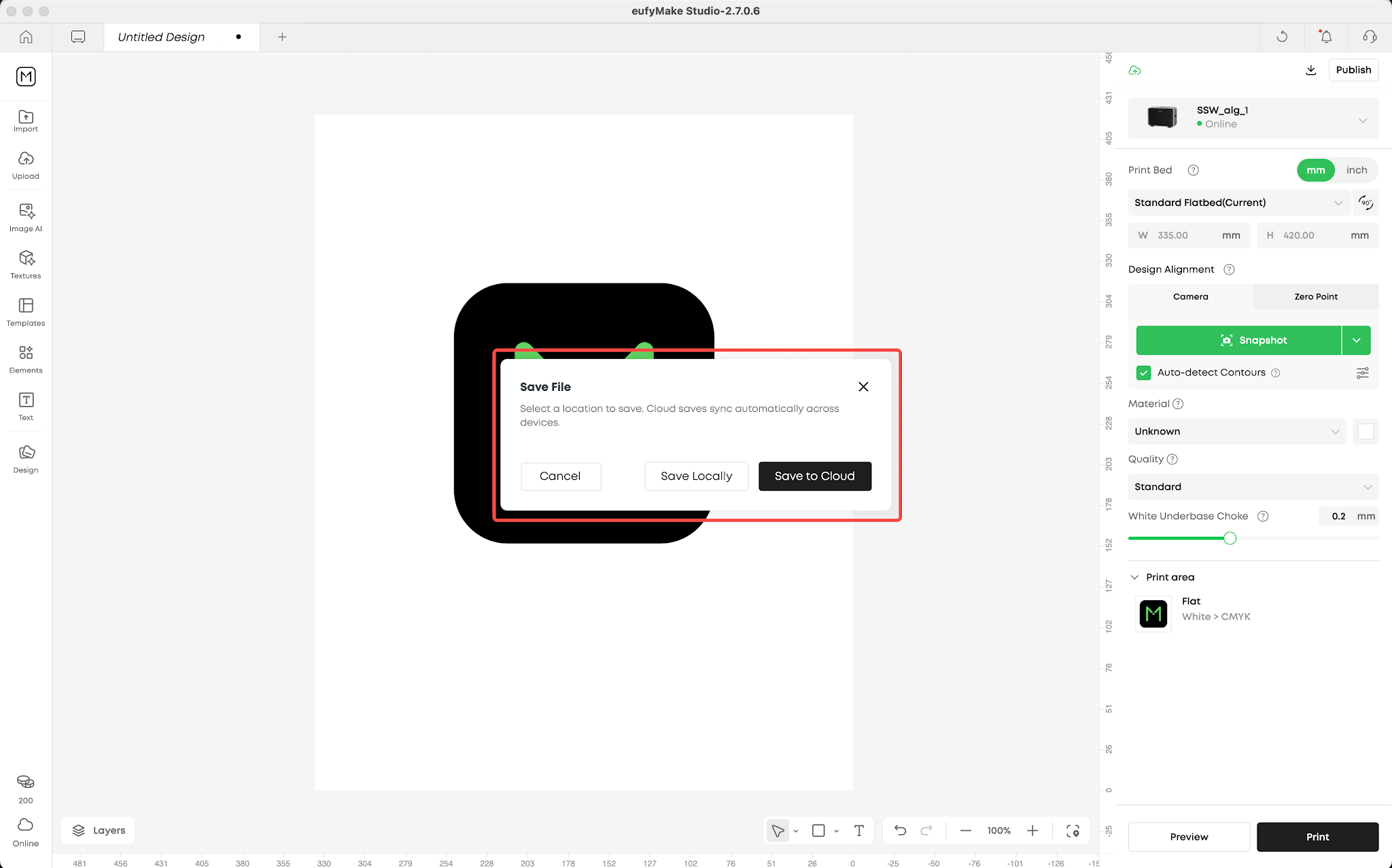
Close Save Prompt
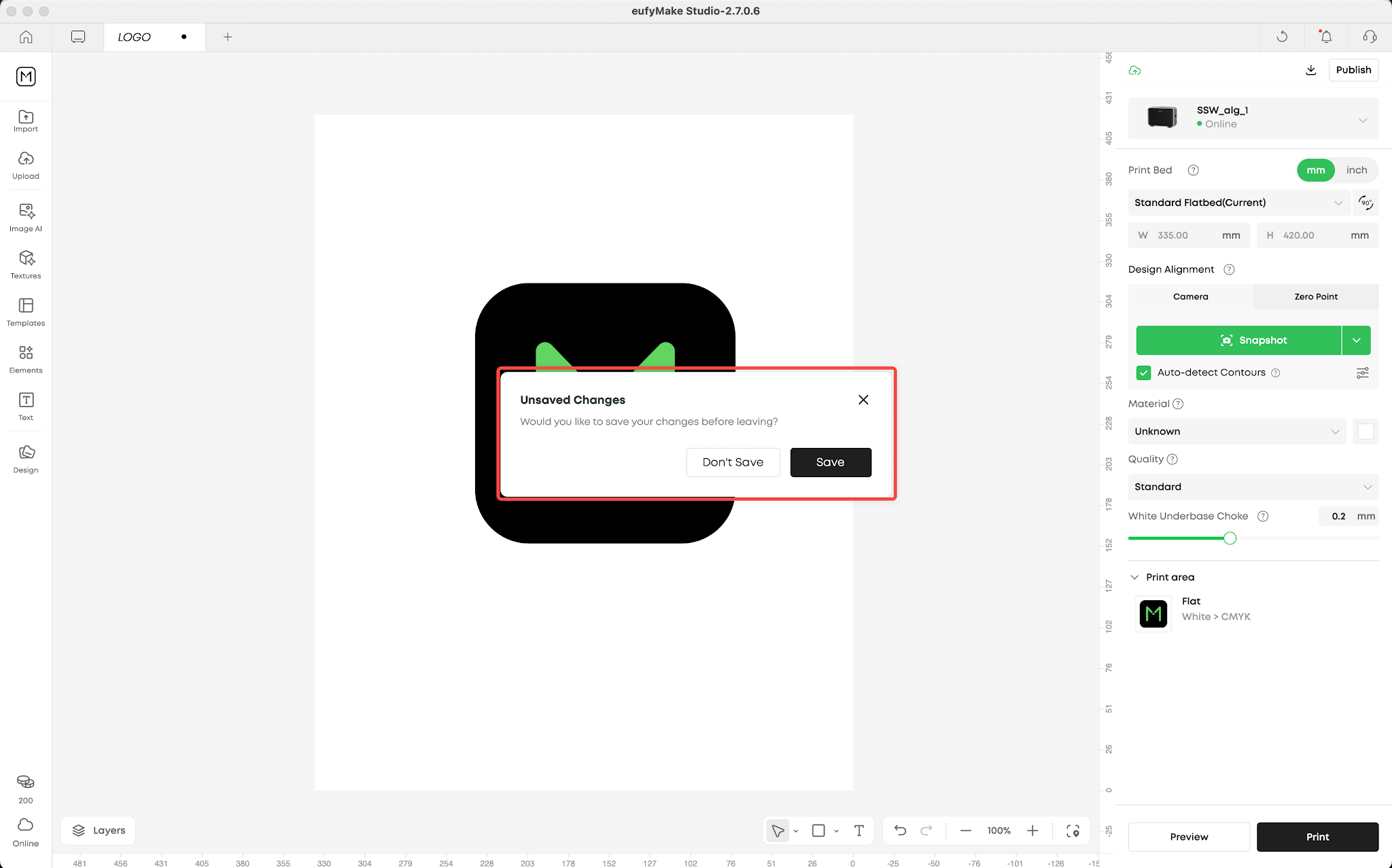
When closing a project with unsaved changes, you'll be prompted with Save / Don't Save / Cancel — consistent with Word, Photoshop, etc.
Crash Recovery
Local Mode provides automatic crash recovery:
-
The system creates temporary files during editing
-
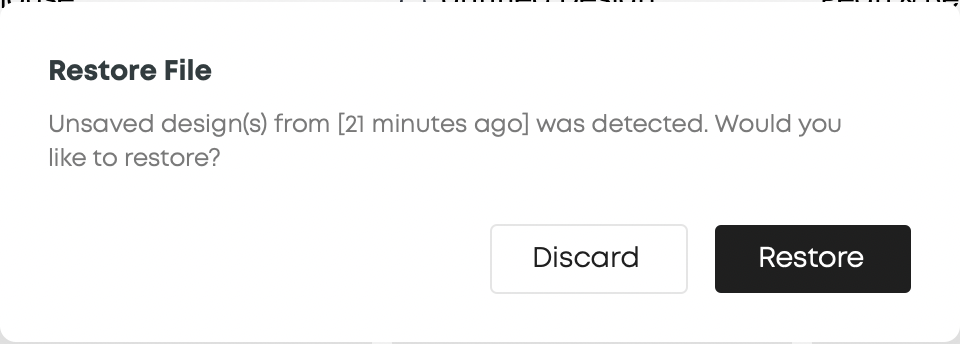
If the program exits abnormally, the next launch will detect unsaved temporary files
-
You can choose to "Recover" or "Discard"
Save as Copy
Via File > Save as Copy (Ctrl/Cmd + Shift + S):
-
Local project → creates a local copy
-
Cloud project → creates a cloud copy
Local-Cloud Conversion
-
Local → Cloud: File > Save to Cloud
-
Cloud → Local: Open a cloud project, then File > Save as Copy to local
Workspace Home
Local Mode has redesigned the Workspace homepage's project management experience:
Recent
Displays all the projects you've recently opened, including local projects and cloud-based projects. The project cards will display a type indicator:
-
Local projects: Display local file icons and filenames
-
Cloud StorageProject: Show cloud icon
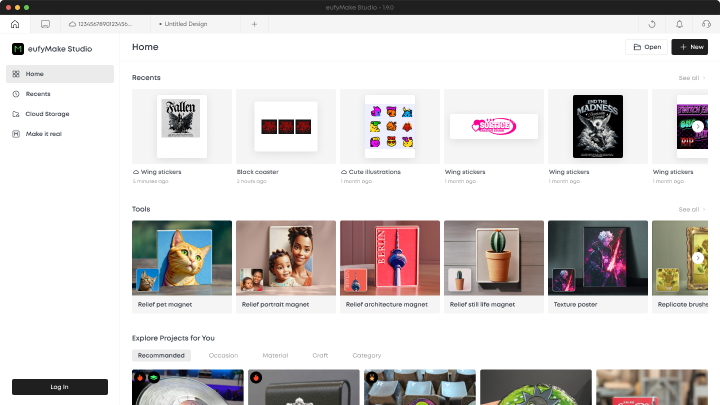
Cloud Storage
Displays all your projects saved to the cloud(Login required). This is similar to "My Creations" in previous versions.
Import
In the editor, an Import entry has been added to the left panel (before Upload), making it easy to import image assets from your local computer into your project. Assets in local mode will be directly embedded into the project files, without needing to be uploaded to the cloud.
Four Usage Scenarios
The PC client provides four scenarios based on network and login status:
-
Online + Logged in (Full experience): All features available
-
Online + Not logged in (Guest mode): Can create/edit local projects, cloud features trigger login
-
Offline + Logged in (Offline work): Local projects fully functional, AI features downgrade to built-in algorithms
-
Offline + Not logged in (Minimal mode): Only local project creation/editing, AI features downgraded
Scenarios switch automatically based on network and login status changes.
PC Client vs Browser Web
FAQ
Q: Are my existing cloud projects still there?
A: Yes. Local Mode is a new option and doesn't affect your existing cloud projects.
Q: Can local projects sync between computers?
A: Local projects are stored on your hard drive and won't auto-sync. Use Save to Cloud or manually copy .empf files.
Q: Do AI features work offline?
A: Yes. Features like contour recognition, background removal, and 2.5D texture auto-switch to built-in algorithms offline. Quality may differ slightly from cloud AI.
Q: Can I use AI generation features offline?
A: No. AI generation features require cloud servers and are unavailable offline.
Q: When is login required?
A: Login is needed for cloud projects, saving to cloud, AI generation, and Settings/Subscriptions. Login is NOT needed for creating/editing local projects, basic tools, local assets, or browsing Make It Real public content.
Q: Does the .empf file contain everything?
A: Yes. The .empf file is a self-contained project file (like .psd or .doc) containing all design assets. You can safely copy, back up, or share it.










