Fault Phenomenon
After exiting Maintenance Mode, one or more of the following symptoms may occur:
-
Abnormal color mixing appears in the starting print area
-
Some blocks or lines in the nozzle status chart display incorrect colors or mixed colors
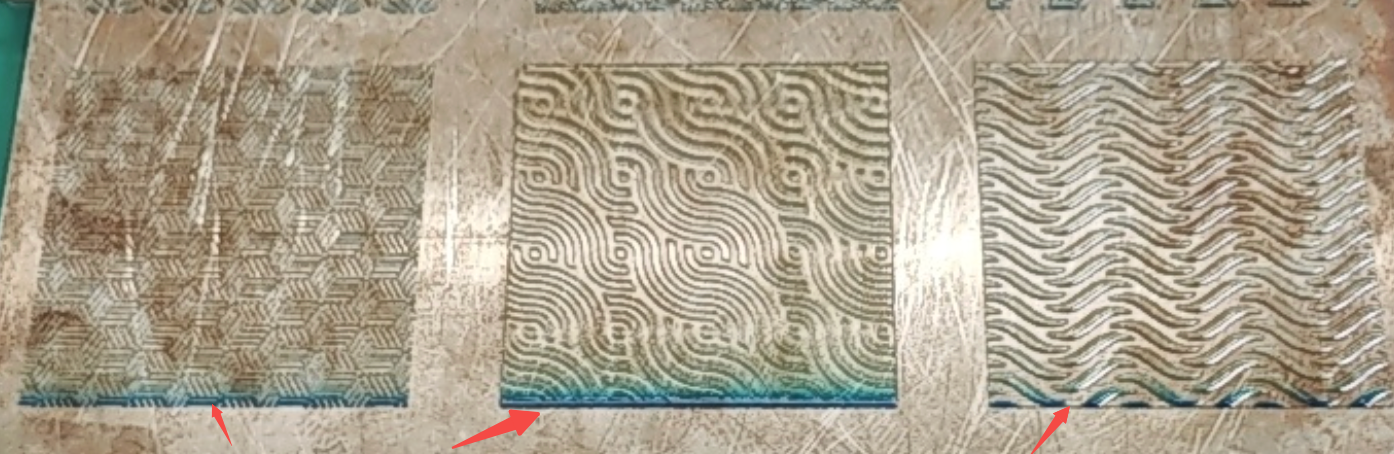
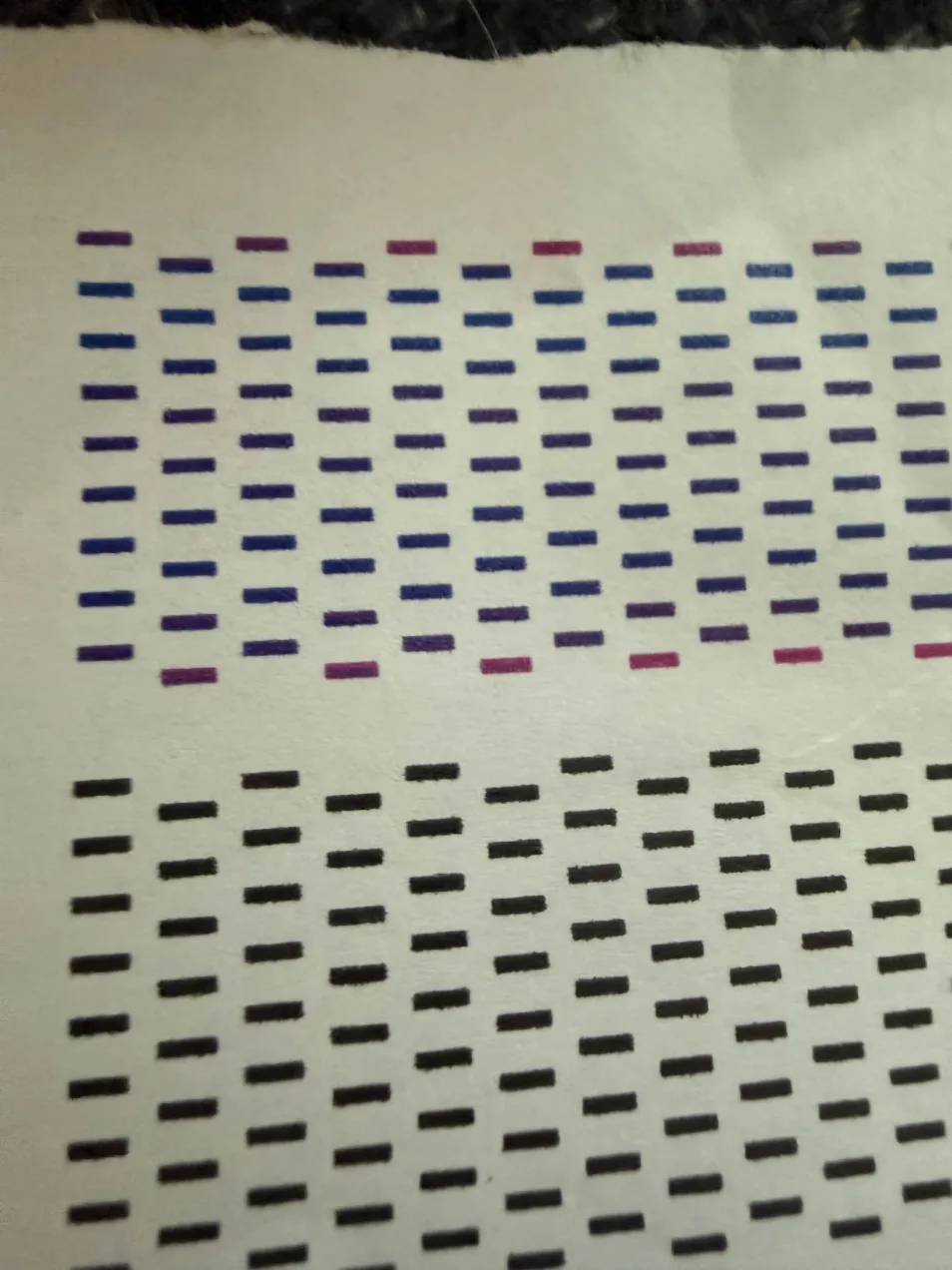
Cause Analysis
After exiting Maintenance Mode, if ink flow in a specific channel is blocked or partially blocked, suction pressure inside the ink system may become unbalanced.
During the ink suction process, a small amount of waste ink from the ink stack may be drawn back into the nozzle channels, resulting in ink mixing and abnormal color output.
Troubleshooting
-
Print a Nozzle Status Chart:Print the status chart and confirm whether ink mixing is present in any nozzle channels.
-
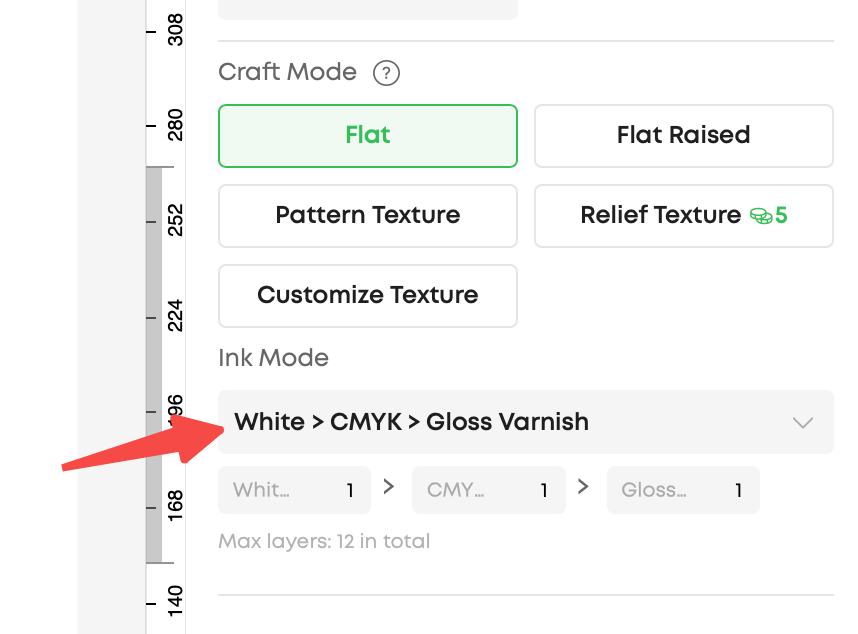
Discharge Ink Using White Color Mode
-
If ink mixing is detected, switch to White Color Mode.
-
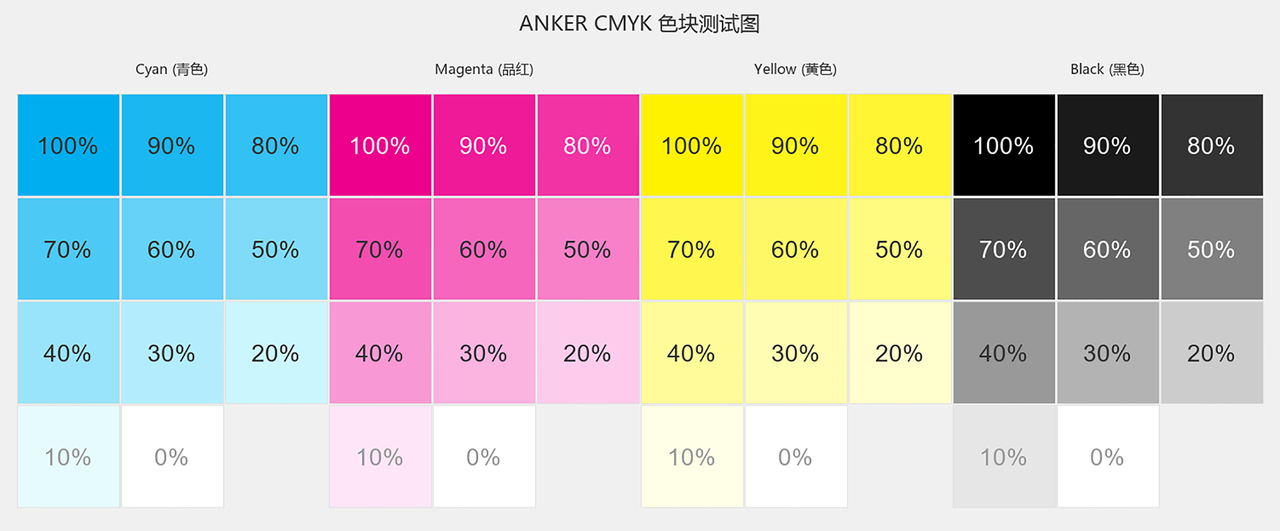
Print CMYK color patches to flush and discharge the mixed ink from the affected channels.
-
Preventive Operation After Maintenance
If ink mixing frequently occurs after exiting Maintenance Mode, it is recommended to:
-
Print the CMYK color patches immediately after each exit from Maintenance Mode, or
-
Use White Color Mode to print RGB color patches to drain mixed ink before normal printing.

Support Contact
If the issue persists after completing the above steps, please contact eufyMake Customer Support at support@eufymake.com with the following information:
-
Your Order Information
-
Printer SN. Please refer to:https://support.eufymake.com/s/article/How-to-Check-the-Device-Serial-Number-SN
-
Printer and App Logs. Please refer to https://support.eufymake.com/s/article/Log-Upload-Process-App-PC-Overview
-
Relevant photos and videos.










