Overview
The printer and design software each include a special mode for use in environments without an internet connection:
Printer AP Mode: Turns your printer into a Wi-Fi hotspot. Your computer can connect directly to the printer's Wi-Fi signal, enabling device control and file transfers without requiring an external network.
Editor Offline Mode: When your computer is offline, the editor can switch to this mode automatically or manually. In Offline Mode, you can continue to design and save your projects as local files.
In short: First, use AP Mode to connect your computer to the printer. Then, use Offline Mode on your computer to create your designs.
Features & Operation
1. How to Enable AP Mode
First-Time Setup (In Software):
-
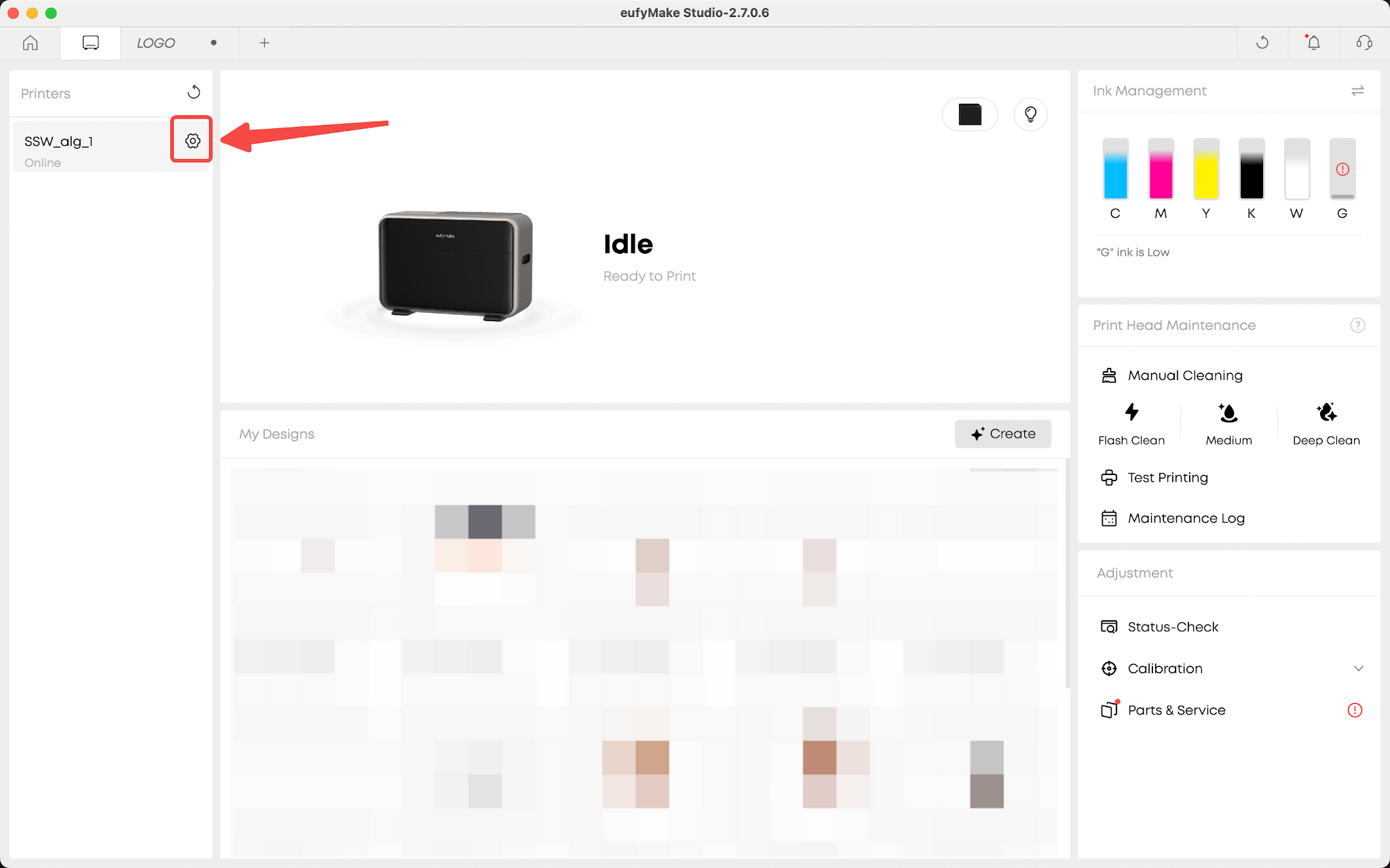
Open Printer Settings in the software.
-
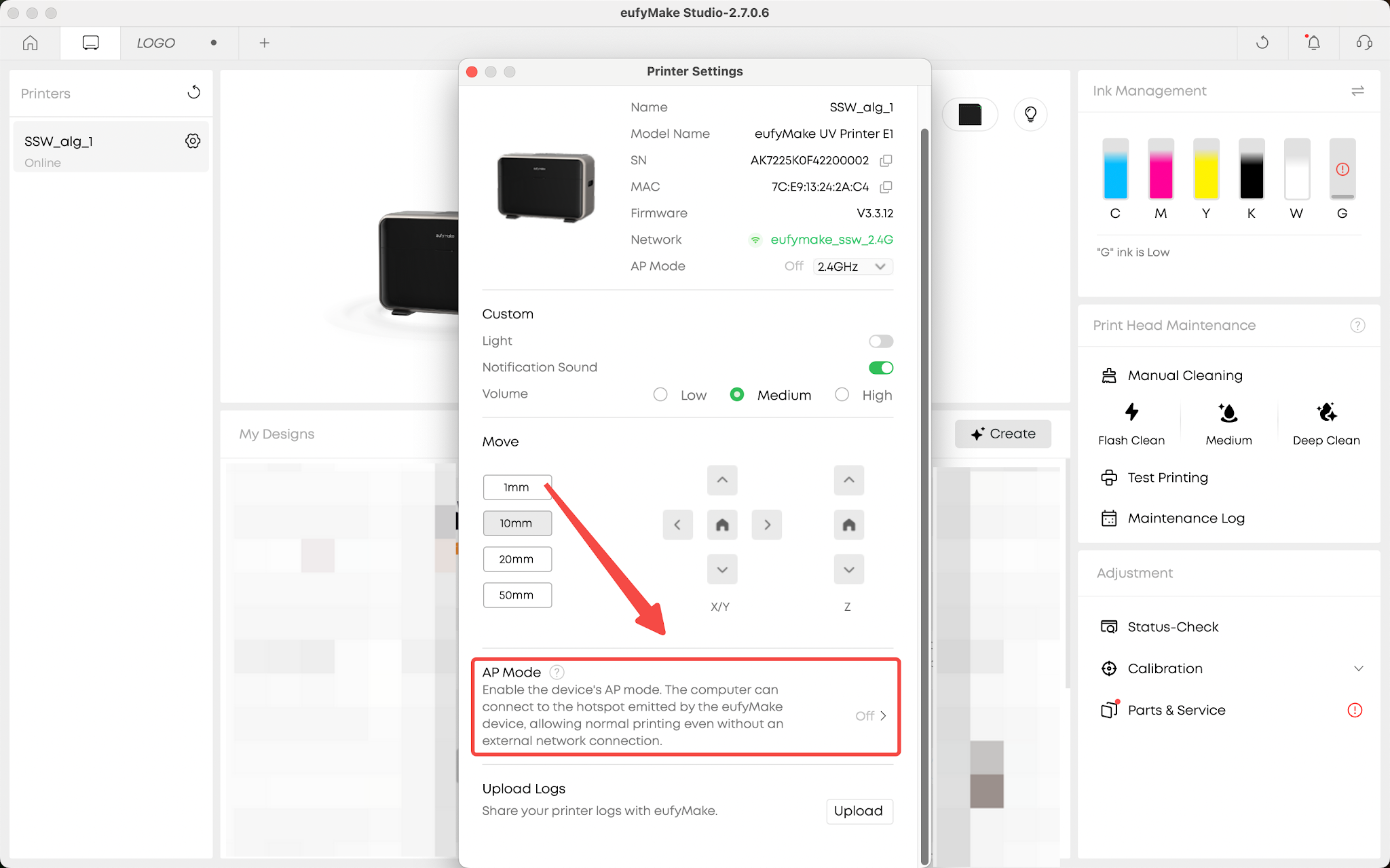
Toggle the switch for AP Mode.
-
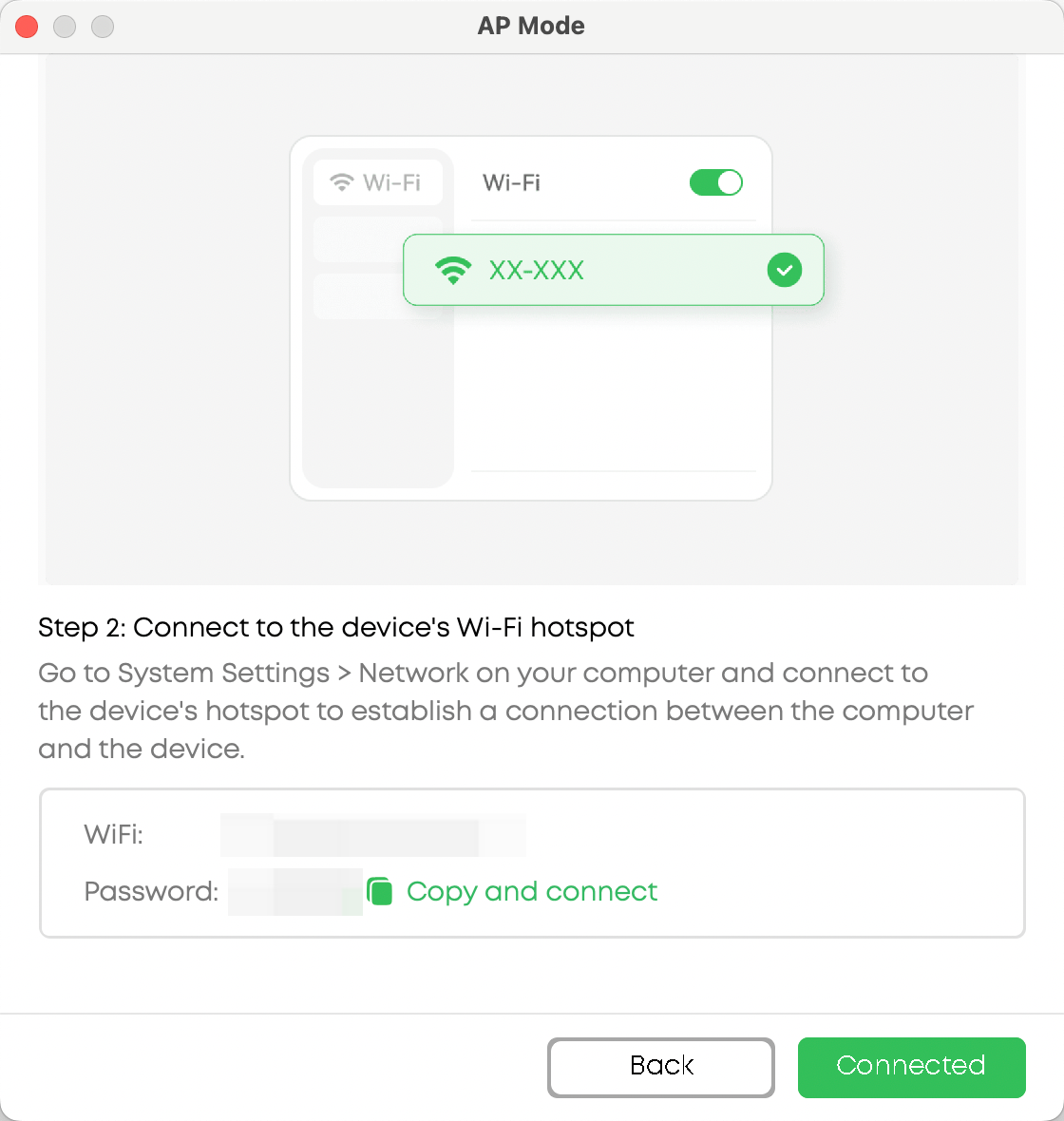
Follow the on-screen instructions to find and connect to the printer's Wi-Fi in your computer's Wi-Fi settings.
-
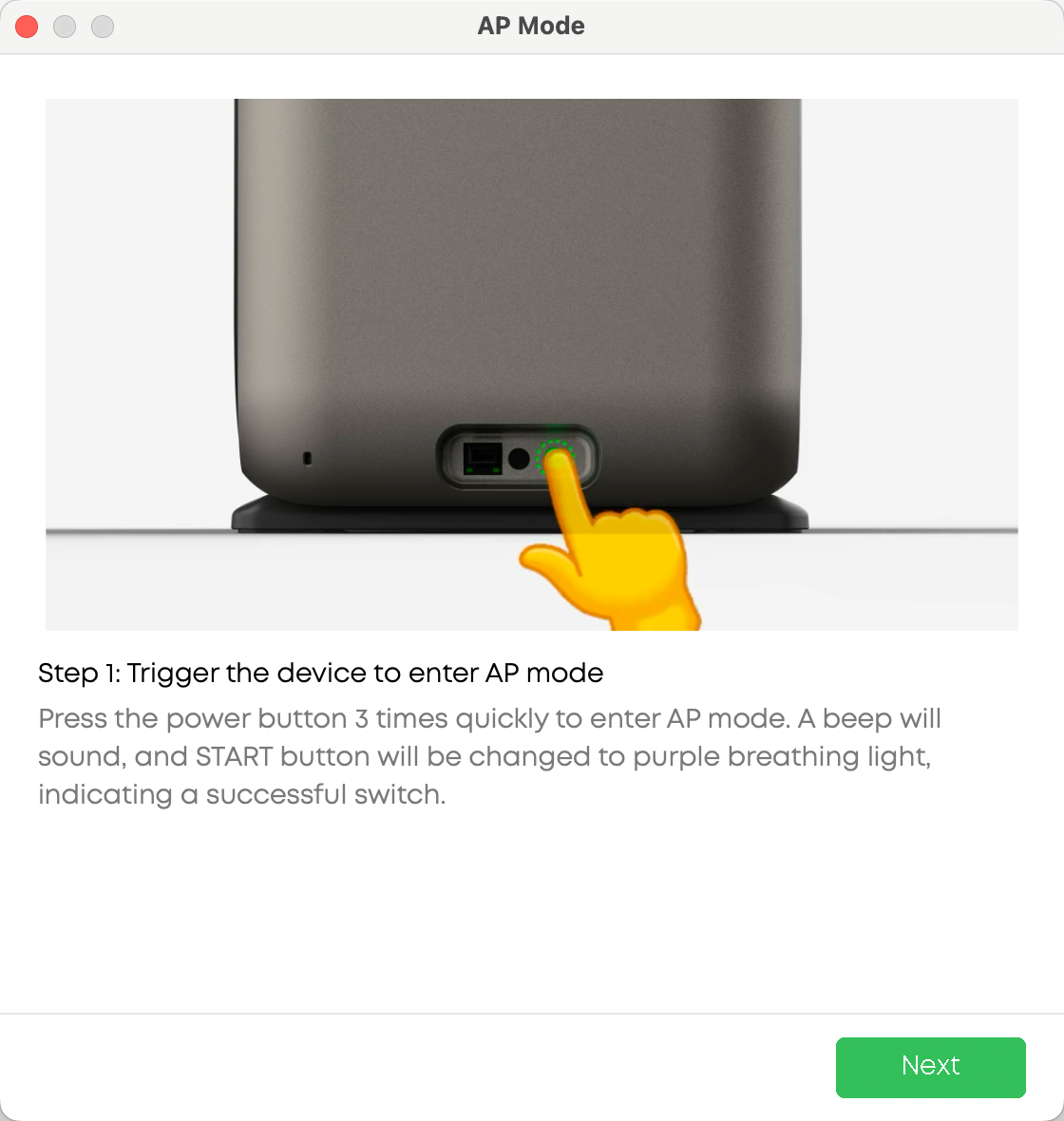
Quickly press the power button on the side of the printer three times to toggle AP Mode.
-
When you hear a chime and the status indicator turns purple, AP Mode is enabled and waiting for connection.
2. How to Connect Your Computer to the Printer's Wi-Fi
-
Open your computer's list of available Wi-Fi networks.
-
Find the network (SSID) starting with eufymake.
Click to connect and enter the password: The last 8 digits of your printer's Serial Number (SN).
Tip: You can view the Wi-Fi name and password in Printer Settings within the software.
-
Once connected, the device page in the software will display Connected.
3. How to Enter/Exit Offline Mode
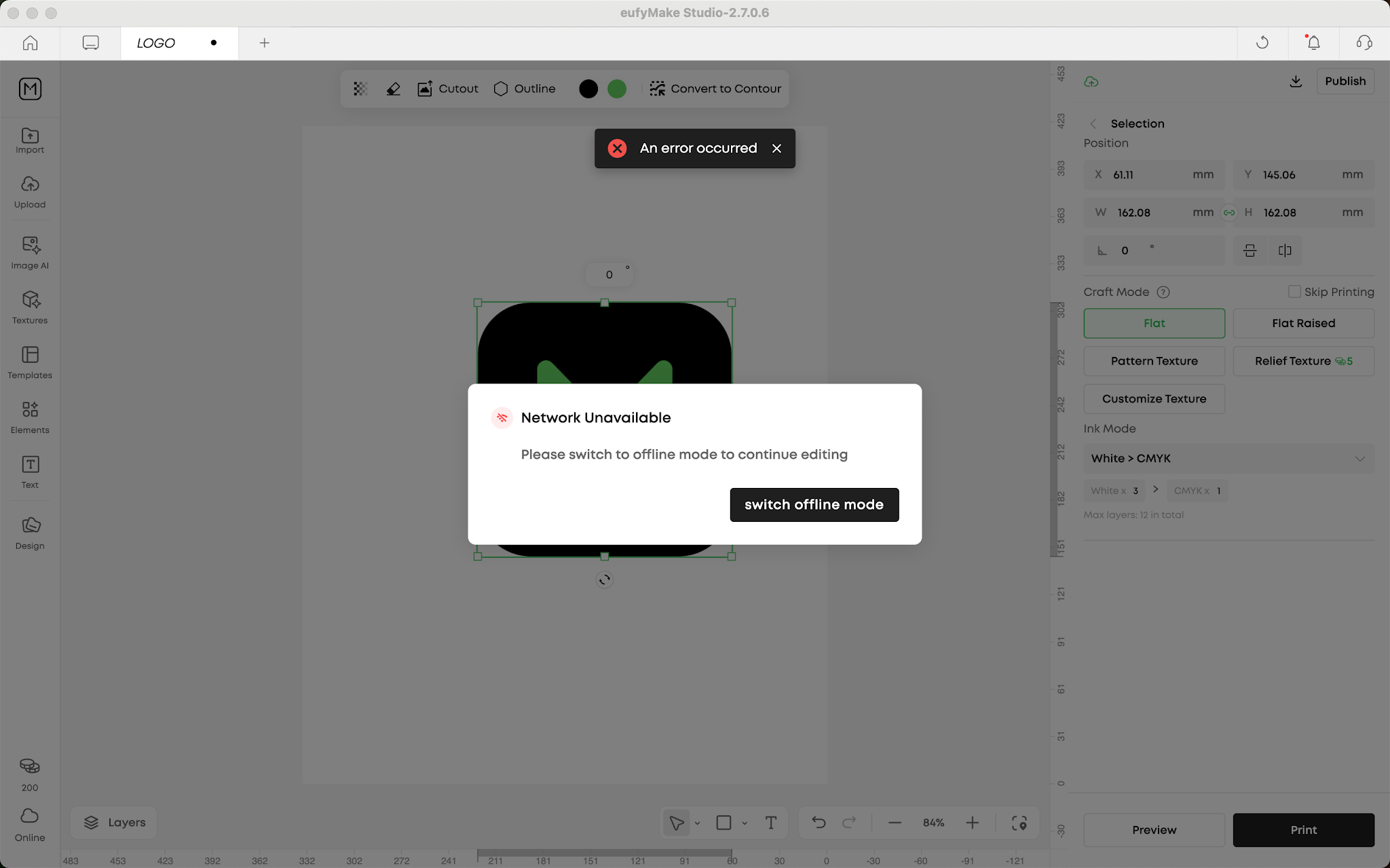
Automatic Switching: When your computer disconnects from the internet, a pop-up will prompt you to switch to Offline Mode. When the connection is restored, another prompt will ask if you want to switch back to Online Mode.
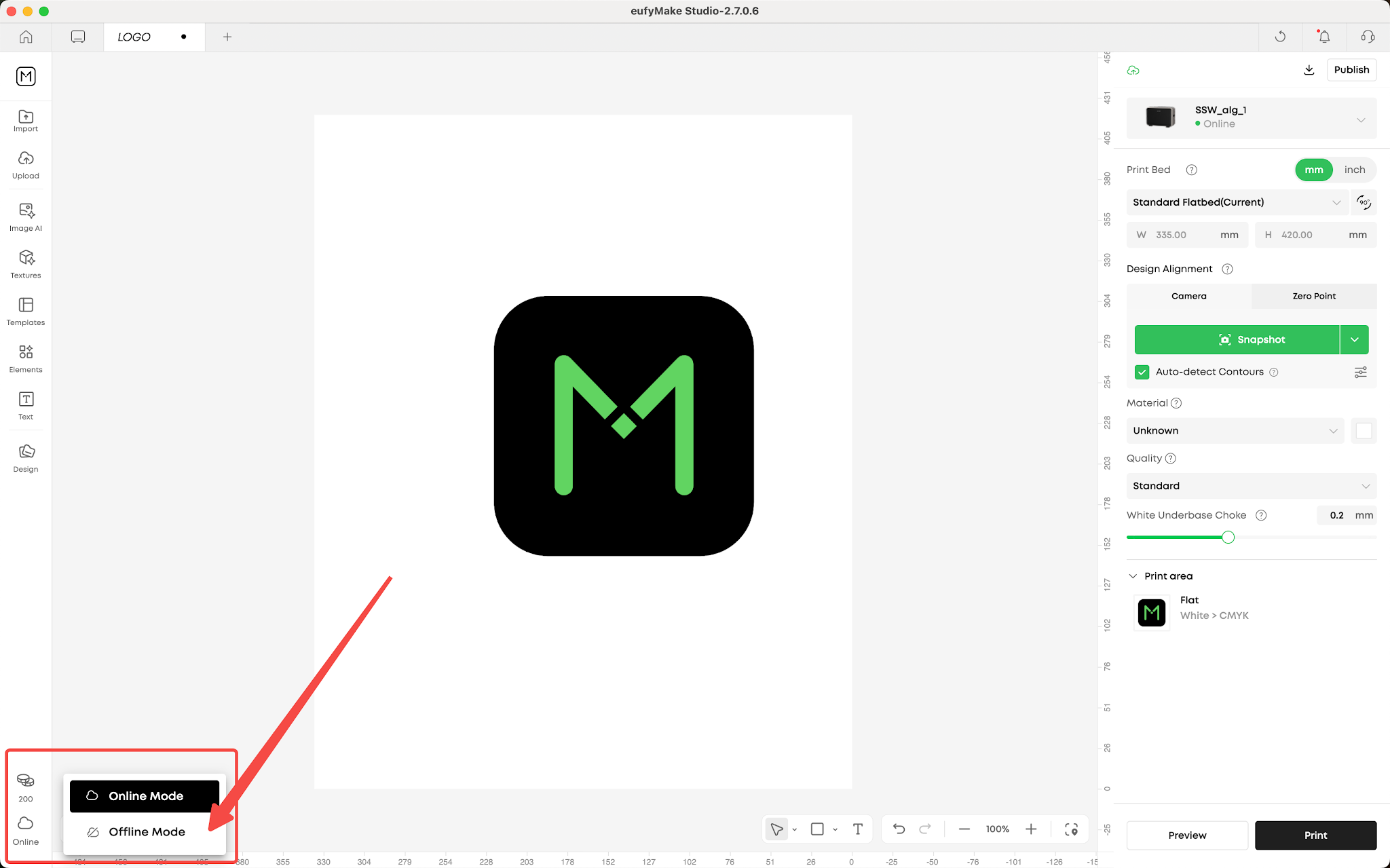
Manual Switching: You can also manually switch at any time by clicking the network status icon in the bottom-left corner of the software interface.
First-Time Offline Resource Check (New):
Before entering Offline Mode for the first time, the system automatically checks if required offline resources (fonts, icons, etc.) are complete:
-
Resources complete: Proceeds to the offline guide dialog
-
Resources missing + online: Auto-downloads with a progress bar, then continues
-
Resources missing + offline: Shows "Cannot enter offline mode. Please connect to the internet to download offline resources."
Note: The offline resource package is normally downloaded automatically in the background when your computer is online. If it hasn't been downloaded yet (e.g. first-time installation), the system will prompt you to download it when you try to switch to Offline Mode.
Offline Guide Dialog (New):
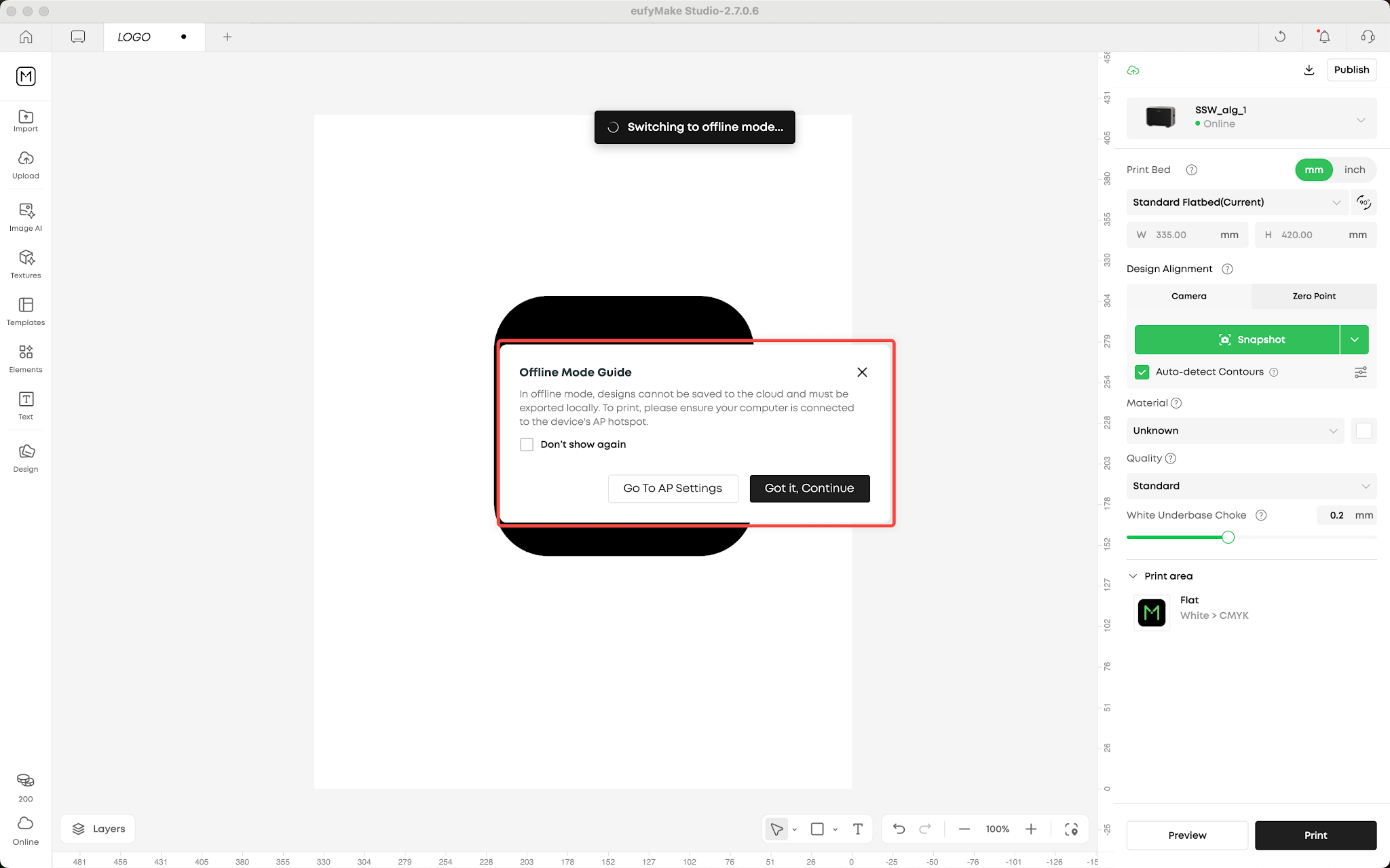
After the resource check passes, a guide dialog appears:
-
Explains that projects cannot be saved to the cloud in Offline Mode and must be exported as .empf files locally
-
Reminds you to connect to the device's AP hotspot for printing
-
Provides a "Go to AP Settings" button for quick navigation
Click "Got it, Continue" to proceed to the export screen
-
Tip: Check "Don't show again" to skip this dialog in future sessions.
4. Designing in Offline Mode
The editor in Offline Mode retains all core design features, and the interface is identical to Online Mode.
Cloud-dependent functions disabled in Offline Mode:
-
Image AI
-
3D Texture mode
-
Online Elements, Templates, and Texture libraries
-
Cloud project access
-
Explore community
How to Save Files: As soon as you switch to Offline Mode, you must immediately save your current project as a local file (.empf). All subsequent changes must be manually saved to your local hard drive.
What's New in This Update
-
Automatic resource integrity check before switching to Offline Mode
-
New guide dialog explaining file export requirements with quick AP Settings shortcut
-
Clear error prompts when resources are missing without network, instead of page freezing
FAQ
Printer AP Mode
Q: What should I do before enabling AP Mode?
A: Prepare in advance while connected to the internet: Log into your account, confirm device binding, and download any cloud-based content.
Q: What if the connection is slow or unstable?
A: Switch the AP Mode frequency band to 5GHz in printer settings. Reconnect your computer's Wi-Fi afterward.
Q: AP mode connection keeps dropping?
A: Keep computer within 2 meters of printer, avoid obstructions, and update firmware and software to the latest version.
Q: Can I access the internet while in AP Mode?
A: No. The AP hotspot is only for printer communication.
Editor Offline Mode
Q: Which features are unavailable in Offline Mode?
A: All cloud-dependent features: Cloud Projects, Explore community, Image AI, 3D Textures, Elements, Templates, and Texture libraries. Always download required files before going offline.
Q: Why does Offline Mode ask me to connect to the internet?
A: The offline resource package is normally downloaded automatically in the background when your computer is online. If you see this prompt, it means the download hasn't completed yet (possibly due to first-time installation or an interrupted download). Please stay connected to the internet and the system will finish the download automatically, after which you can switch to Offline Mode normally.
Q: How to see the offline guide again after checking "Don't show again"?
A: Search for "AP Mode" or "Offline Mode" in the Help Center.
Q: Are projects auto-saved in Offline Mode?
A: No. Always export as .empf files manually to prevent data loss.










