Feature Description
In customized production or batch printing, the same design often needs to be printed multiple times on identical substrates. The traditional workflow requires users to repeatedly resend the print file and configure the printing parameters, making the process time-consuming and reducing production efficiency.
To simplify this workflow, eufyMake has introduced the Reprint feature, which can be activated through either the software or the printer itself.
Applicable Products
eufyMake E1 UV Printer
Feature Overview
Reprint is a feature designed for repetitive printing tasks. After a print job is complete, it allows you to reuse the previous job's print file and parameters with a single action, starting the next print without needing to resend the file or reconfigure the settings.
This significantly reduces preparation time and improves efficiency during batch production.
The feature supports two methods:
-
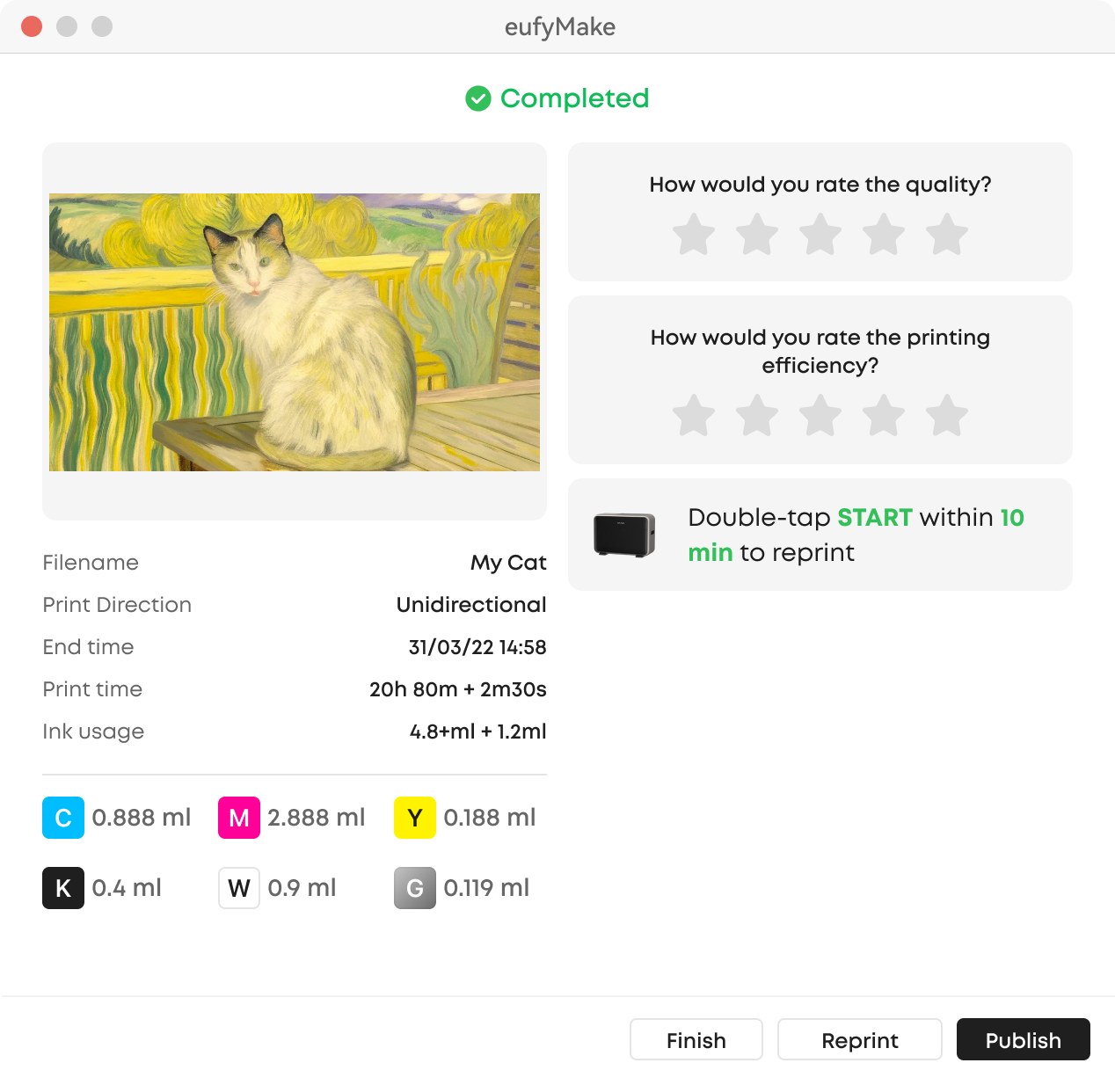
Software: On the print success or failure notification page, click Reprint, confirm the print information, and start printing.
-
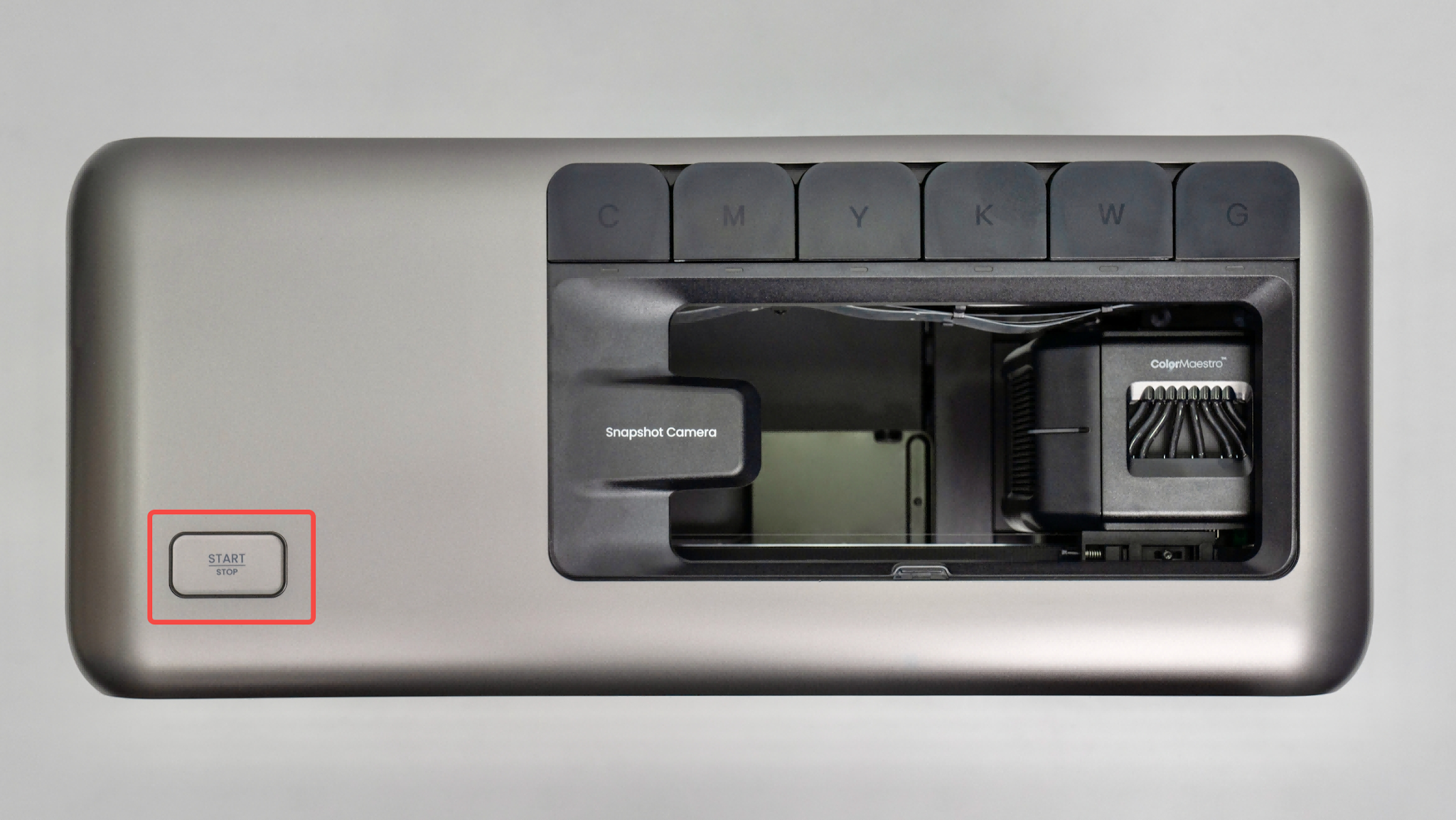
Printer: Within 10 minutes of completing a print job, double-press the Start button on the printer to immediately repeat the previous print job.
Applicable Scenarios
Supported scenarios:
Reprint supports repeated print jobs using the same design, substrate, and positioning.
Unsupported scenarios:
-
Printing a different design or using a different substrate.
-
Parallel batch printing across multiple printers.
-
Reprinting historical print jobs.
-
Multi-object printing within a single job, such as printing multiple different designs or variable data simultaneously.
Prerequisites
Keep your software and firmware up to date: Make sure both the printer firmware and eufyMake software are updated to their latest versions.
Operating Procedures
Method 1: Reprint Through the Software
Step 1: Complete a Print Job
Complete a print job as normal.
Step 2: Select Reprint
On the print success or failure notification page, click Reprint.
Step 3: Confirm the Print Information
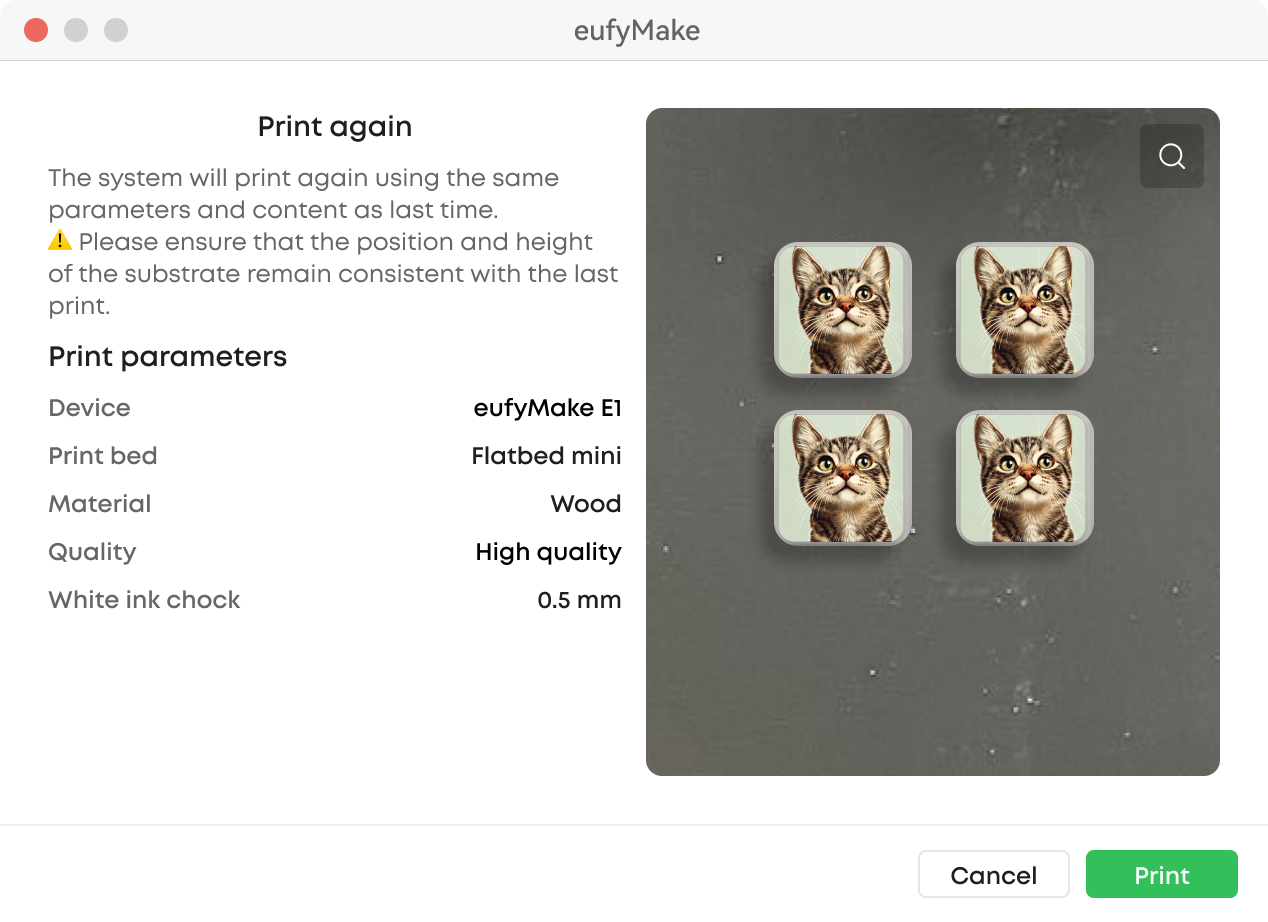
A confirmation window will appear, displaying the following information:
-
Instructions: A reminder that the previous print job's file and parameters will be reused. Use zero-point calibration to establish the printing position, or a fixture to keep the substrate's position and height unchanged.
-
Print information: Review the canvas thumbnail from the previous print job, the printer name, and key printing parameters, including material, print quality, White Ink settings, print bed type, and other relevant settings.
Step 4: Start Printing
After confirming that the information is correct and positioning the new substrate, click Print to start the reprint immediately.
Method 2: Double-Press the Start Button on the Printer
Step 1: Complete a Print Job
Complete a print job as normal.
Step 2: Replace and Position the Substrate
Remove the printed item and place a new substrate on the print bed.
Make sure the new substrate is identical to the previous one in type and height, and that it is positioned in exactly the same location.
Use zero-point calibration to establish the printing position, or a fixture to maintain consistent substrate positioning and height.
Step 3: Double-Press the Start Button
Within 10 minutes of completing the previous print job, double-press the Start button on the printer.
The printer will automatically reuse the previous job's file and parameters and begin reprinting immediately.
Step 4: Repeat the Process
After each print job is complete, a new 10-minute window begins.
You can continue double-pressing the Start button after each completed print to repeat the same job, enabling continuous batch production.
Notes
-
Maintain consistent substrate positioning: Before using Reprint, always make sure the new substrate matches the previous one in type, height, and position. This is especially important for flatbed and rotary-axis printing. A fixture can help maintain consistent positioning between prints.
-
Print parameters cannot be modified: To ensure consistent results, Reprint does not allow changes to the previous job's printing parameters. If you need to change the substrate, White Ink settings, or any other printing parameters, return to the standard printing workflow and create a new print job.
-
Print file availability: If the previous print file has been overwritten by a new print job, selecting Reprint will display the following error message: "Reprint failed: print content not found". You will need to create and start a new print job.
-
10-minute time limit for the printer button: Double-pressing the Start button is only supported within 10 minutes of completing a print job. The countdown begins as soon as printing finishes. Once this period expires, double-pressing the Start button will have no effect. You can still use the Reprint option in the software instead.


