Troubleshooting Wi-Fi Connectivity Issues
Issue 1: Failed to Scan Hotspot
- Restart the Device: If no WiFi networks can be scanned, restart the device.
- Move Router Closer: If only the desired WiFi cannot be scanned, move the router closer and set its power transmission parameters to the highest.
- Check WiFi Visibility: Ensure the WiFi network does not have the Hide feature enabled.
- Check Router Connections: Confirm that the router is not overloaded with too many connections.
- Verify Router Channel: Ensure the router is operating on channels 1-11.
- Restart Device: If the above steps don't work, restart the device.
Issue 2: Wi-Fi Connection Failed (Password Error or Authentication Mismatch)
- Verify Password: Ensure the account password is correct.
- Change Encryption Method: Change the WiFi encryption method to WPA2/WPA3 or WPA2.
- Proximity Check: Ensure the device is not too far from the router.
- Switch Channels: Switch the router channels between 1, 6, and 11.
- Disable Firewall: Turn off the router's firewall, MAC address filtering rules, and IP address filtering rules.
- Use Mobile Hotspot: Try connecting using your phone's hotspot.
- Restart Router: If the above steps don't work, restart the router.
Issue 3: Wi-Fi Connection Failed (Did Not Find Target Hotspot)
- Check WiFi Visibility: Ensure the WiFi network does not have the Hide feature enabled.
- Check Router Connections: Confirm that the router is not overloaded with too many connections.
- Proximity Check: Ensure the device is not too far from the router.
- Enable 2.4G WiFi: Verify that the router has 2.4G WiFi enabled.
- Verify Router Channel: Ensure the router is operating on channels 1-11.
- Use Mobile Hotspot: Try connecting using your phone's hotspot.
- Restart Router: If the above steps don't work, restart the router.
Issue 4: Wi-Fi Association Rejected
- Verify Password: Ensure the account password is correct.
- Disable Firewall: Turn off the router's firewall, MAC address filtering rules, and IP address filtering rules.
- Proximity Check: Ensure the device is not too far from the router.
- Check for Static IPs: Verify that no other devices are using a static IP.
- Check Router Connections: Confirm that the router is not overloaded with too many connections.
- Switch Channels: Switch the router channels between 1, 6, and 11.
- Use Mobile Hotspot: Try connecting using your phone's hotspot.
- Restart Router: If the above steps don't work, restart the router.
Issue 5: Wi-Fi Connection Terminated
- Check Router Power: Ensure the router is powered on and try restarting it.
- Proximity Check: Ensure the device is not too far from the router.
- Use Mobile Hotspot: Try connecting using your phone's hotspot.
- Restart Router: If the above steps don't work, restart the router.
Issue 6: Wi-Fi Password Changed, Target Hotspot Not Found
- Restart Router: Restart the router.
- Verify Password: Ensure the account password is correct.
- Use Mobile Hotspot: Try connecting using your phone's hotspot.
- Restart Router: If the above steps don't work, restart the router.
Issue 7: Wi-Fi SSID Disabled
- Check Network Authentication: Ensure the connected network does not require authentication.
- Disable Firewall: Turn off the router's firewall and ensure the device is not filtered by MAC address rules.
- Check Router Connections: Confirm that the router is not overloaded with too many connections.
- Use Mobile Hotspot: Try connecting using your phone's hotspot.
- Restart Router: If the above steps don't work, restart the router.
Issue 8: Wi-Fi Beacon Frame Loss
- Proximity Check: Ensure the device is not too far from the router.
- Use Mobile Hotspot: Try connecting using your phone's hotspot.
- Restart Router: If the above steps don't work, restart the router.
Issue 9: IP Conflict
- Check for Static IPs: Confirm if any other devices are set with a static IP address.
- Use Mobile Hotspot: Try connecting using your phone's hotspot.
Issue 10: Cannot Obtain IP Address
- Check Router Connections: Confirm that the router is not overloaded with too many connections.
- Check DHCP Range: Verify the range of the DHCP address pool set by the router.
- Proximity Check: Ensure the device is not too far from the router.
- Use Mobile Hotspot: Try connecting using your phone's hotspot.
- Restart Router: If the above steps don't work, restart the router.
Issue 11: Cannot Find Router During Network Setup
- Ensure 2.4GHz is Enabled: Verify that the router is set to 2.4GHz.
- Verify Router Channel: Ensure the router is operating on channels 1-11.
- Proximity Check: Ensure the device is not too far from the router.
Issue 12: Network Binding Failed
- Retry Connection: Click retry to try again.
- Switch Networks: Try switching to nearby available networks or personal hotspots. If using an iPhone, turn on maximum compatibility.

3
- Check Network Authentication: Confirm if the connected network requires authentication.
- Router Settings: Verify if the device MAC is blocked or filtered by the router.
- Change Encryption Mode: If the router is set to WPA3, change it to WPA3/WPA2 blend mode.
- Proximity Check: Ensure the device is not too far from the router.
- Switch Channels: Switch the router channels between 1, 6, and 11.
Issue 13: Wi-Fi Disconnected During Use
- Proximity Check: Ensure the printer and router are not too far apart.
- Switch Networks: The app can try switching to other available network connections.
- Restart Printer: Turn off the printer and turn it back on.
If the Above Steps Do Not Resolve the Issue:
- Provide the device SN.
- Provide the user app email.
- Record a video of the issue.
- Provide the router model, wireless configuration information, and advanced configuration information.
If the above problems cannot be solved, please contact us and provide the above information. Thank you.


96 undefined

M5C X Axis Belt Adjuster.gcode
Ankermake Studio Guide(V1.5.21)
M5C Y axis belt adjuster.gcode
V8110 AnkerMake M5C EU Declaration of Conformity
V8110_UK Declaration of Conformity
M5C Y Axis Belt Adjuster.gcode
View More

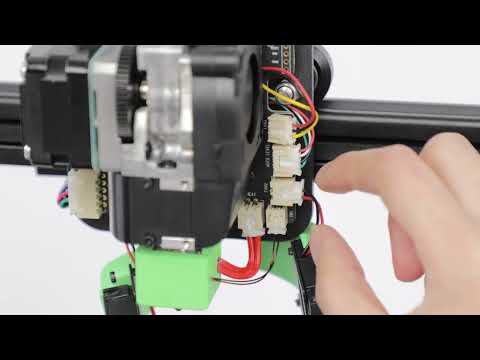
How to Replace the Air Guide of the Print Model Fan
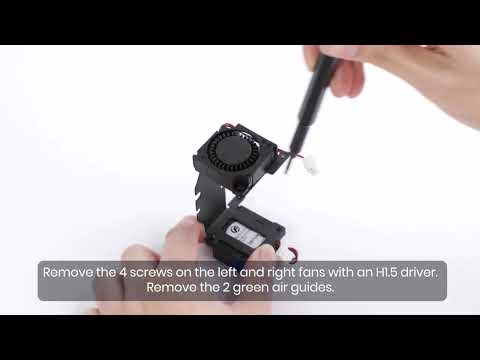
How to Replace the Print Model Fan
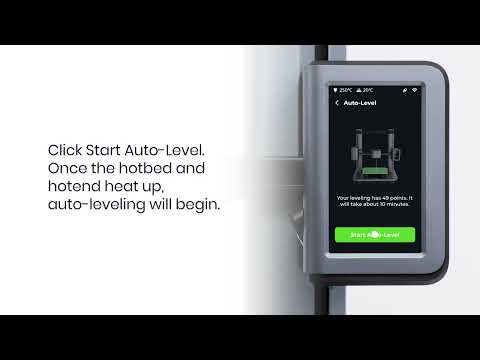
Auto Leveling
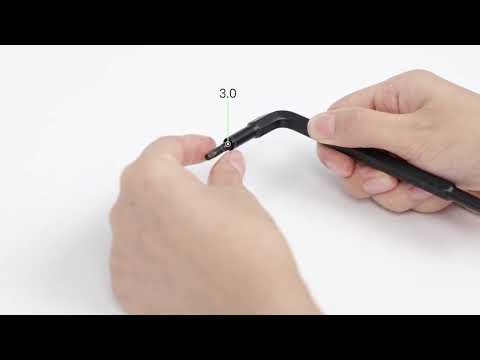
V Wheel Adjustment
How to Transfer Files and Start Printing
Loading Filament
View More


