Fault Phenomenon
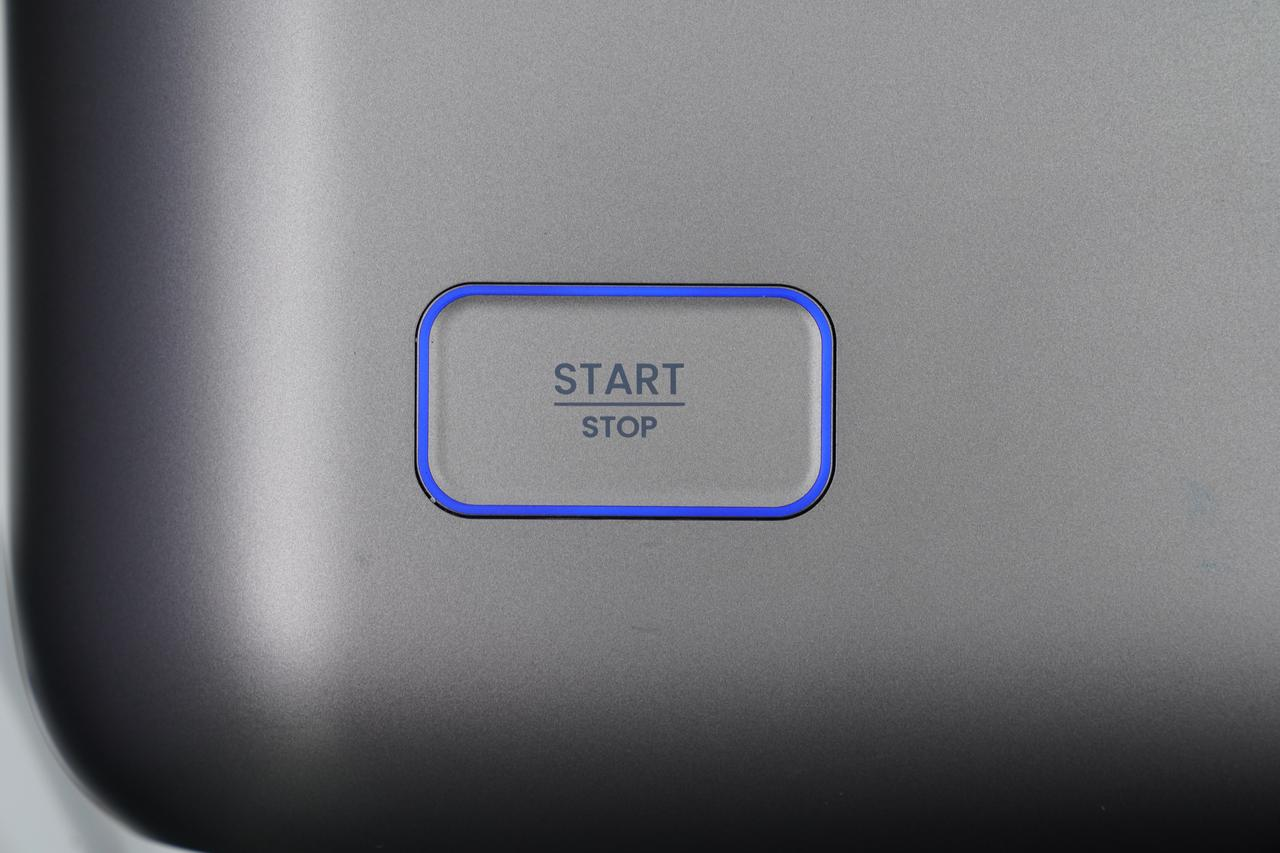
The Start / Stop button does not respond when pressed, and the App reports fault code 0xFD01170003.
Causes Analysis
-
The system did not start properly
-
The button light board is damaged
-
The connecting cable is damaged or loose
-
The software system is frozen
Required tools
Disassembly tool/pry tool
Safety Precautions
None
Troubleshooting Steps
-
If the issue occurs, record a troubleshooting video for reference before proceeding.
-
Unplug the printer power supply, then reconnect the power to restart the device. This step is used to determine whether the system can start normally and to rule out a temporary system freeze. A normal startup will show the following behaviors:
-
A startup sound is heard when powering on
-
The Start / Stop button shows a blue, green, or red indicator light, and the print head status indicator lights up green
-
After powering on, wait for the device self-check process to complete.
-
Before unbinding the device, upload the printer logs for backup. After unbinding, logs cannot be uploaded until the device is rebound. Log upload guide:
https://support.eufymake.com/s/article/Log-Feedback-Upload-Process-App-PC-Overview
-
Unbind the device and then rebind it. Please refer to the https://support.eufymake.com/s/article/Device-Binding-Operation-Guide-Initialization-and-Calibration-Procedures
During the process, check whether pressing the Start / Stop button produces feedback in the PC or mobile App.
-
If pressing the button allows the process to proceed to the next step, the button trigger function is normal.
-
If pressing the button does not allow the process to continue, proceed to the next troubleshooting step.
-
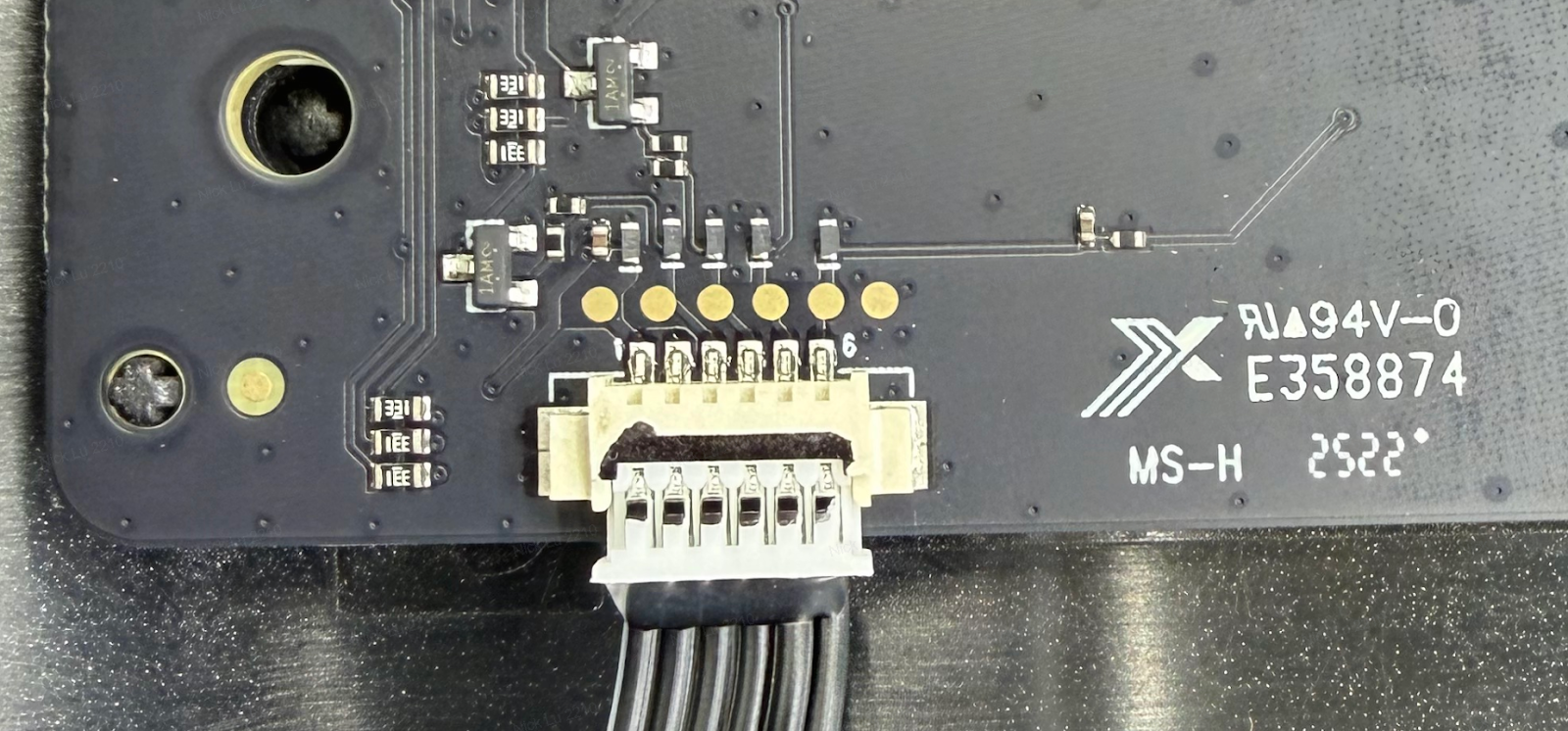
Power off the printer, open the upper housing, and check whether the button cable connector is loose or whether the cable shows damage or indentation. Refer to the https://support.eufymake.com/s/article/Printer-Cover-Disassembly-and-Assembly-SOP
Normal connection reference images:
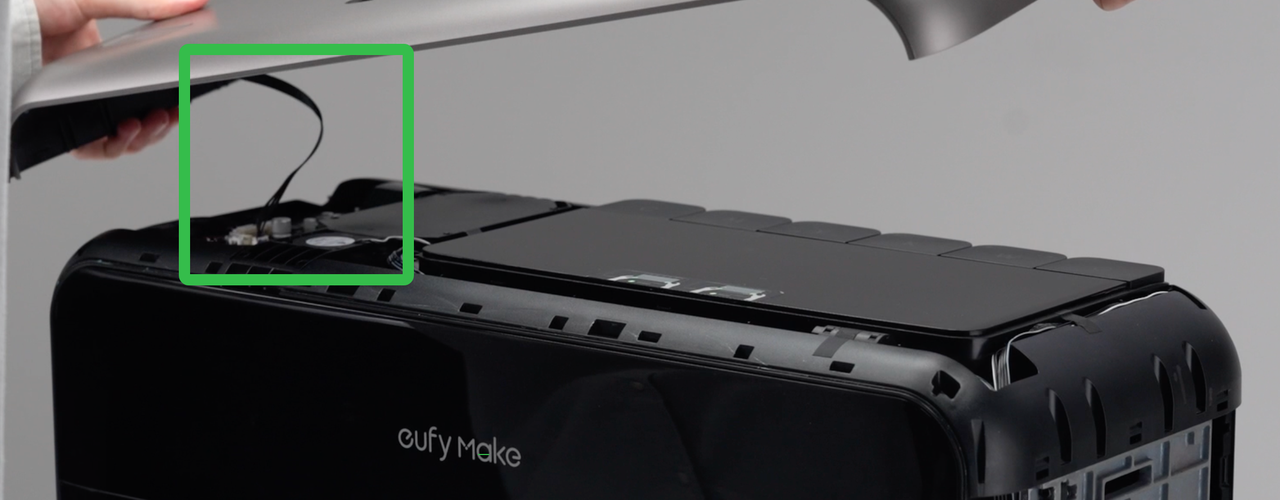
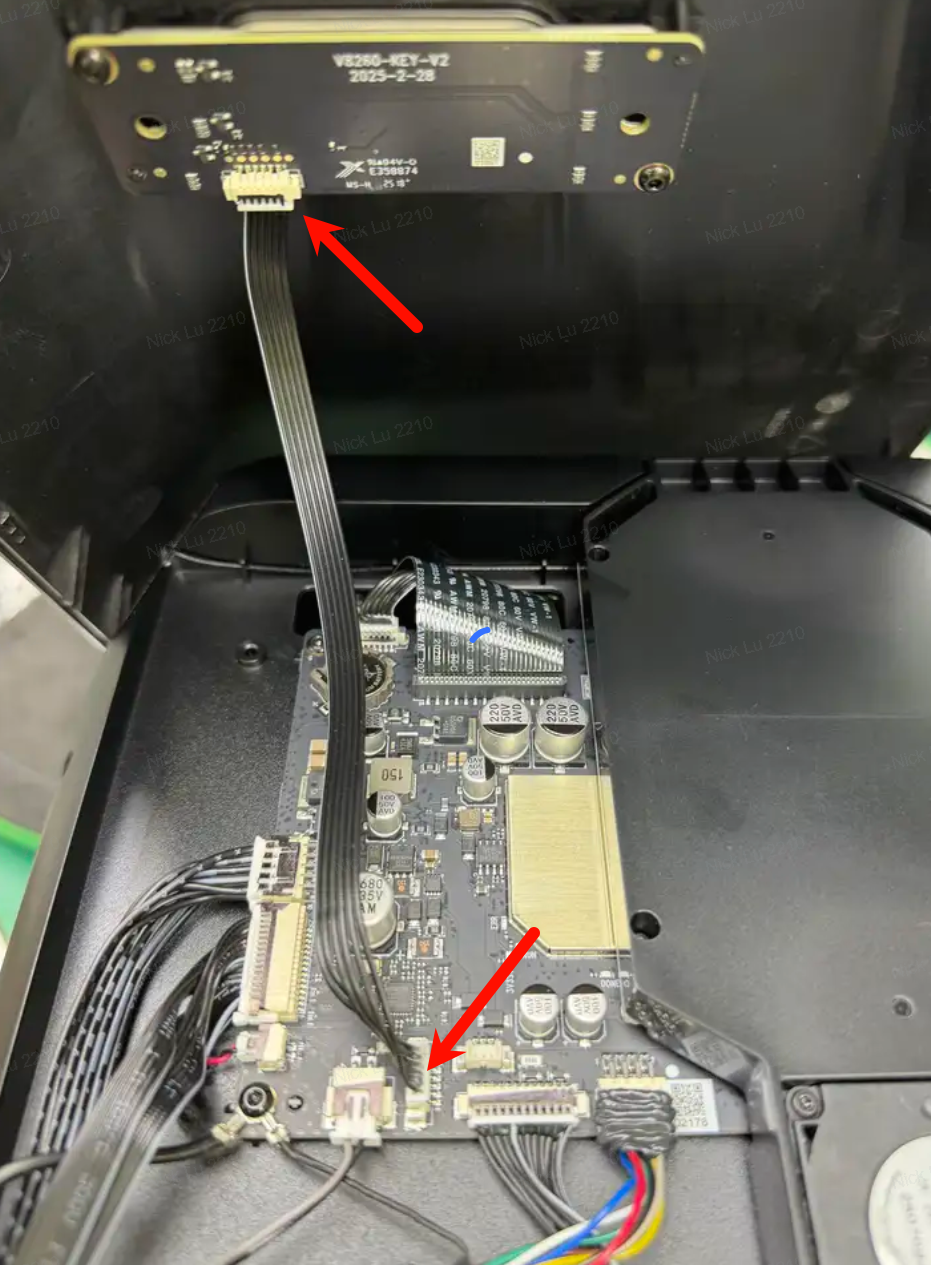
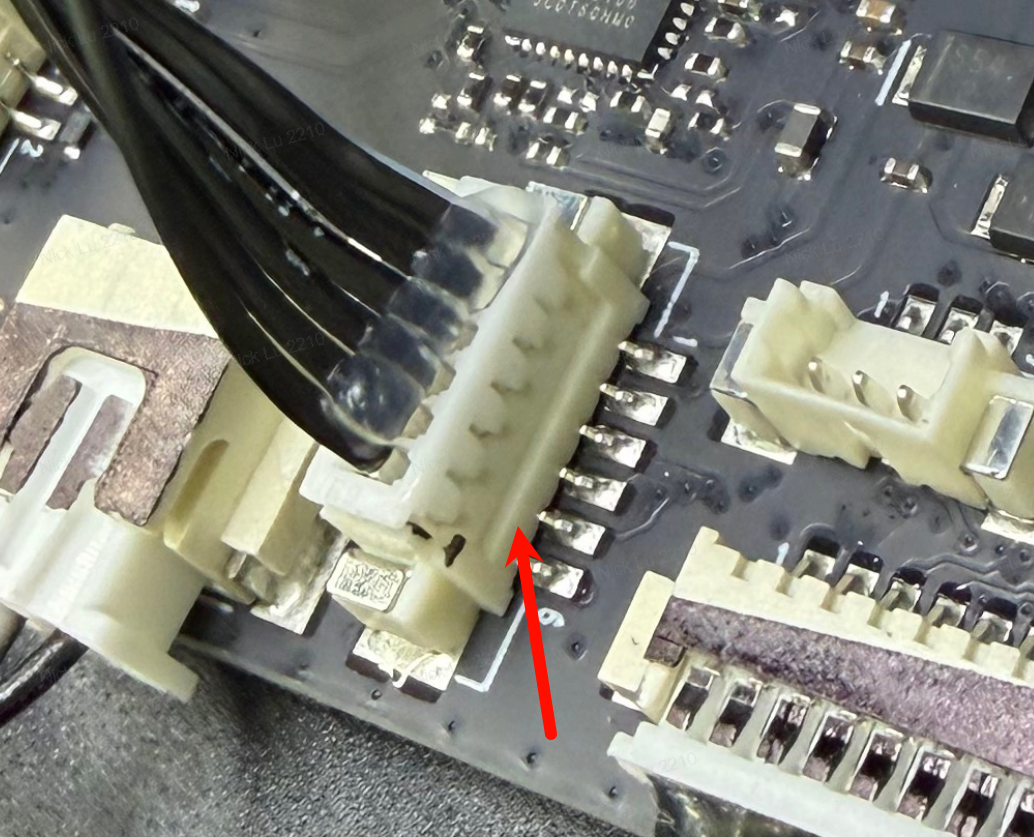
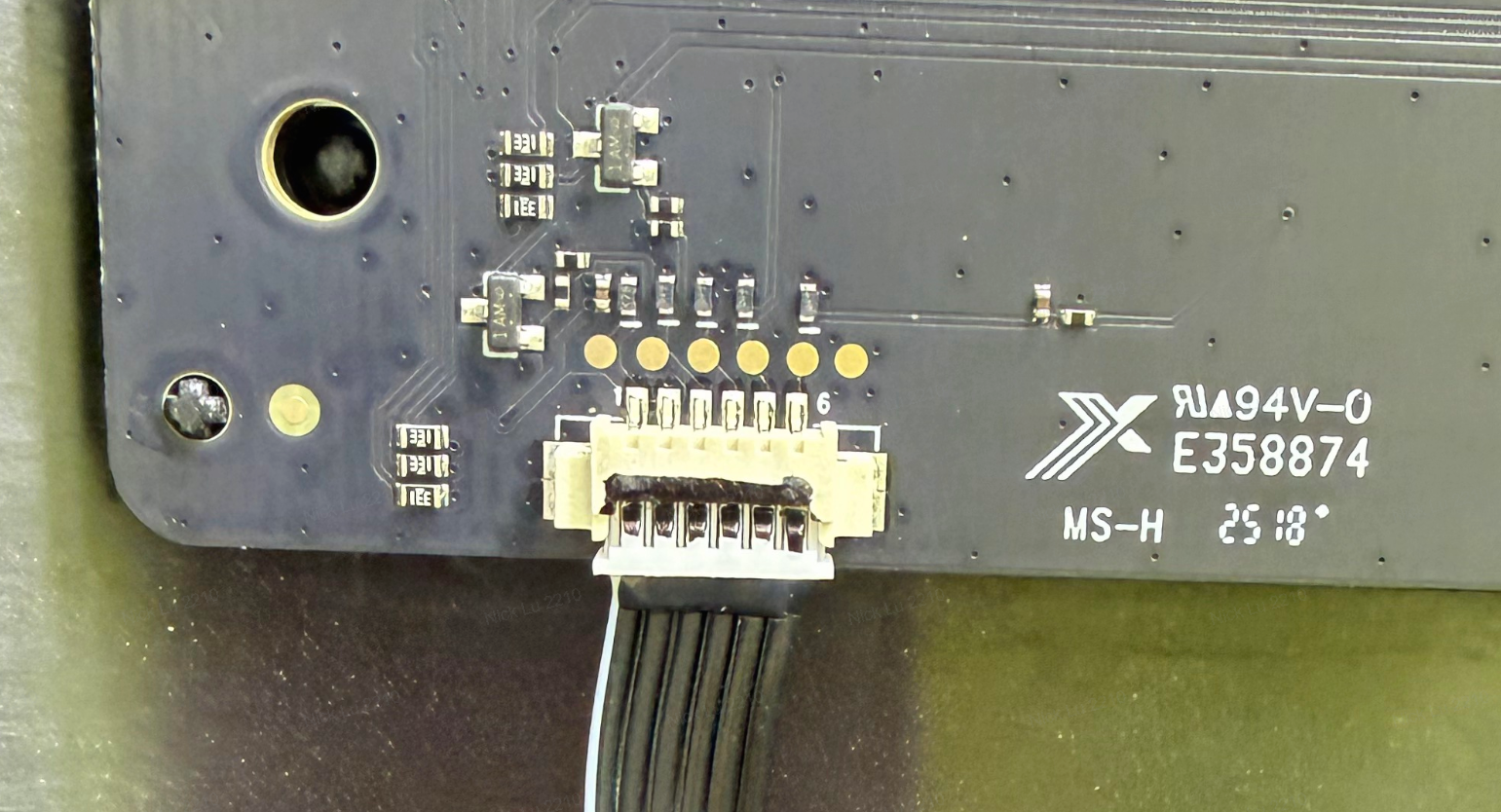
Abnormal connection reference image (connector loose or disconnected)
-
If the connector is loose or disconnected, reconnect it securely. Then repeat steps 2 through 6 to verify whether the issue is resolved.
Support Contact
If the issue persists after completing the above steps, please contact eufyMake Customer Support at support@eufymake.com with the following information:
-
Your Order Information
-
Printer SN. Please refer to: https://support.eufymake.com/s/article/How-to-Check-the-Device-Serial-Number-SN
-
Printer and App Logs. Please refer to: https://support.eufymake.com/s/article/Log-Feedback-Upload-Process-App-PC-Overview
-
Relevant photos and videos.










