How to wake the printer from low power mode?
How to determine whether the machine enters a low-power state?
How to enter or exit low power mode?
Why does the printer wake up automatically while in Low Power Mode?
Low Power Mode
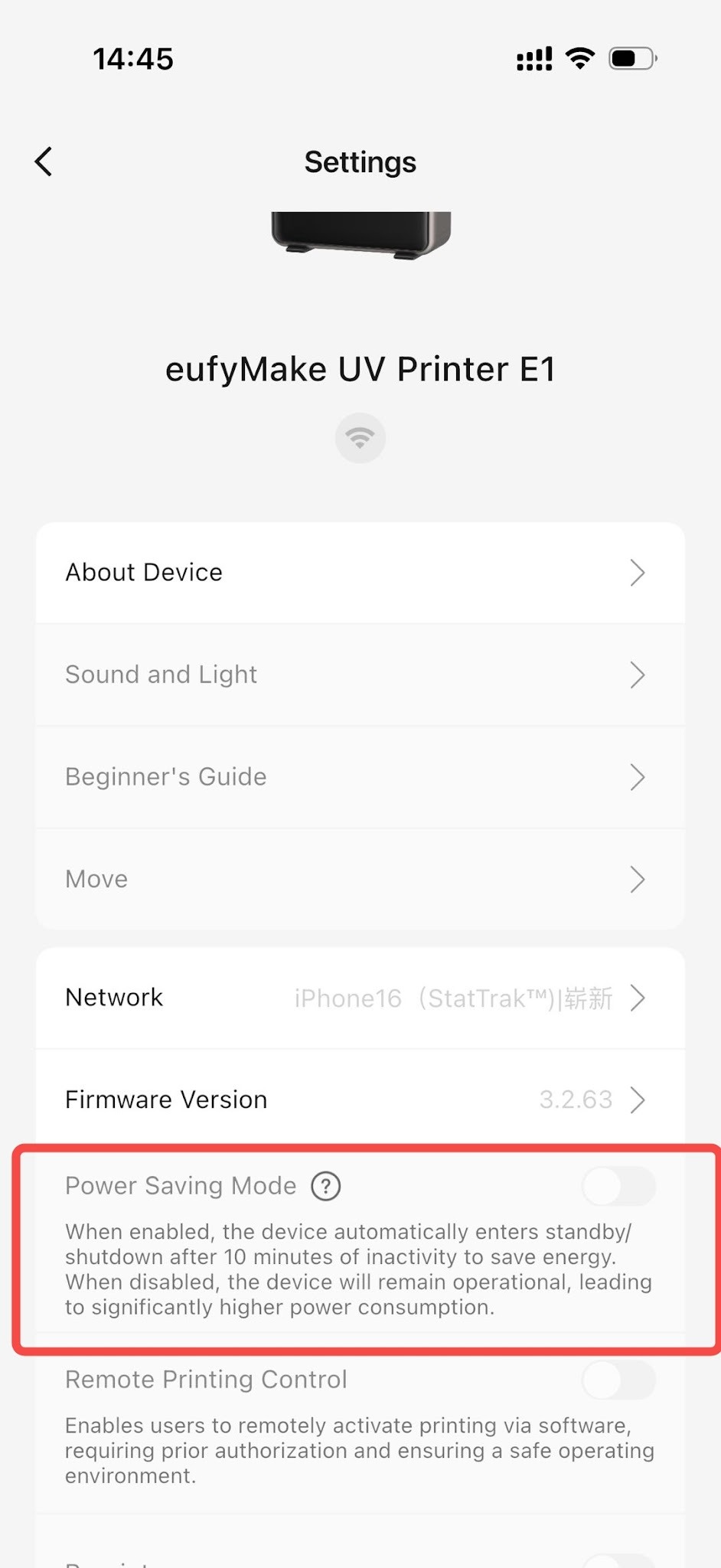
After the printer has been idle for 10 minutes, it will automatically enter Low Power Mode based on its current status to reduce power consumption.
Note: Due to ERP certification requirements, the Low Power Mode feature is only available on European models and is enabled by default.
-
When does the printer enter low power mode
Low Power Mode is activated when both of the following conditions are met:
-
All clients (including the APP and PC software) are closed.
-
The printer has no active tasks and remains idle for 10 minutes.
-
How to wake the printer from low power mode?
Any of the following actions will wake the printer or reset the idle timer:
-
A remote command is sent from the APP or PC software.
-
The printer status changes from Idle to an active state.
-
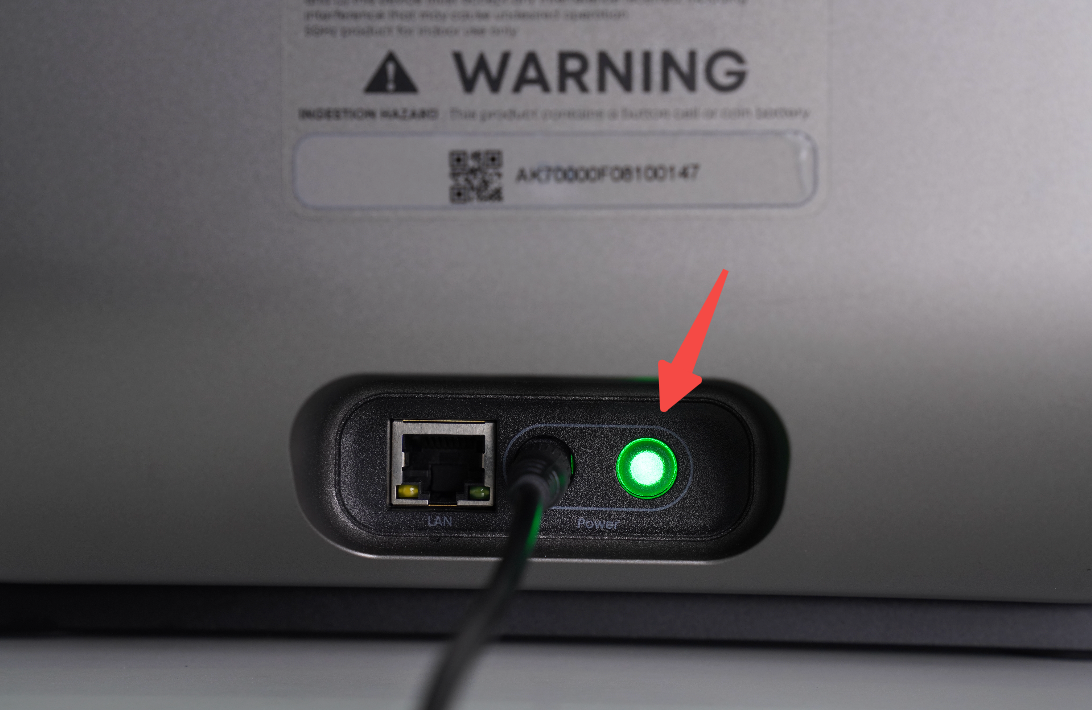
Press and hold the power button for 5 seconds.
-
How to determine whether the machine enters a low-power state?
When the printer enters Low Power Mode:
-
The Start button, printhead light, and ink cartridge lights turn off.
-
The power indicator changes from green to red.
Note: If you open the APP while the printer is in Low Power Mode, a low-power status message may appear. Refreshing the client will automatically wake the printer and exit Low Power Mode.
-
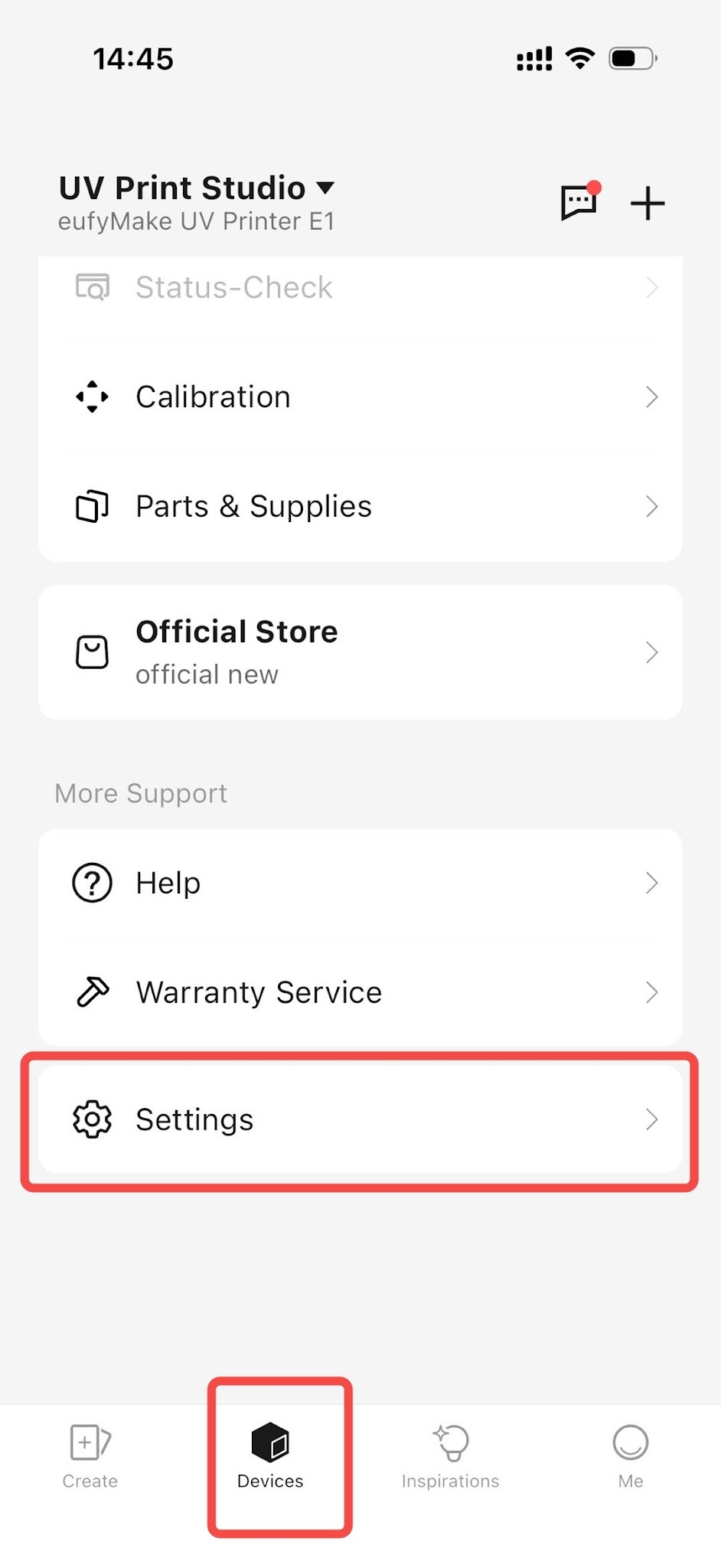
How to enter or exit low power mode?
You can enable or disable Low Power Mode using the following path:
-
Why does the printer wake up automatically while in Low Power Mode?
Will automatic maintenance still run?
Yes. While the printer is in Low Power Mode, scheduled automatic maintenance tasks will still be performed. The printer will wake up automatically to complete the maintenance cycle and will return to Low Power Mode once the operation is finished.
-
I followed the instructions to exit Low Power Mode, but the printer still will not wake up and the power indicator remains red. What should I do?
Unplug and reconnectthe printer's power cable, then upload the printer logs and report the issue to eufyMake Customer Support.
Support Contact
If the issue persists after completing the above steps, please contact eufyMake Customer Support at support@eufymake.com with the following information:
-
Your Order Information
-
Printer SN. Please refer to:https://support.eufymake.com/s/article/How-to-Check-the-Device-Serial-Number-SN
-
Printer and App Logs. Please refer tohttps://support.eufymake.com/s/article/Log-Upload-Process-App-PC-Overview
-
Relevant photos and videos.










