Communication error between Marlin and the Linux board.
Replacement Method:
Use an H2.0 hex wrench to remove the 3 bolts from the back cover of the M5's right shoulder shell and the 2 bolts from the bottom front end.
Remove the cover plate of the right shoulder rear shell. Use the H2.0 hex wrench to remove the four bolts that fix the internal front shell of the right shoulder.
Use the H2.0 hex wrench to remove the ground wire connection bolts, 2 TYPE-C wire bolts, and then pull out the TYPE-C wire.
Remove the front decorative cover of the display screen. Unplug the camera LED light cable, push the buckle forward to remove the camera cable.
Unplug the X-axis motor wire and FCC cable, then remove the display cover.
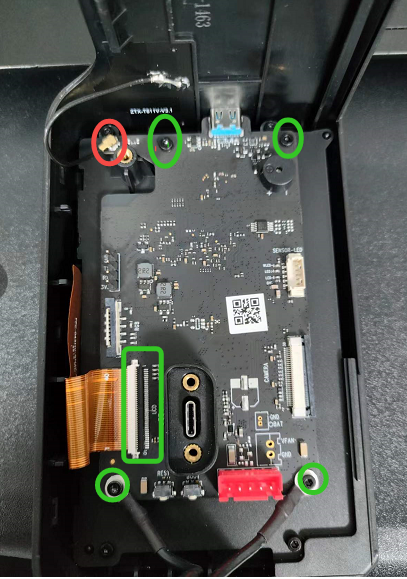
Use an H1.5 hex wrench to remove the bolts securing the Linux board (green in the figure below). Unplug the WIFI antenna (red in the figure below), remove the display cable (green in the figure below), and take out the Linux board. Replace it with a new Linux board. Note: After replacing the Linux board, re-flash the firmware.
Use the H1.5 hex wrench to lock the 4 screws securing the Linux board. Plug in the display cable and WIFI antenna.
Connect the camera module LED cable, camera cable, X-axis motor cable, and FCC cable to the Linux board.
Insert the TYPE-C cable and install the TYPE-C cable fastening bolts using an H2.0 hex wrench.
Use the H2.0 hex wrench to fix the ground wire connection bolt and install the front decorative cover of the display screen.
Reinstall the front cover with an H2.0 wrench and secure it with the screen cover screws.
Use the H2.0 wrench to lock the right shoulder back cover and bottom shell bolts to complete the Linux board replacement.
If you have any further questions, please contact us for assistance.