Issue Description
The printed image surface appears blurry or shows ghosting (double images).
Cause Analysis
1. Software parameter configuration errors, such as printing mode and substrate type.
2. Airflow interference is caused when the machine door panel is open, affecting the inkjet landing point.
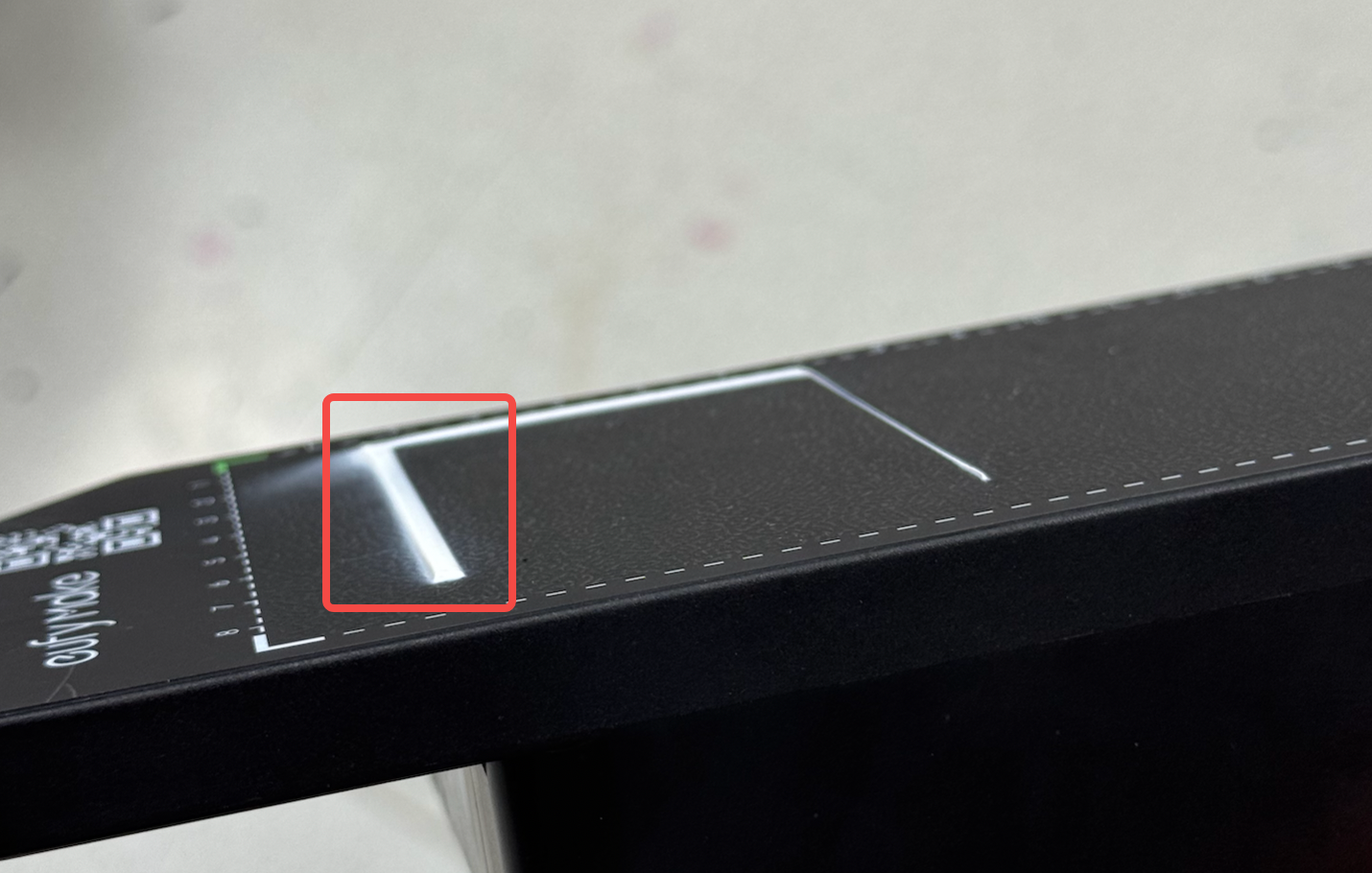
3. Raised debris or attachments on the adhesive platform affecting height measurement.
4. The surface flatness of the substrate exceeds 2mm, and there are fine pores and pits, which affect the printing quality.
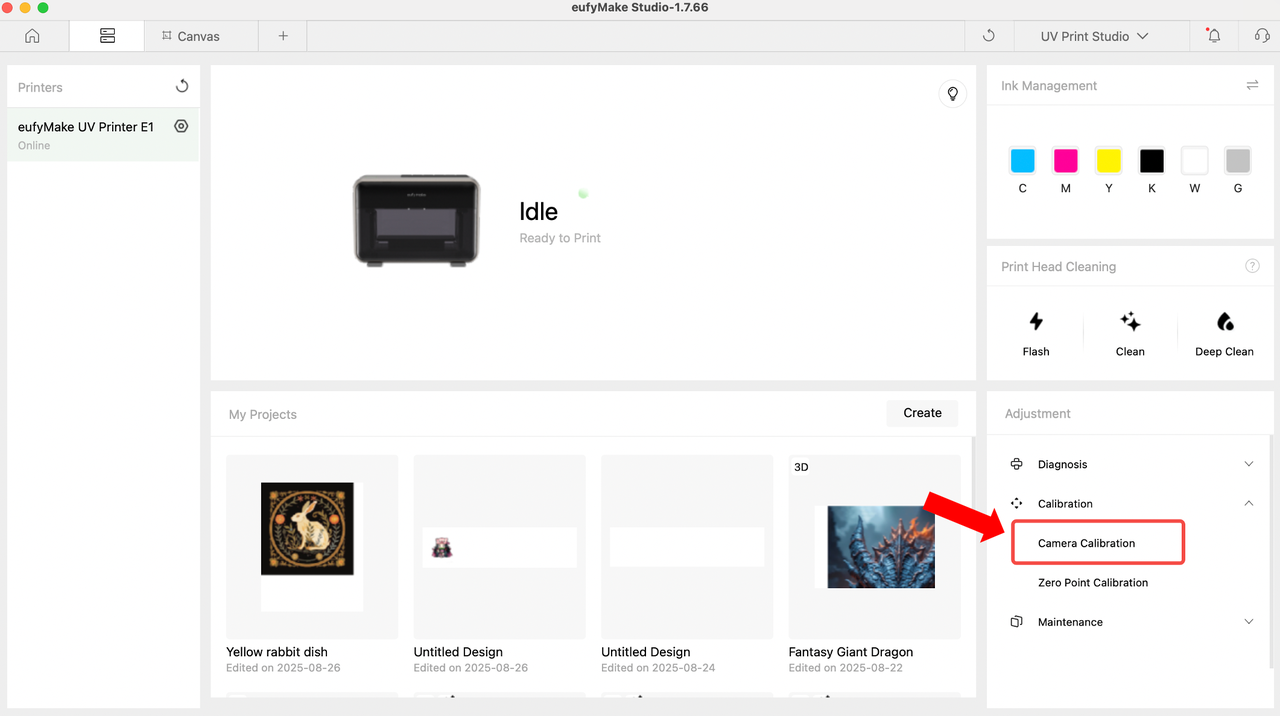
5. Camera calibration was not performed after replacing the new platform board.
6. The substrate deforms during printing due to UV light exposure or poor contact between the adhesive mat and the substrate.
Troubleshooting Steps
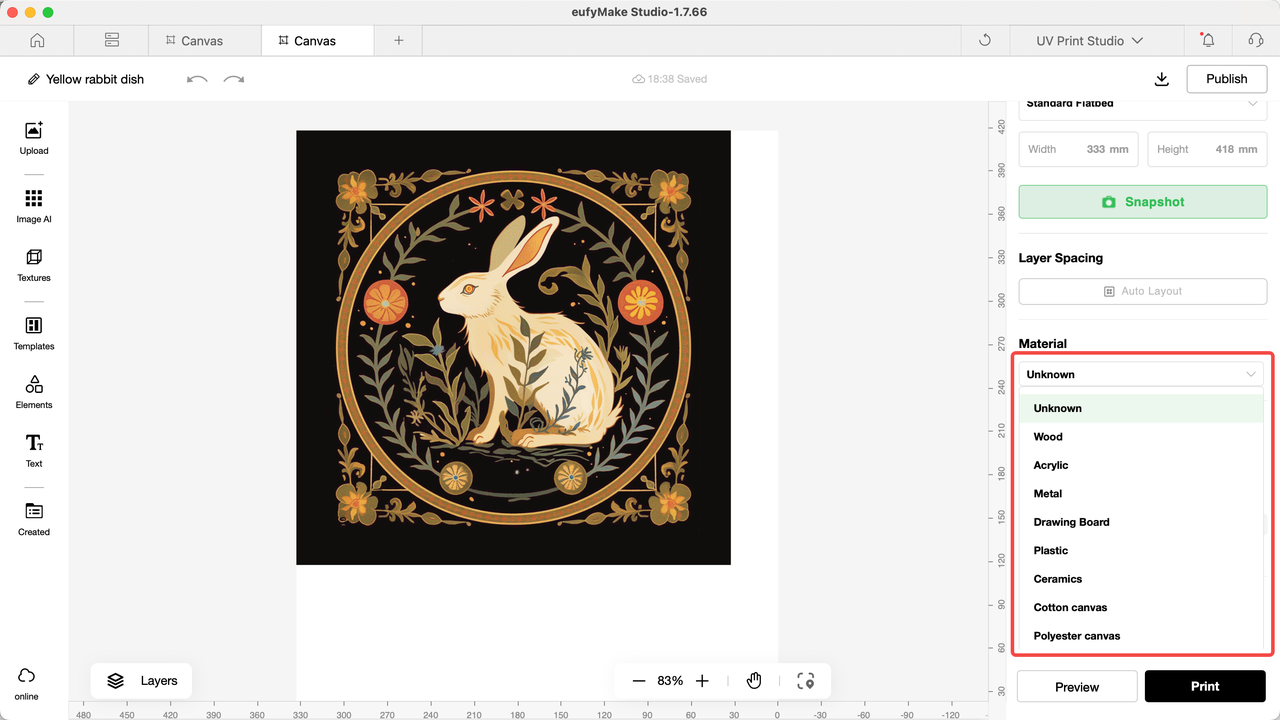
1. Verify substrate type and print settings
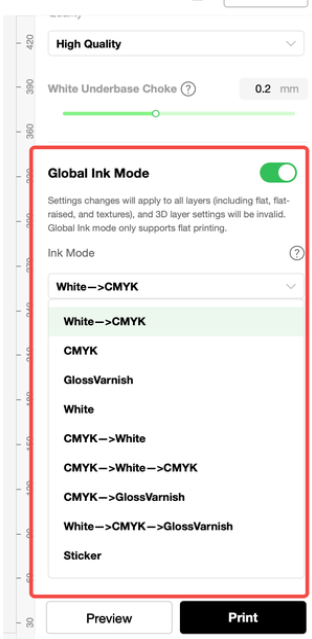
If possible, use official substrates, select the correct substrate type in the software, and choose White -> CMYK mode for testing.
-
If using non-official substrates, send the substrate type, photos, software parameter settings, and print results to eufyMake Customer Support for evaluation.
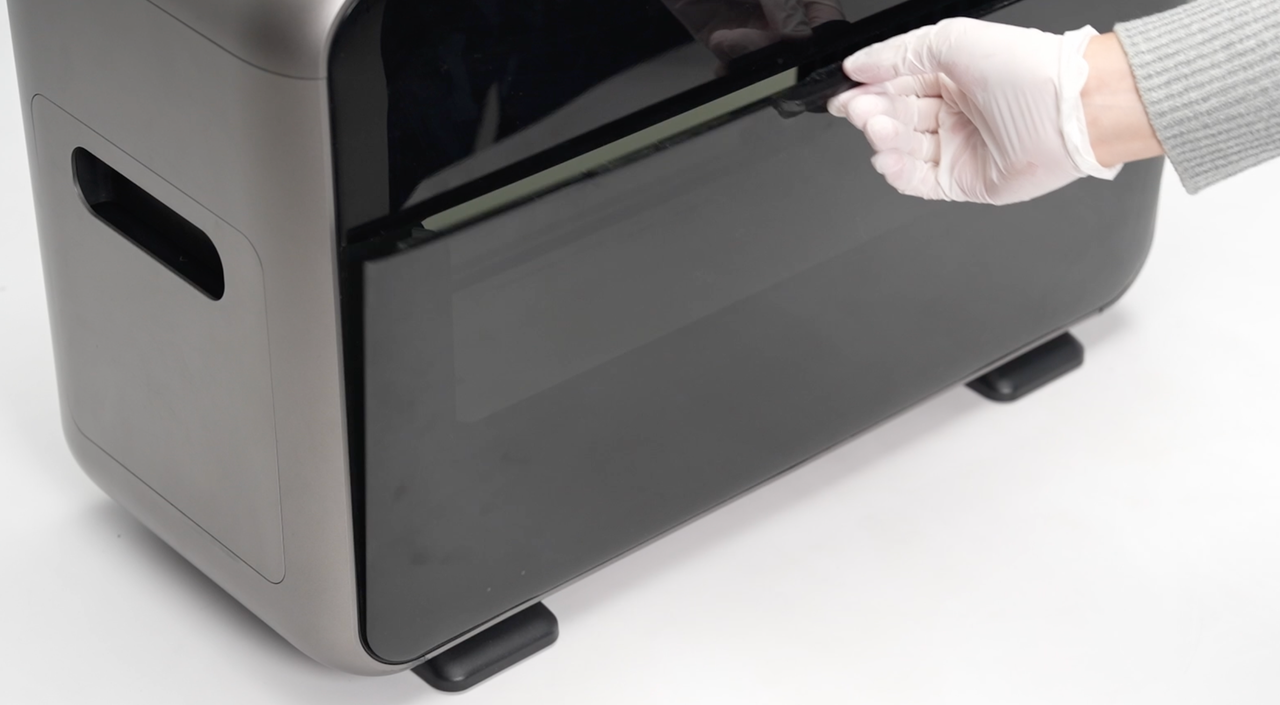
2. Check for airflow interference
Ensure the environment is free of airflow sources such as fans.
-
Perform a test print on the Mini flatbed with the printer door closed to confirm.
3. Inspect the adhesive mat
Check for raised debris or attached materials that may be causing incorrect height detection.
4. Check substrate flatness
Verify whether the substrate has more than 2 mm of height variation, or surface holes/pits.
For testing, attach a flat sheet (e.g., paper or film) to the adhesive mat and reprint.
5. Perform camera calibration
If a new flatbed has been installed without calibration, run the calibration process.
Place a sheet of white paper on the new adhesive mat and run camera calibration.
6. Check adhesive mat viscosity
If the substrate shifts during printing due to reduced viscosity, replace the adhesive mat and re-test.
7. Check for substrate deformation
If UV light exposure causes the substrate to warp:
-
Compare a printed substrate with an unprinted one.
-
Provide substrate material, dimensions, and before/after comparison photos to eufyMake Customer Support.
8. Escalate if unresolved
If the issue persists, please contact eufyMake Customer Support and provide:
-
Order information
-
Printer SN (serial number) (Refer to How to Check the Device Serial Number (SN))
-
Printer and app logs (Refer to https://support.eufymake.com/s/article/Log-Upload-Process-App-PC-Overview)
-
Troubleshooting results from Steps 1–8, with related photos/videos










